Cyberduck
Transferring files to and from Tux and other Linux servers using CyberDuck
How to install and access Tux via Cyberduck
Video Instructions
NOW ON WINDOWS!!!
Instructions below have Mac screenshots.
Tux Notes
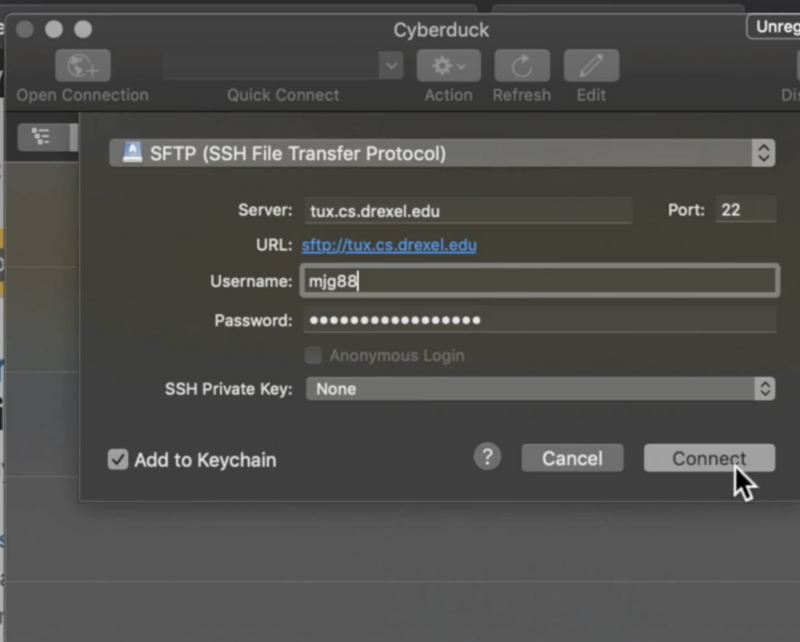
For Tux, make sure to use your Drexel abc123-format username and your Drexel password to connect to Tux.
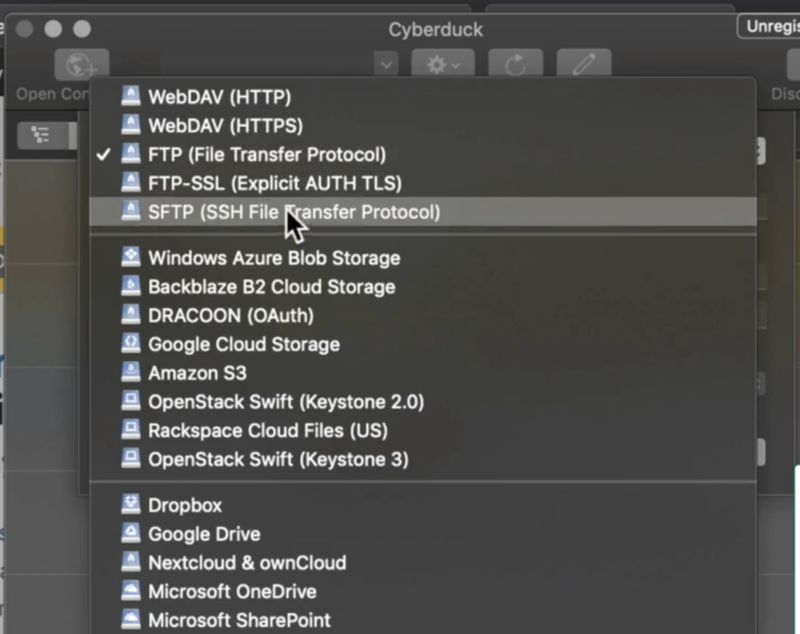
Make sure to always use SFTP - traditional FTP connections are blocked on Tux, and will transmit login details (including your password) in plain text. You should never use FTP due to this security concern.
Written Instructions
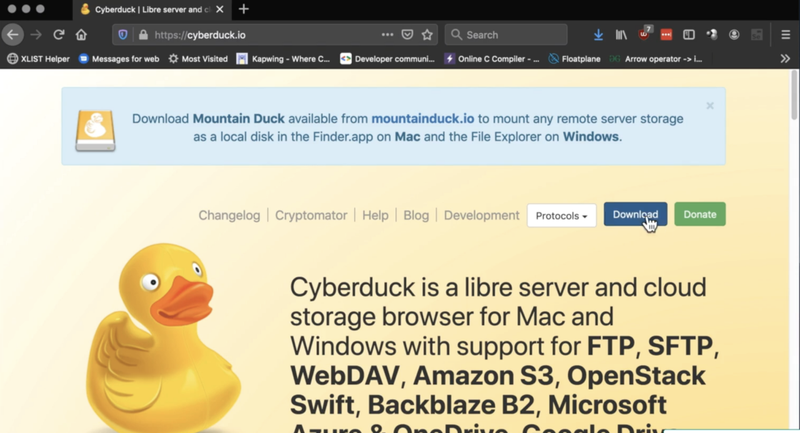
- Download and install Cyberduck at https://cyberduck.io
- YOU MAY NEED TO (or want to) MOVE THE CYBERDUCK APP INTO YOUR MAC'S APPLICATIONS FOLDER IN FINDER (where your view folders and files, click View > Show Path Bar then click Documents in the left navigation panel).
- Open up the Cyberduck application
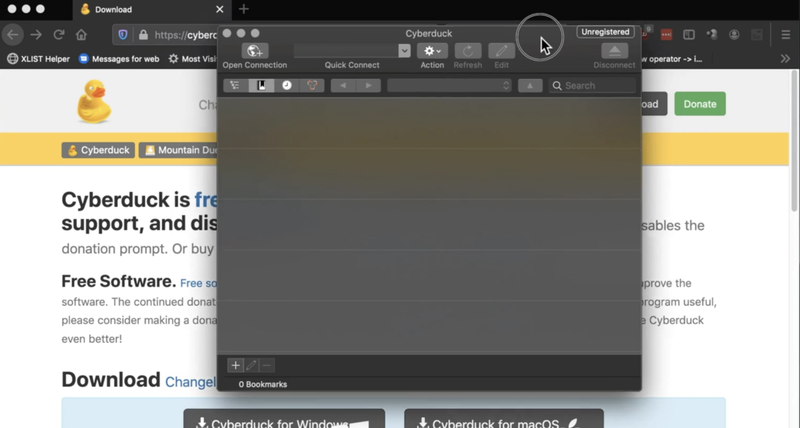
- Click the "Open Connection" button in the top-left corner
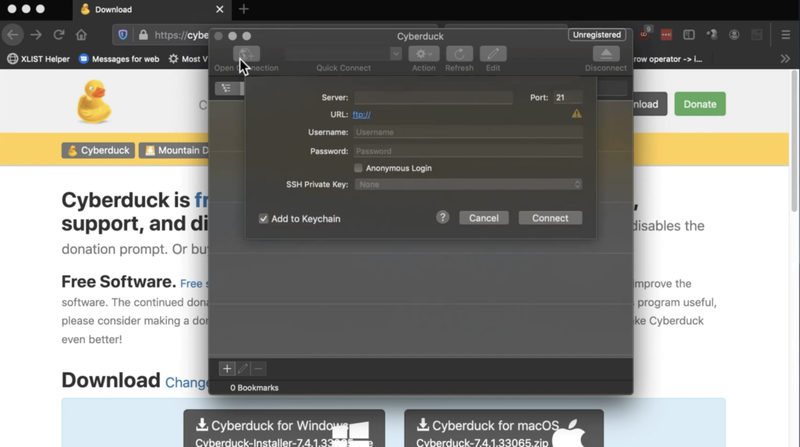
- Type in tux.cs.drexel.edu for server address
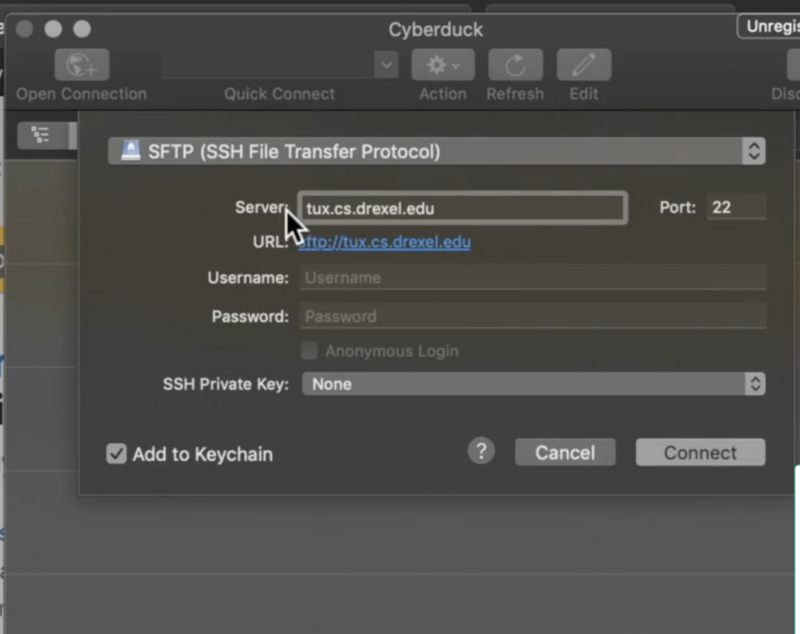
- Select the SFTP protocol in the dropdown
- Enter your Drexel username and password. No @drexel.edu.
- You now have access to your Tux via CyberDuck GUI
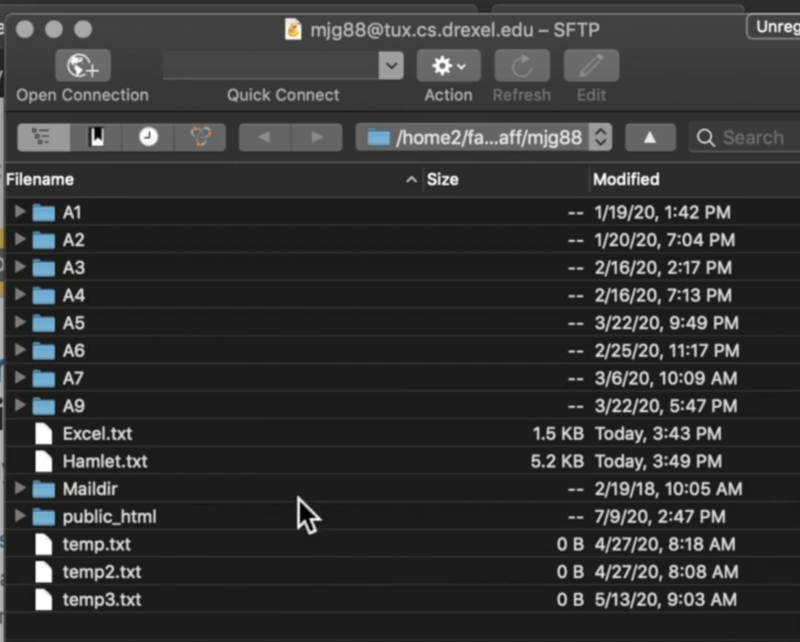
Additional Tips
- From here, you can do actions like drag-and-drop onto your local desktop
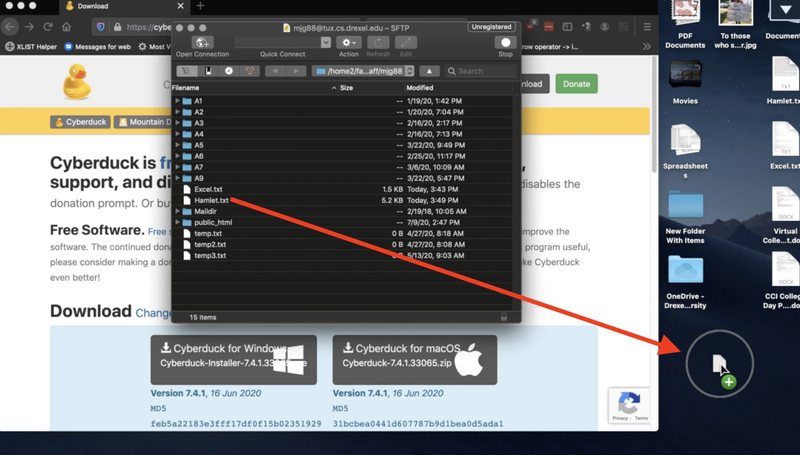
- Be careful dragging files to locations that have a file with the same name.
Determine if you want to overwrite the file.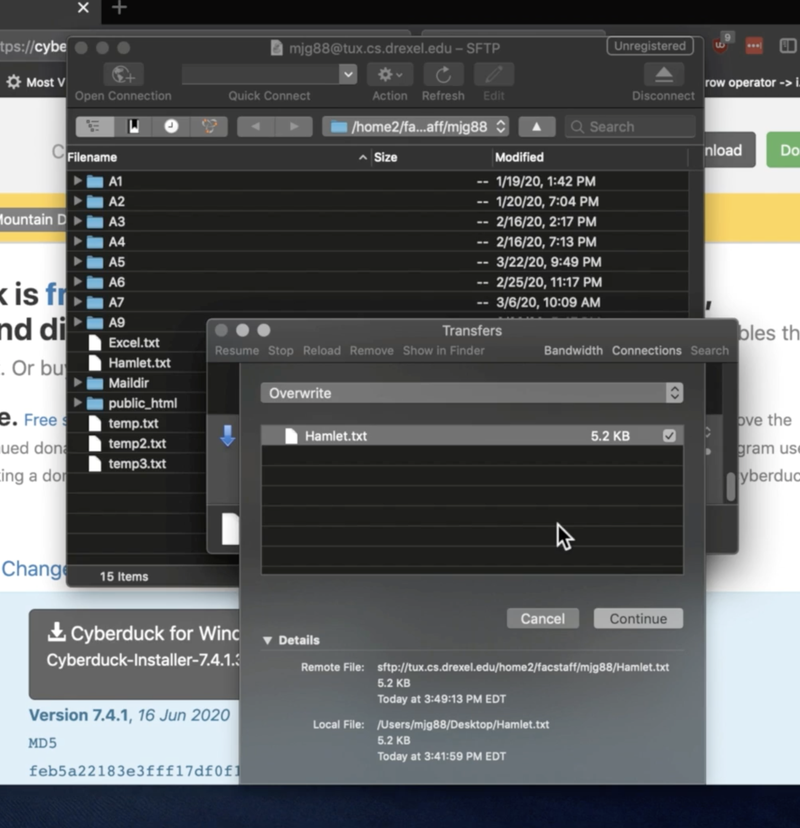
- You can drag-and-drop from your local desktop to a directory on Tux as well
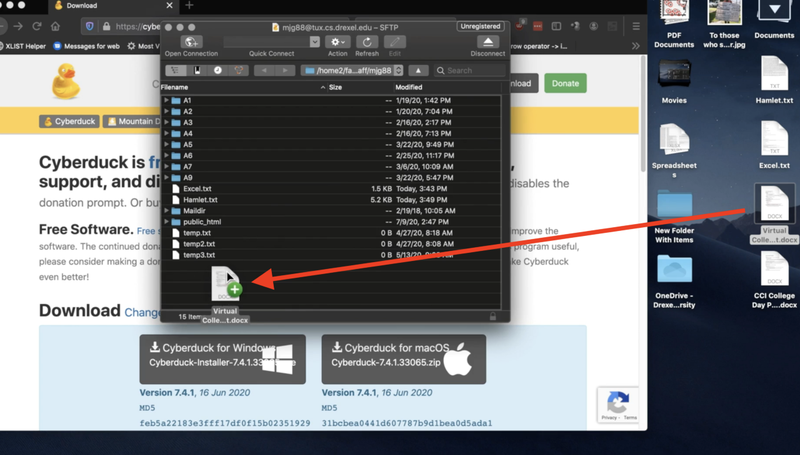
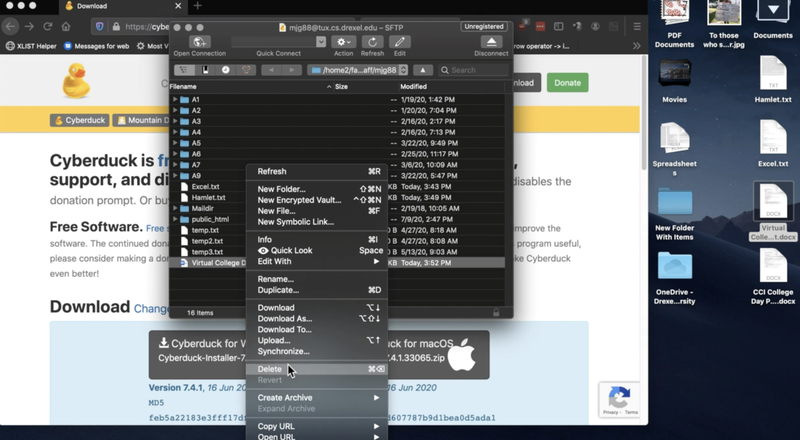
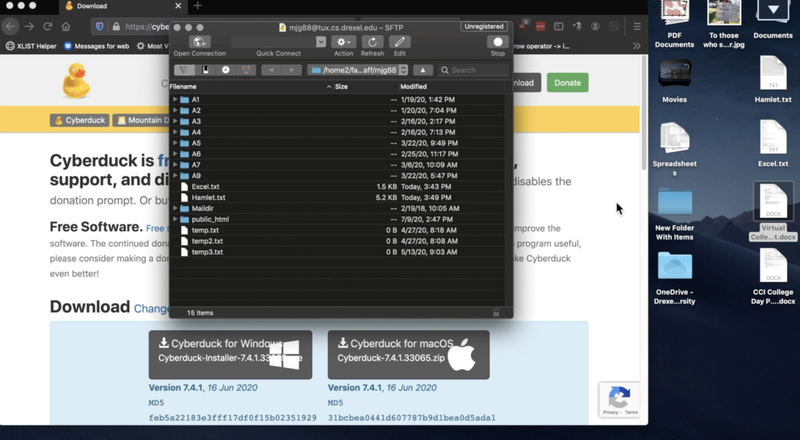
- When you delete files on Tux, it is only removed from the Tux directory. Your local copy is still preserved.
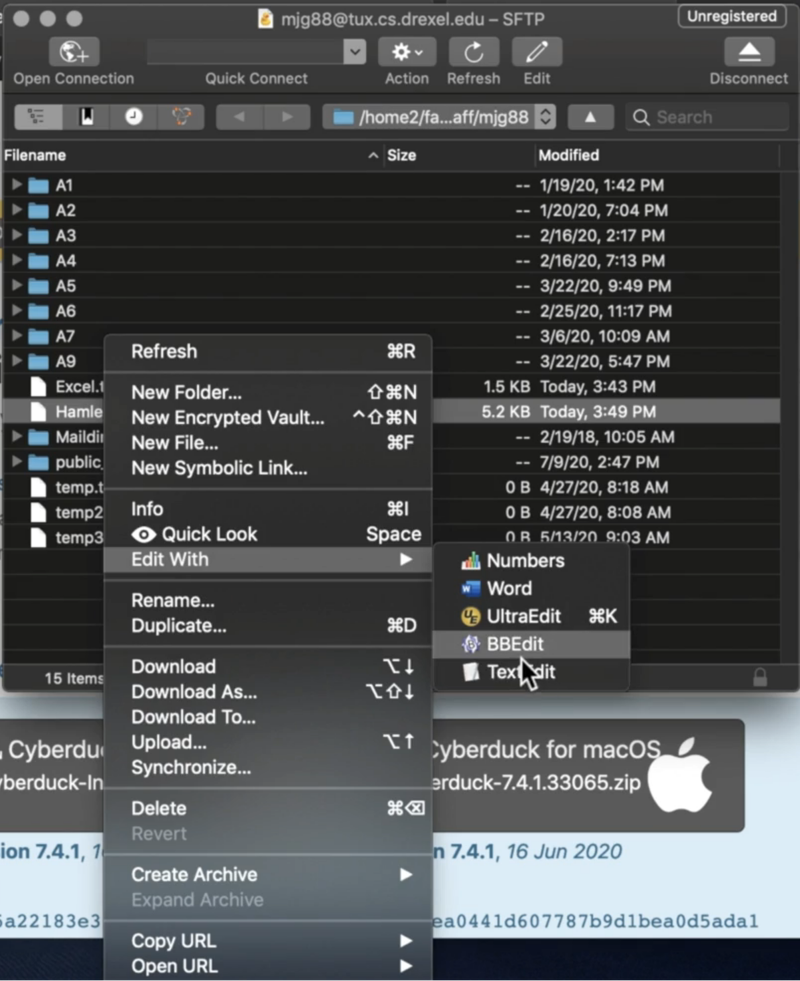
- Files can be edited right out of Tux. Right-click the file > Edit With > Select BBEdit (or your preferred editor)
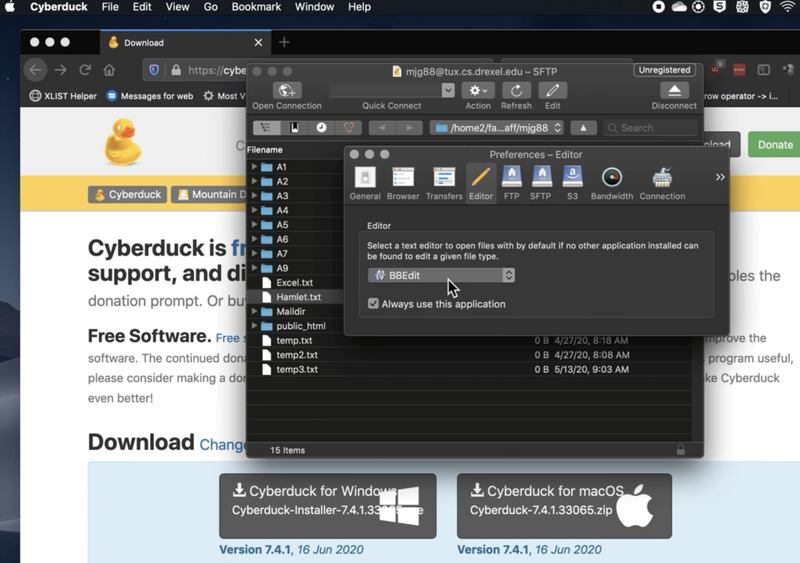
- If you want to set the default editor to BBEdit.
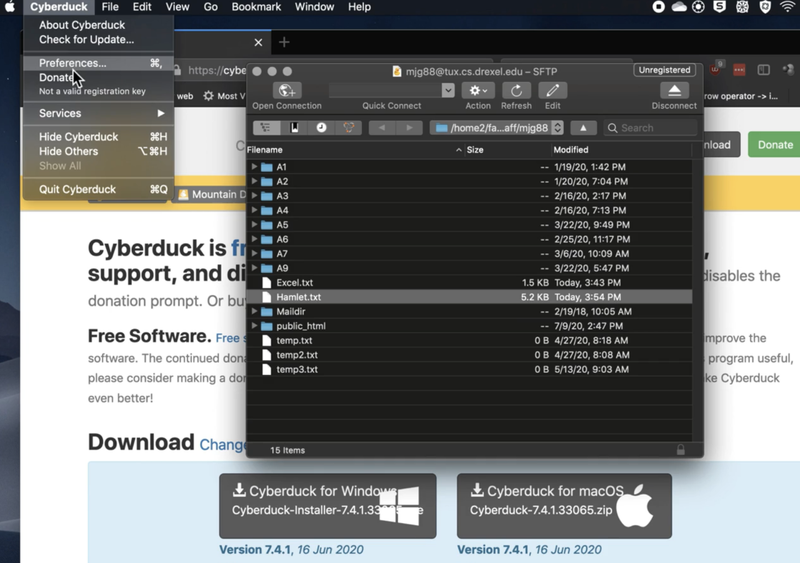
In the top-left corner, go to Cyberduck > Preferences... >
In the pop-up, select Editor tab > Select dropdown
and change to BBEdit.