SoE Speitel Conference Room
Instructions for using the AV systems in Speitel Conference Room
The Speitel Conference Room, Lebow Engineering Center room 231, is a medium sized conference room in the School of Engineering.
To use the TV, you can power it on using the remote. You should see a screen inviting you to connect to the TV using the ScreenBeam, which is described below. If not, use the remote to select HDMI 3, which should show the ScreenBeam.
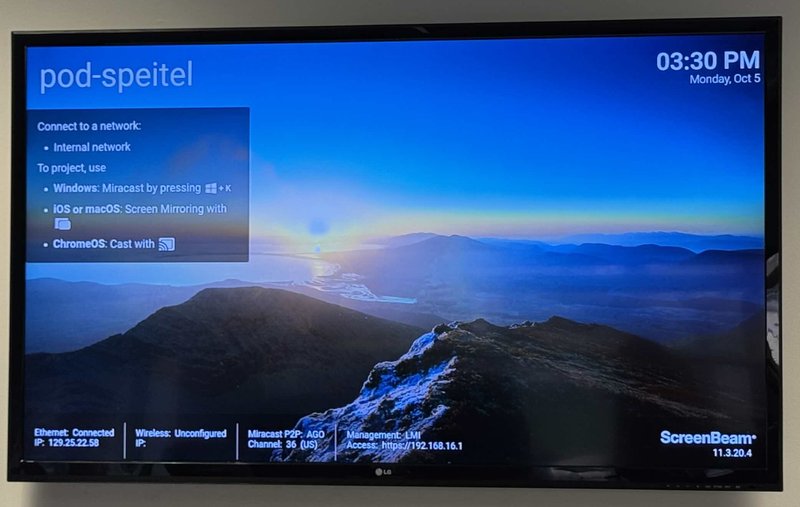
Connecting Laptop to the TV
You can use the HDMI cable on the table, with the USB-C to HDMI adapter if necessary, to connect directly. The system should automatically switch to the HDMI input once detected. This may take 15-20 seconds.
To connect wirelessly, use the instructions below under Wireless Sharing - ScreenBeam.
Conference Camera, Microphone, and Speaker - Meeting Owl
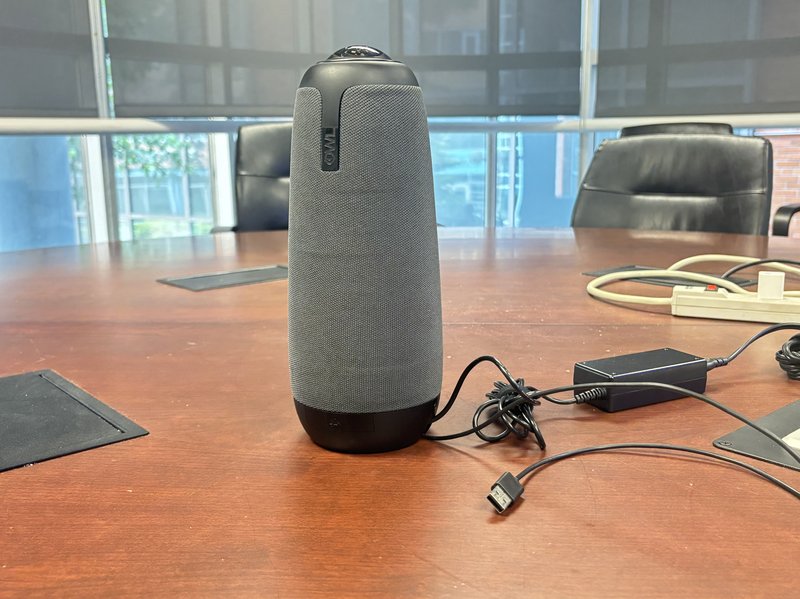
The Meeting Owl is a 360° camera, omnidirectional microphone, and speaker system available in the Speitel conference room.
It does not require special software, but will display an advertisement in the camera feed when plugged in suggesting that you download an iOS or Android app to control it. You can ignore this advertisement, and it will go away in 20-30 seconds.

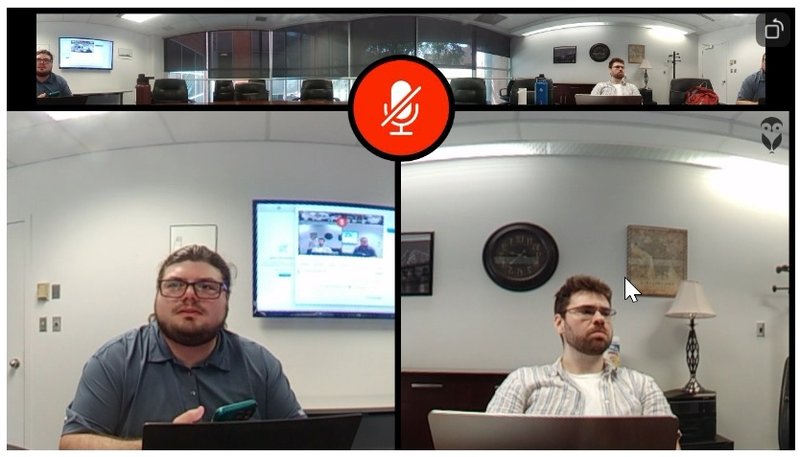
Once the advertisement times out, you should have a small strip at the top of the camera feed showing the full 360° view of the room, and speakers will be highlighted below when talking.
Audio settings
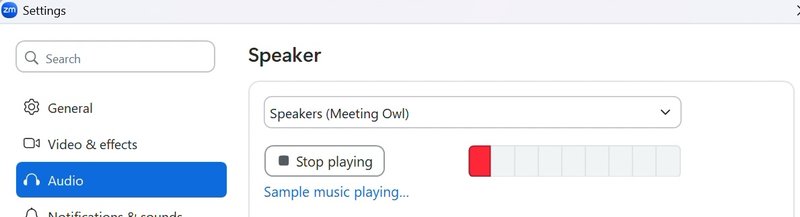
The speaker in Zoom or Teams should be set to "Speakers (Meeting Owl)"
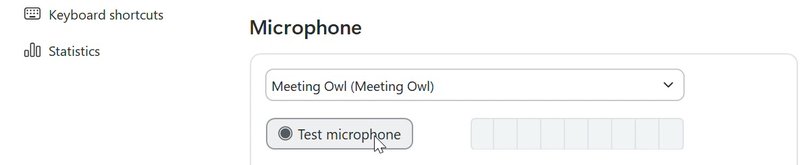
The Microphone in Zoom or Teams should be set to "Meeting Owl (Meeting Owl)"
Mute Button
The Meeting Owl has a physical mute button, which will mute all audio being recorded by the device. Please note that the icon shows a camera with a line over it - despite this, the video is not muted when active, only the audio is muted.
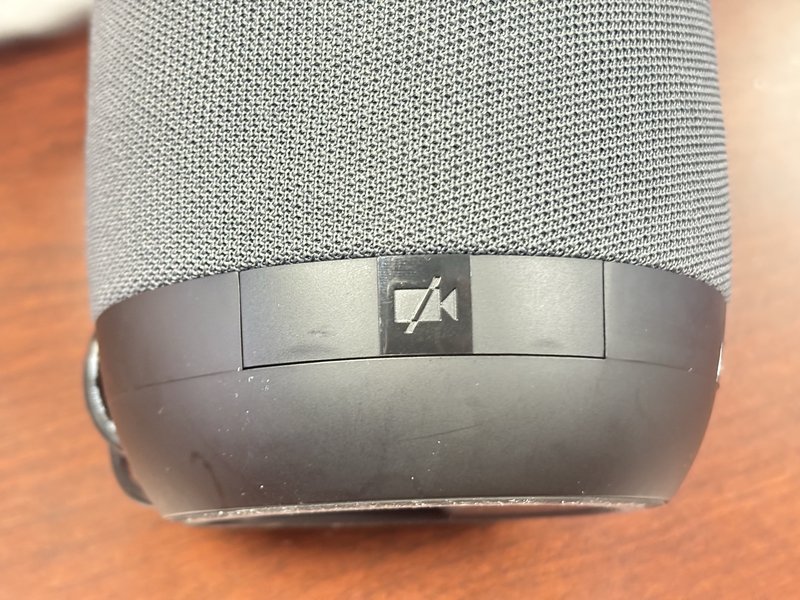
When the mute is off (audio is going through to Zoom or Teams), there will be no light as in the photo above.
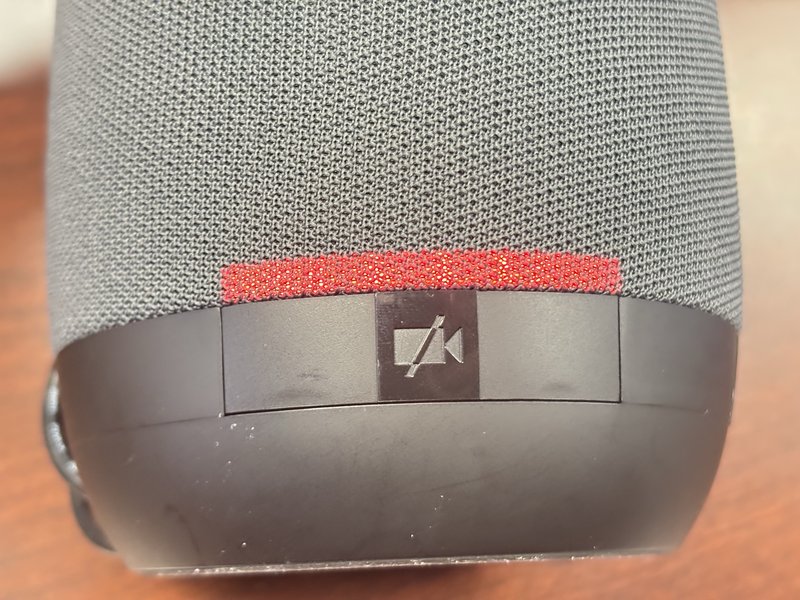
When the mute is on (audio is not going through to Zoom or Teams), there will be a red light above the button as in the photo above.
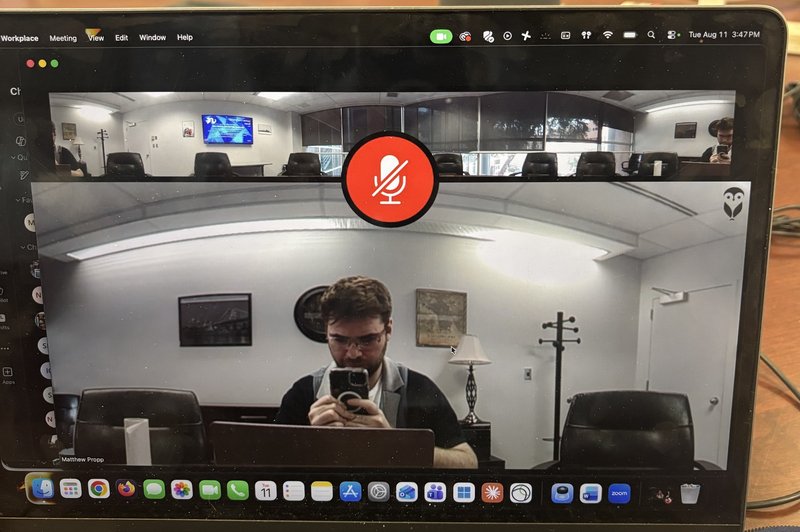
When muted, the device also shows a large red "muted" icon in the video feed to Zoom or Teams.
Wireless Sharing - ScreenBeam
The ScreenBeam allows you to share your screen wirelessly in the conference room.
Connecting from Windows
The easiest way to connect is using the quick settings menu by clicking on the taskbar icon for wifi, sound, and battery
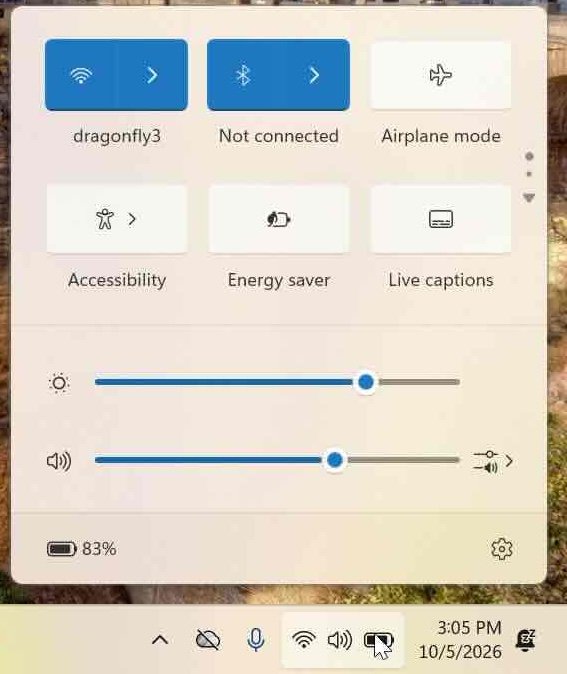
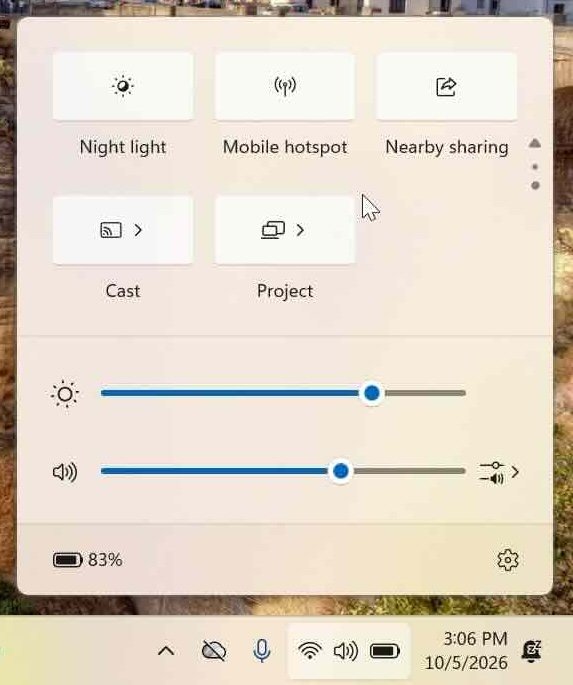
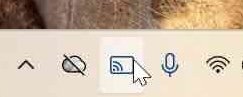
Scroll down in the top setting area by clicking on the lower triangle to find the Cast icon, which is usually on the second page. Click this icon to open the list of displays you can connect to.
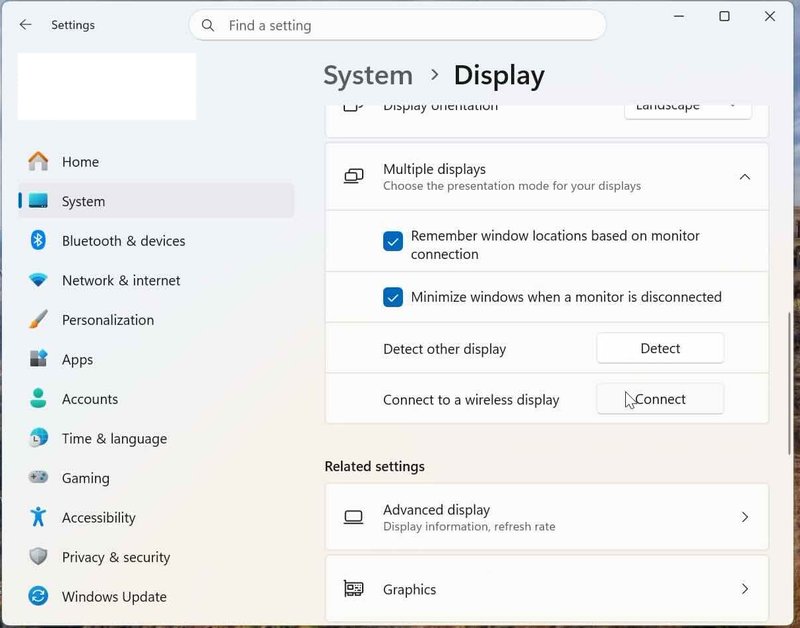
If you can't find the quick settings menu in your taskbar, you can open the Windows Settings app and select System on the left side, then select Display.
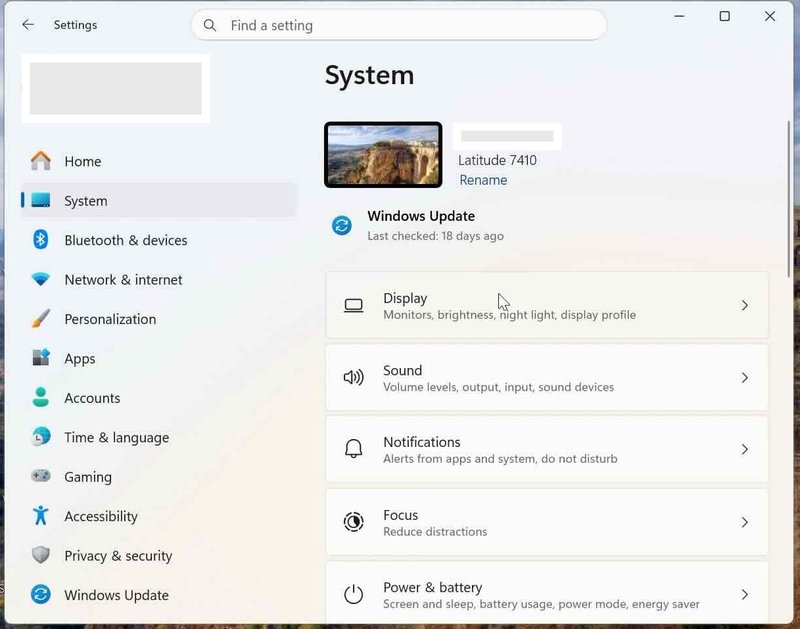
On the System > Display page, expand Multiple displays. Next to “Connect to a wireless display,” click the Connect button.
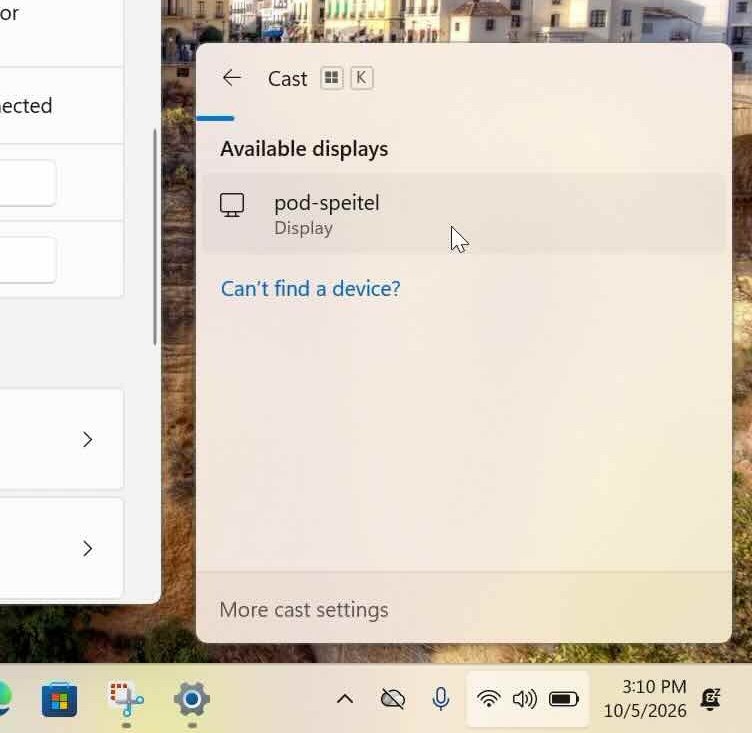
A Cast panel will open on the Taskbar. Under Available displays, select the display for the room. In this example, the display is named “pod-speitel.”
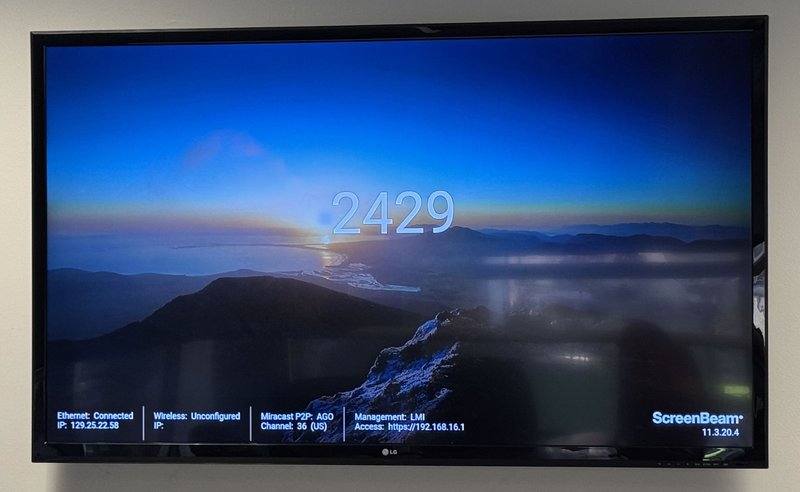
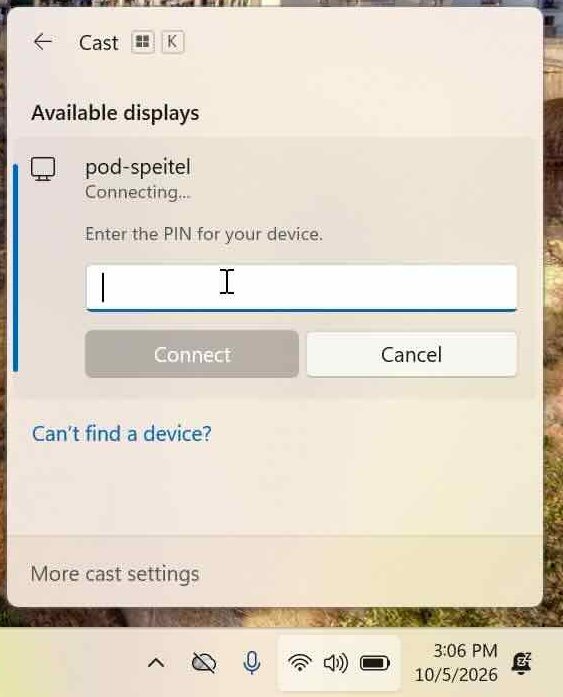
When prompted, enter the PIN displayed on the room screen, then select Connect.
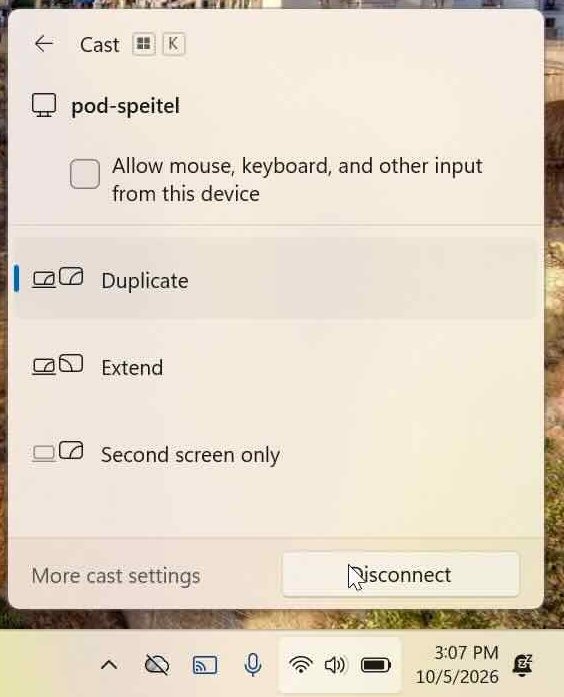
At this point, you should be connected to the display. To change from Duplicate to Extend mode or to disconnect, click the "Cast" icon in the Taskbar to bring the Cast panel back up.
From here, you can change the display mode, or click Disconnect to stop sharing.
Connecting from Mac
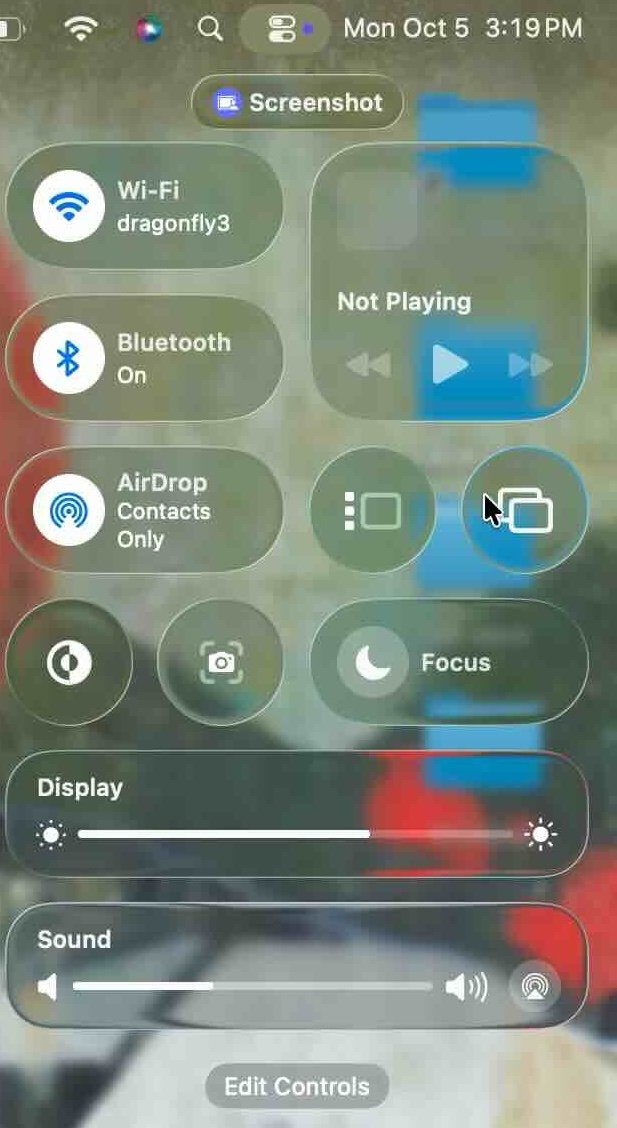
Click the Control Center icon in the upper-right corner of the macOS menu bar

In Control Center, click the Screen Mirroring control, shown as two overlapping rectangles
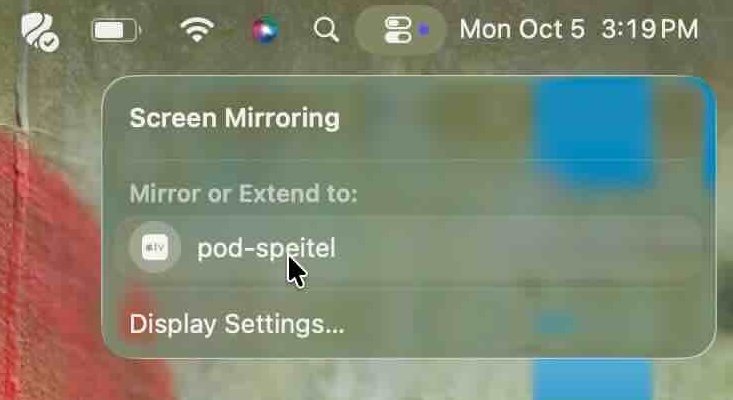
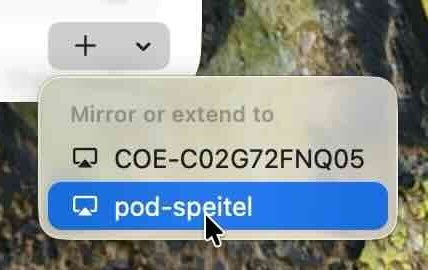
Under “Mirror or Extend to,” select the appropriate display. In this example, the display is named “pod-speitel.”
If you can't find the Control Center or Screen Sharing controls within it, you can also connect using System Settings. Open Settings and navigate to Displays in the left side, and a + button should appear at the bottom right of the window
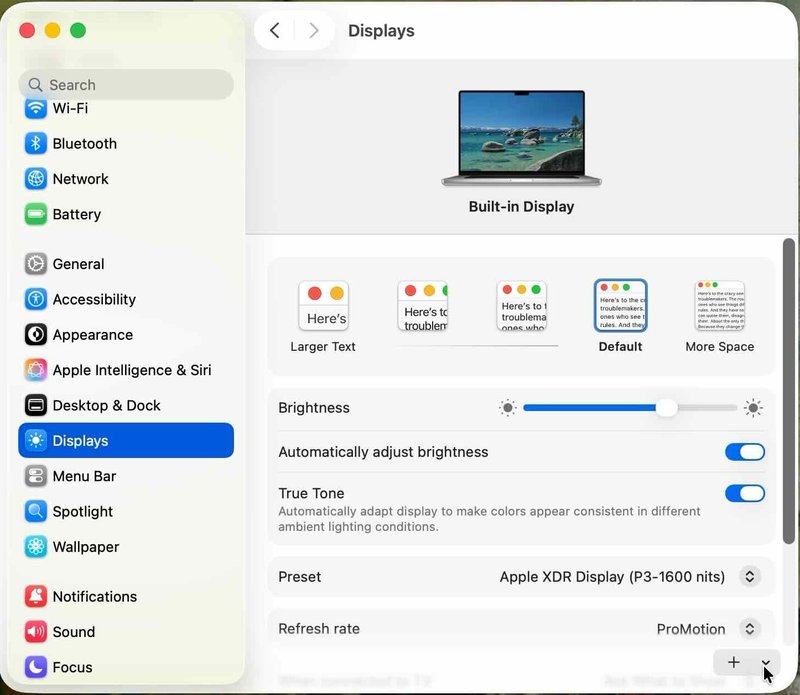
Clicking the + button should open a list of displays to connect to, including pod-speitel
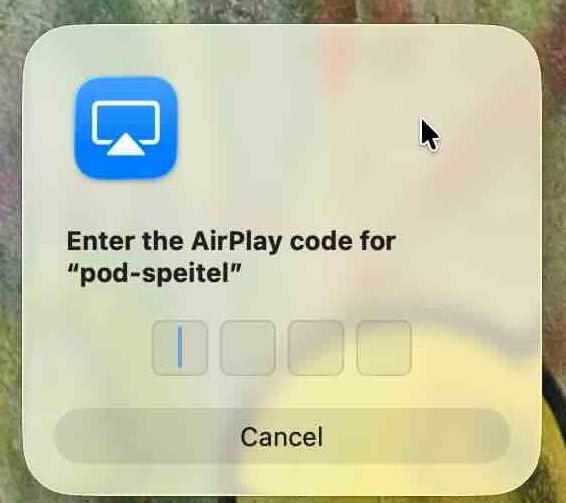
Enter the four-digit AirPlay code shown on the room display
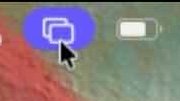
To change what you're sharing or disconnect, click the Screen Sharing icon in the menu bar.
From the menu that comes up, you can "Change" what you're sharing or you can Stop Mirroring to disconnect.
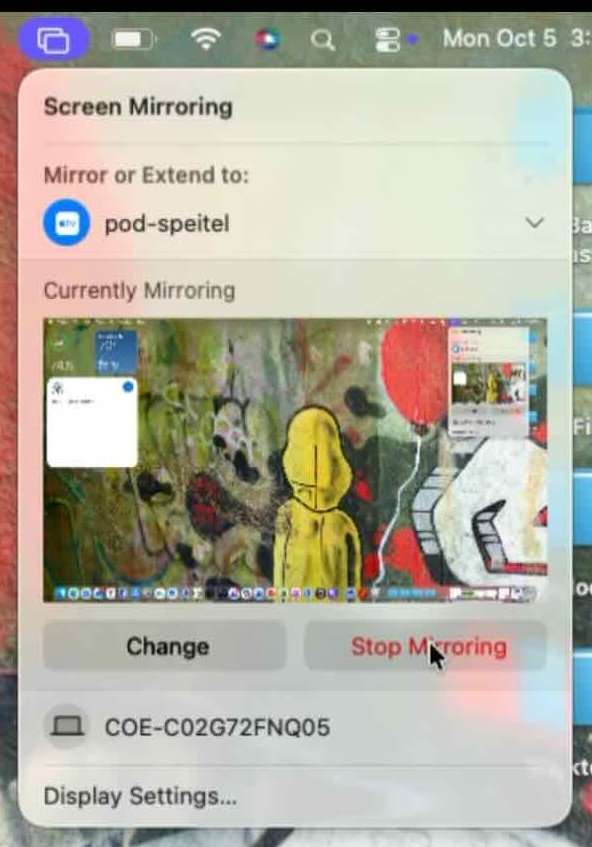
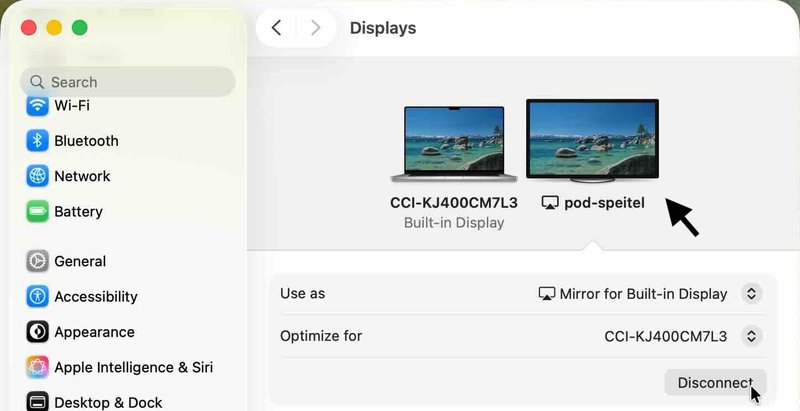
You can also disconnect or change what you're sharing using System Settings by navigating to Displays, selecting "pod-speitel" as the display you're configuring, and choosing "Disconnect" or the desired setting within that panel.
Connecting from iOS
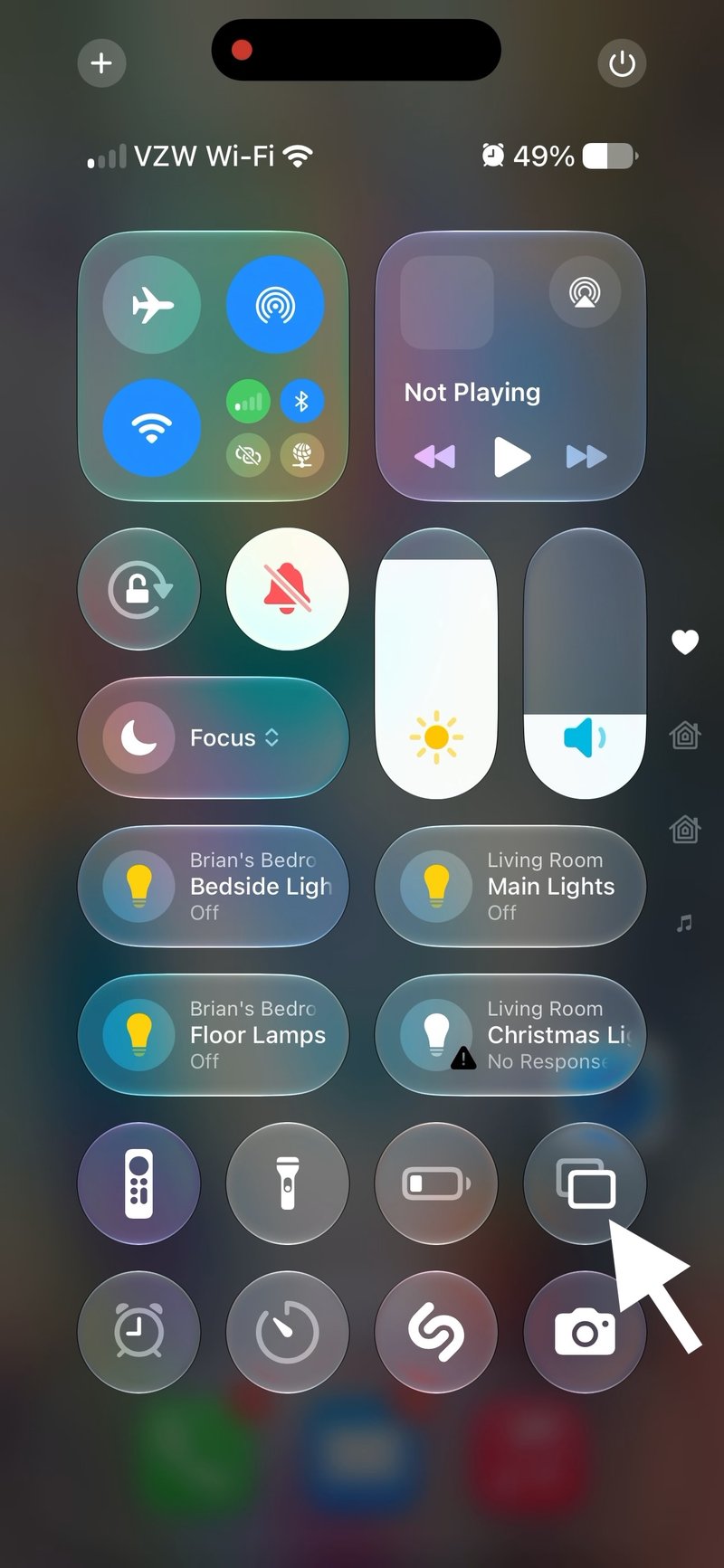
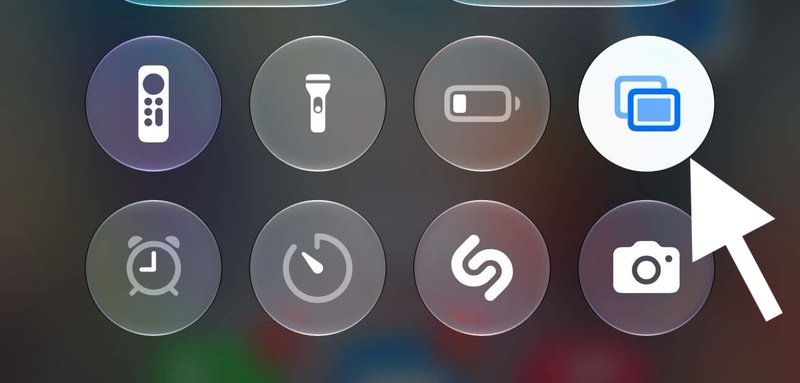
Swipe down from the upper-right corner of the iPhone or iPad screen. Tap the Screen Mirroring button, shown as two overlapping rectangles.
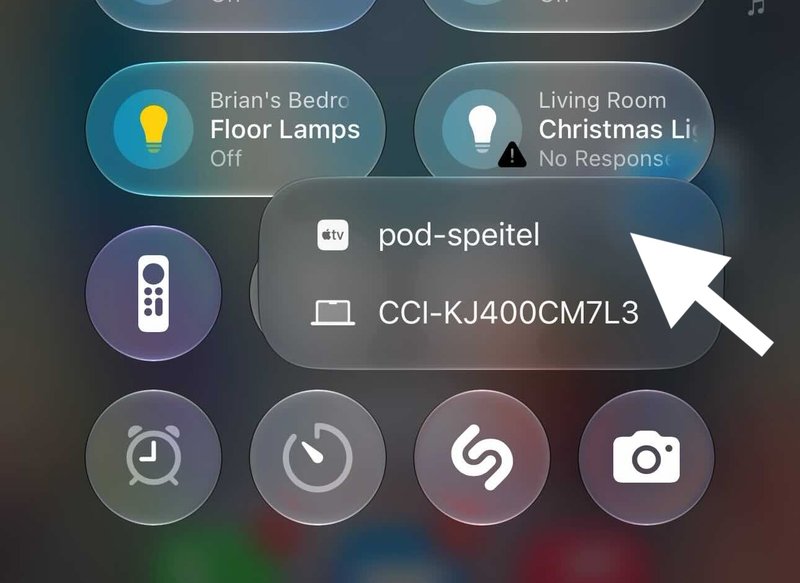
When you tap the Share Screen icon, you should be able to select the "pod-speitel" screen
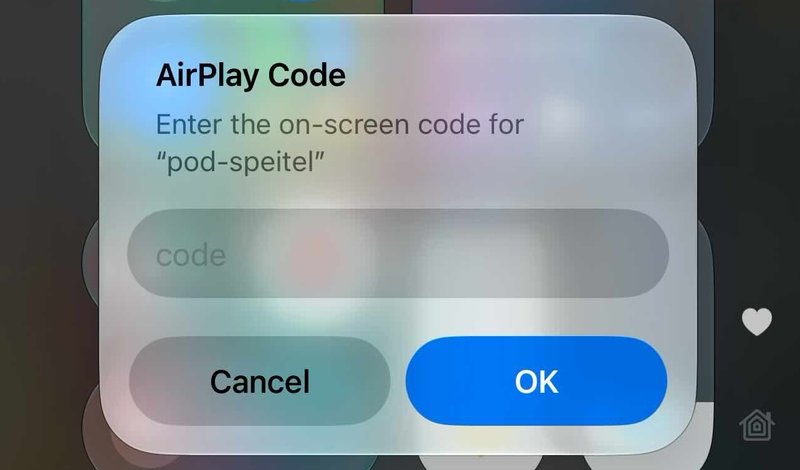
An AirPlay Code prompt appears on the iOS device. Enter the code displayed on the conference room screen, then tap OK.
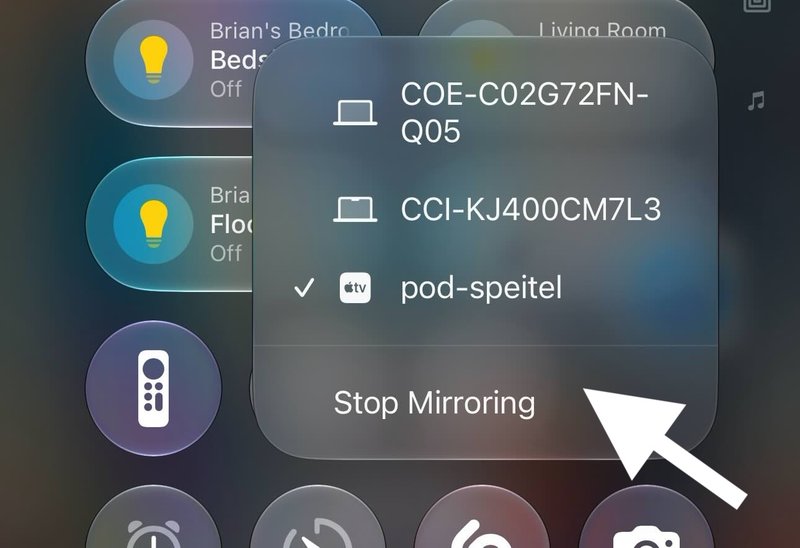
To disconnect from the room display, open Control Center and click the Active Screen Sharing button
In the menu that pops up, you can choose "Stop Mirroring" to disconnect from the conference room display.