
Microsoft Defender on Mac Machine -- Troubleshooting page
Here is the troubleshooting tips for Microsoft Defender on Mac machines.
Most of the time rebooting Mac machines fixes various Microsoft Defender issues on Mac machines so, try to reboot your Mac is you are getting error notices or having any issues with the Microsoft Defender on your Mac machine.
If you are still getting error notice to having issues with Mac even after reboot, try following instructions.
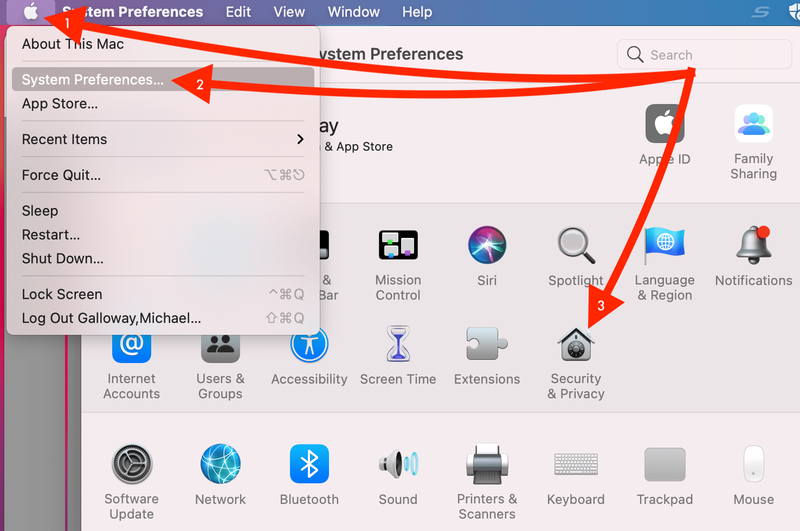
- Click on the Apple icon. Go to System Preferences and then go to Security & Privacy.
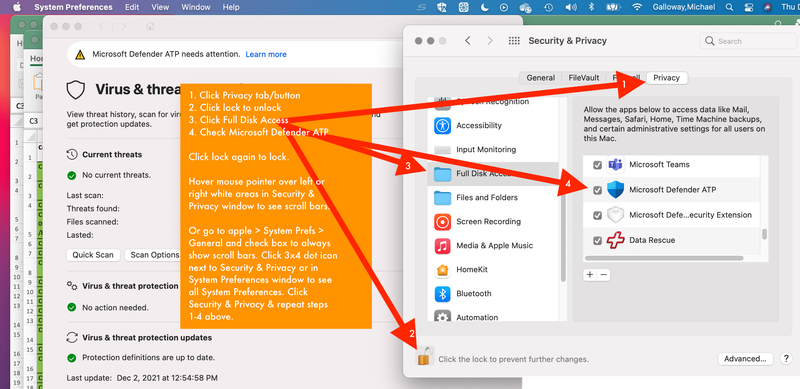
- Go to Privacy tab.
- Click on Lock icon at the bottom to unlock. Enter password if prompted.
- Go to Full Disk Access.
- Check Microsoft Defender ATP.
- Click the unlock icon to lock the changes.
If you are seeing an "exclamation" mark for Microsoft Defender, you can try waiting after a first time setup so that it disappears automatically.