Skip to content
Drexel University College of Computing & Informatics Technology Services and Support

Apple Mail -- Delete a Mail Account

Instructions on deleting mail on OSX

If you need to delete an Apple Mail account for some reason, here's how.
We use a Drexel Office 365 email account here as an example.
But deleting other types of accounts from Apple Mail should be very similar.
     1. Close Microsoft Outlook, if it is open.
     2. Close Apple Mail, if it is open.
     3. Click the Apple icon in upper left of your Mac desktop.
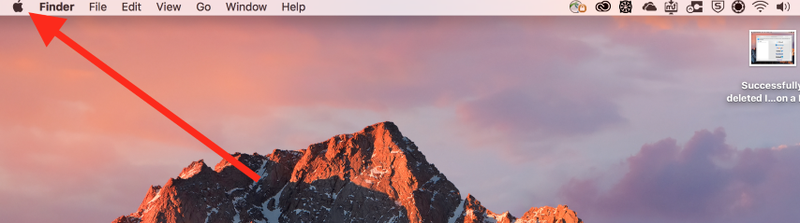
     Apple icon on Mac desktop (Small).png
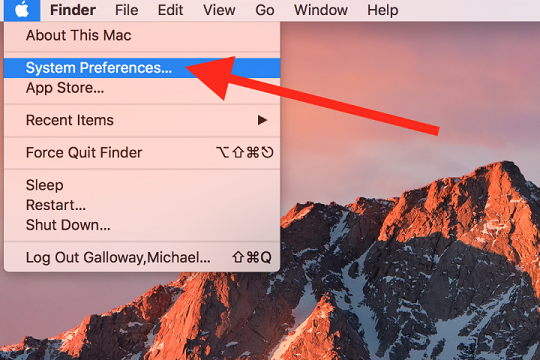
     4. Select "System Preferences.
     Apple System Preferences (Small).png
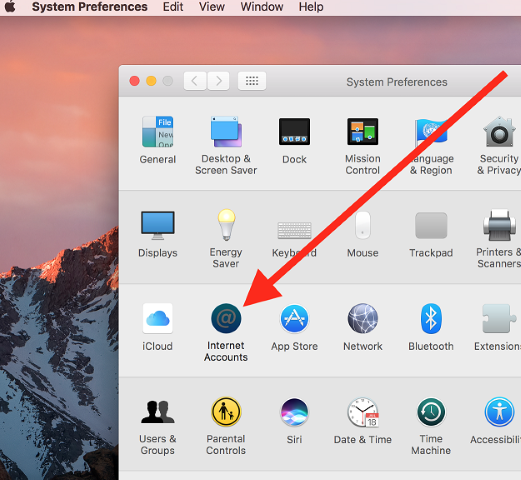
     5. Click "Internet Accounts."
     Internet Accounts in Apple System Preferences (Small).png
     6. Select the Mail account to delete in the left panel.
          (a) Then click the - or minus sign in the lower left.
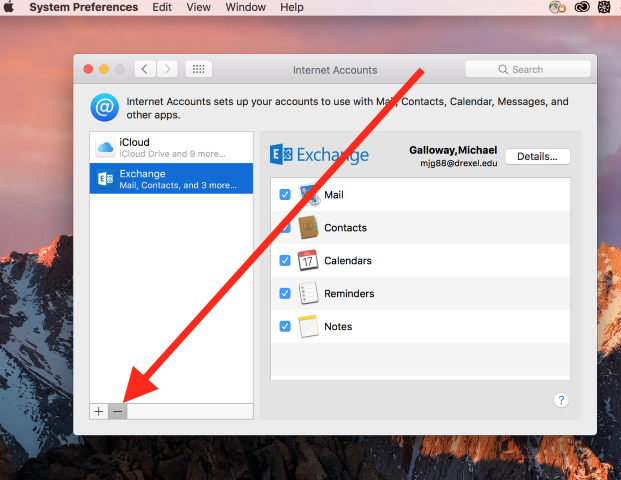
          Minus sign to delete Internet Account on a Mac (Small).png
     7. Click "OK" to confirm it is okay to delete this Mail account.
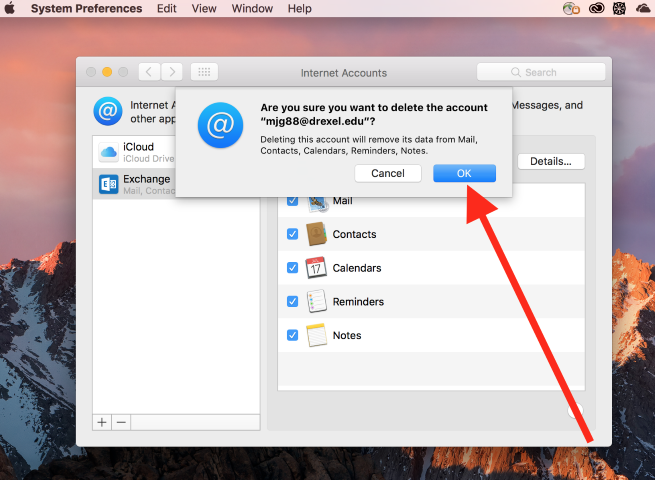
     OK to delete Internet Account on a Mac (Small).png
     8. The Mail account will no longer appear in the left panel.
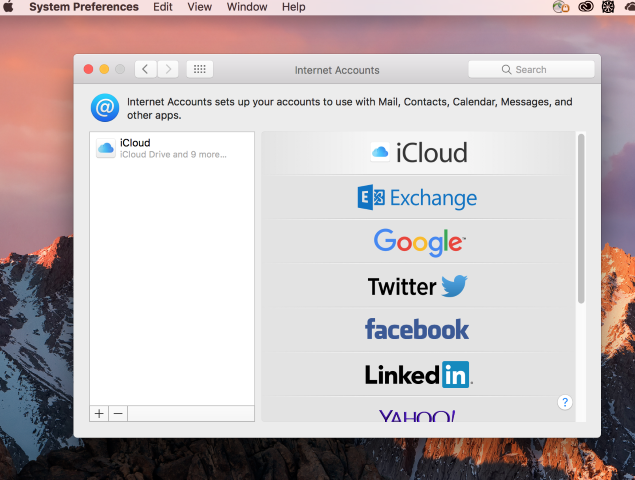
     Successfully deleted Interent Account on a Mac (Small).png
     9. Click red circle in upper left to close window.
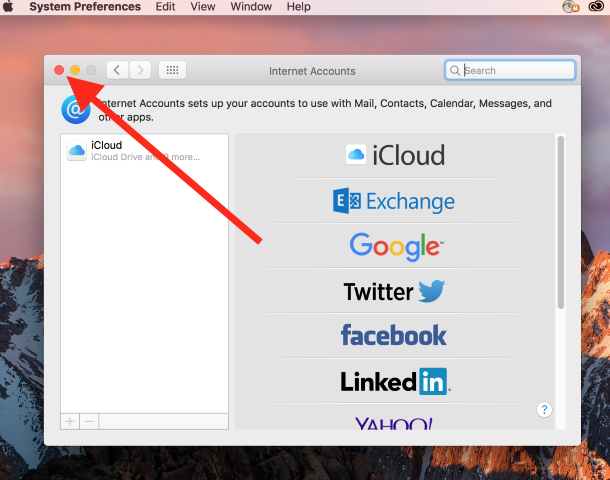
     Close window - click the red circle in the upper left (Small).png

Still stuck?

The CCI Commons help desk can walk you through it.

Mon–Fri
8am–9:30pm
Sat
9am–6pm
Sun
12pm–5pm

Need help?

The CCI Commons help desk can walk you through it.

Mon–Fri
8am–9:30pm
Sat
9am–6pm
Sun
12pm–5pm