
Office 365 -- PowerPoint -- Record in PowerPoint and Export Video.
Office 365 -- PowerPoint -- Record in PowerPoint and Export Video.
Instructions
Recording in PowerPoint:
- Open the slide you want to start recording from.
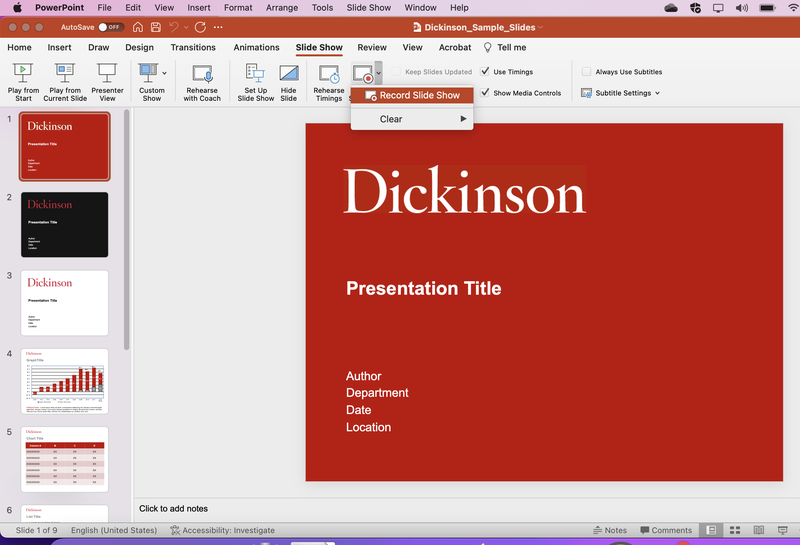
- Near the upper right corner of the PowerPoint window, select Record.
- Choose from two options.
- When you're ready, select the round, red Record button, wait for the countdown, then start speaking.
- To record from a specific slide, go to it and then select Record.
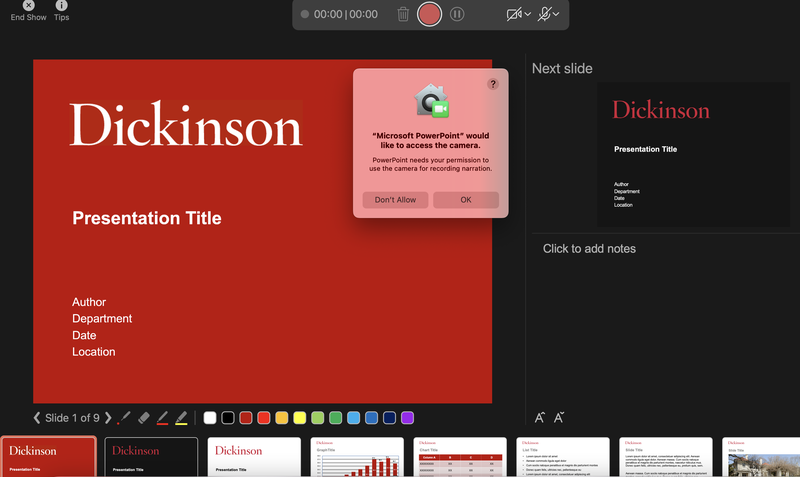
- Allow "Microsoft PowerPoint" to access the camera.
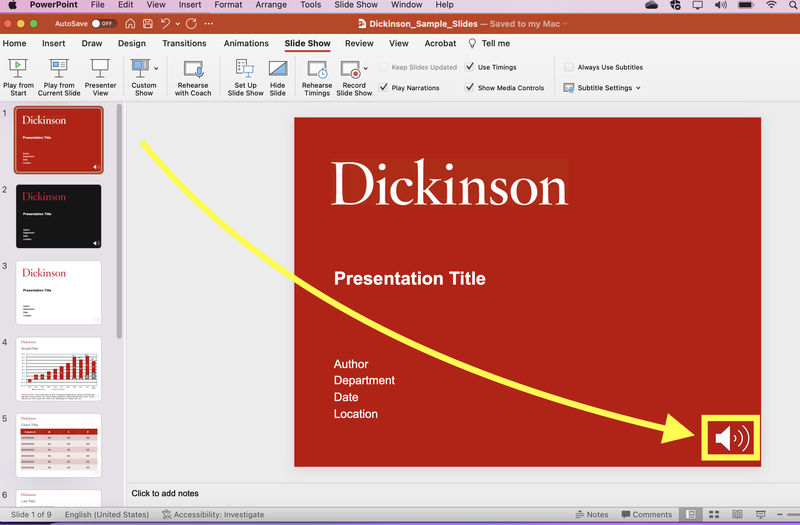
- This sign indicated that recording is during the process.
- Pause - to pause a recording.
End Show - to end a recording.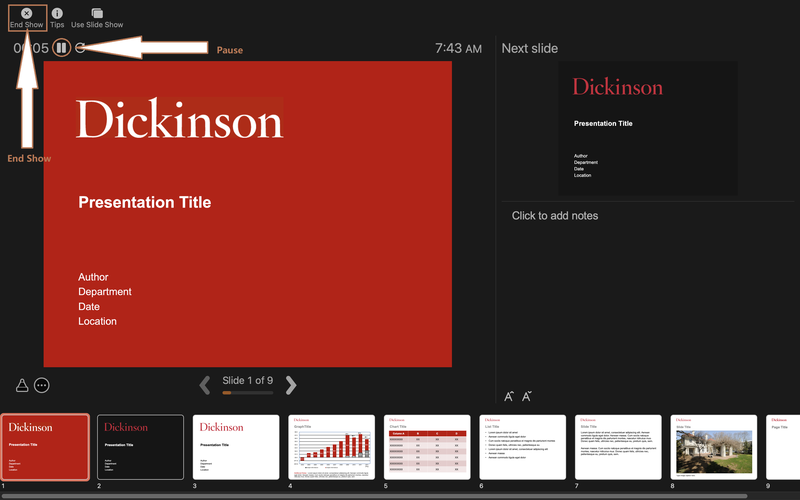
Export the video in PowerPoint:
- When you're done recording, save and share your presentation as a PowerPoint file or video.
Select File
Choose an option like Save or Export. - Select the Files Format based on the presentation.
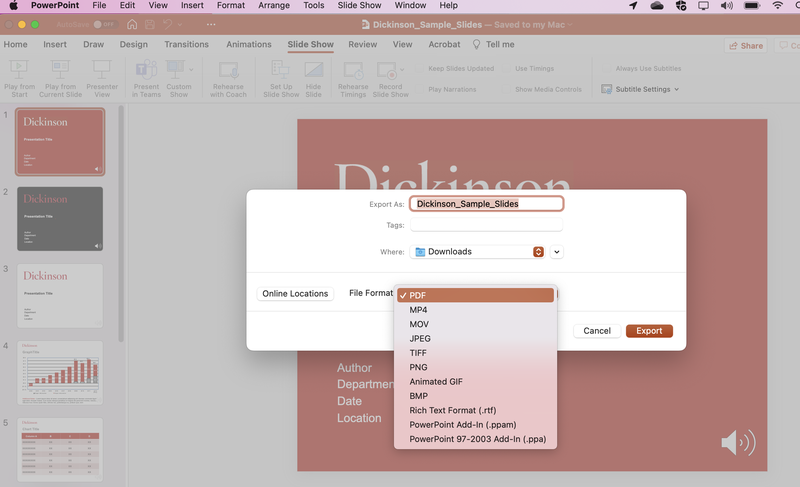
- Typed file name
Choose an option Export.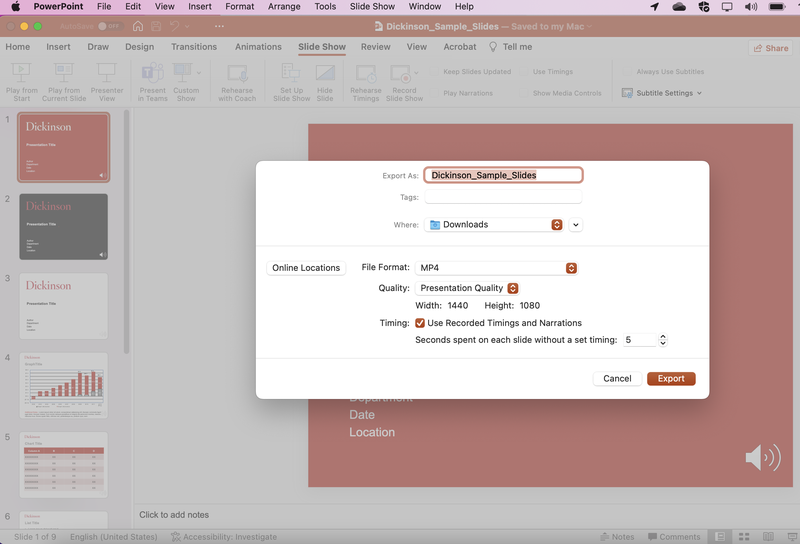
For more information:
- Here is the link to https://support.microsoft.com/en-us/office/record-a-presentation-2570dff5-f81c-40bc-b404-e04e95ffab33 for recording in PowerPoint.
- Here is the link to https://support.microsoft.com/en-us/office/turn-your-presentation-into-a-video-c140551f-cb37-4818-b5d4-3e30815c3e83 export the video.