VPN -- Windows -- Uninstall Cisco AnyConnect VPN
How to uninstall Cisco AnyConnect VPN on Windows.
Intro
Do the following to uninstall the "Cisco AnyConnect" VPN application on Windows computer. This guide will help you to fully uninstall the Cisco AnyConnect application from your computer.
Instructions:
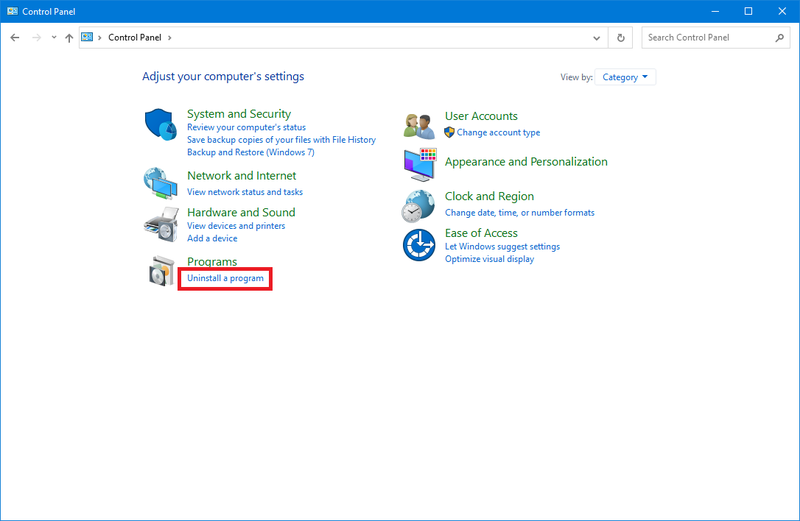
- In the search bar on the task bar, type Control Panel and select it from the results.
- Select Programs > Programs and Features or Uninstall a program.
- Search and select the Cisco AnyConnect Secure Mobility Client.
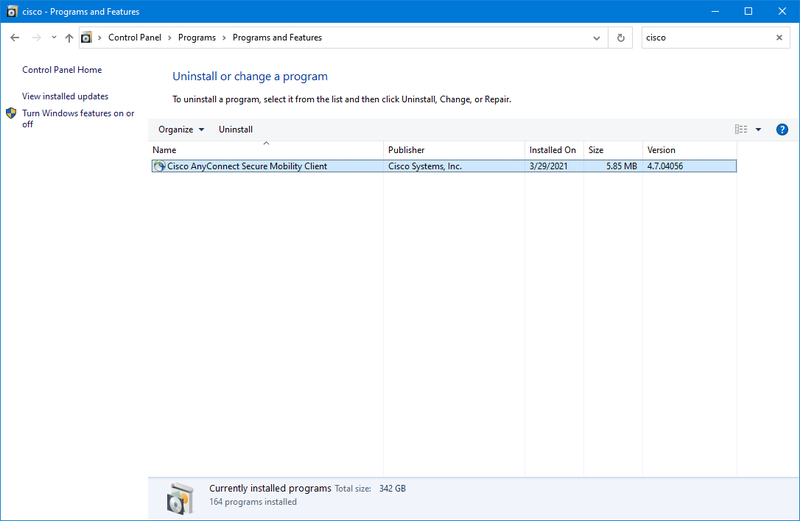
- Click Uninstall or Uninstall/Change.
- Follow the on-screen instructions to uninstall Cisco AnyConnect.
- Next, open up File Explorer.
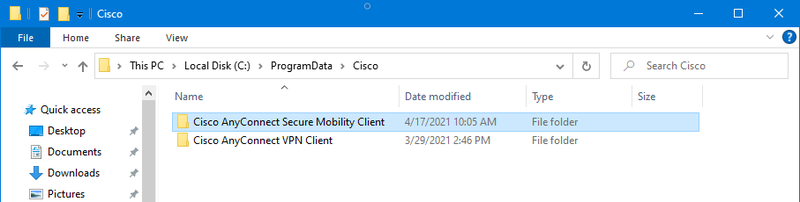
- Go to the following path: C:\ProgramData\Cisco. The ProgramData folder may be hidden so click "View" at the top-left > Check "Hidden items".
- Delete the folder named Cisco AnyConnect Secure Mobility Client. If removing all Cisco software, delete the entire Cisco folder.
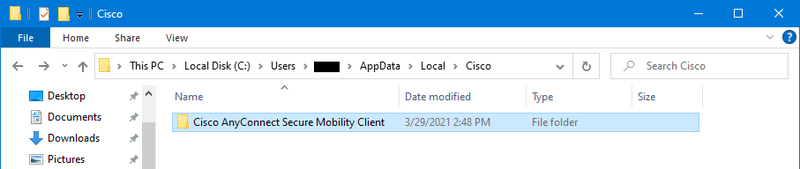
- Lastly, go to the following path: C:\Users\<username>\AppData\Local\Cisco. The AppData folder may be hidden so click "View" at the top-left > Check "Hidden items".
- Delete the folder named Cisco AnyConnect Secure Mobility Client. If removing all Cisco software, delete the entire Cisco folder.