
VPN -- Mac -- Uninstall Cisco AnyConnect VPN
How to uninstall Cisco AnyConnect VPN on Mac.
Intro
Do the following to uninstall the "Cisco AnyConnect" VPN application on a Mac computer.
First Method:
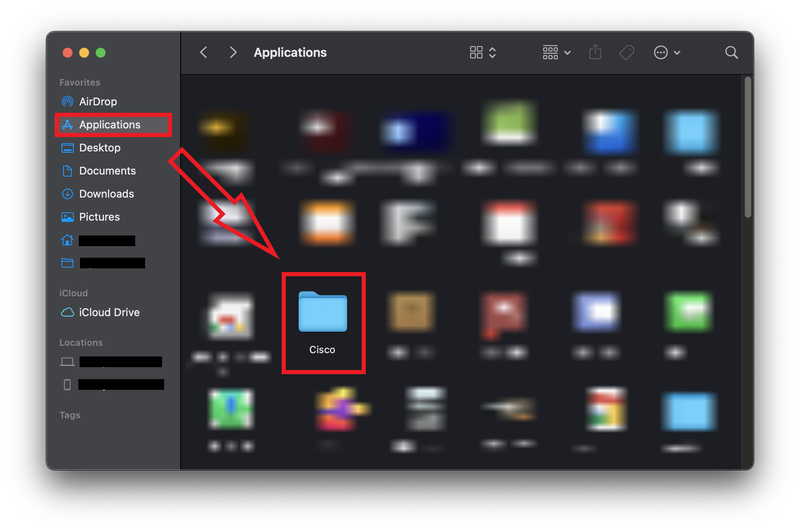
- Open Finder.
- Navigate to Applications and open the "Cisco" Folder. If the Cisco folder cannot be found/does not exist, please see Second Method.
- Double-click the "Uninstall AnyConnect" to start the uninstall process. If the uninstall app cannot be found, please see Second Method.
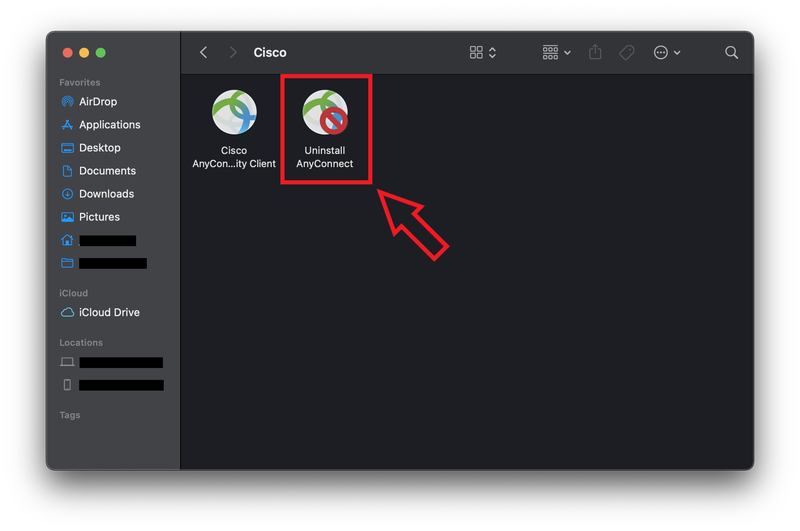
- Follow the instructions to uninstall Cisco AnyConnect.
Second Method:
- Open Terminal.
- Change your directory to Cisco Anyconnect Bin using the following command: cd /opt/cisco/anyconnect/bin
- Then, list the files in the directory using the following command: ls
- Check to see if there is a file named "vpn_uninstall.sh". If the file exists, run the following command: sh vpn_uninstall.sh
- If successful, you should receive this confirmation message in the Terminal: "Successfully removed Cisco AnyConnect Secure Mobility Client from the system."
cd /opt/cisco/anyconnect/bin
ls
sh vpn_uninstall.sh
Third Method:
- Open Terminal.
- Run the following command: sudo pkgutil --forget com.cisco.pkg.anyconnect.vpn
sudo pkgutil --forget com.cisco.pkg.anyconnect.vpnFourth Method:
- As a last resort, please follow the "rm -rf" commands found here: http://kb.mit.edu/confluence/display/mitcontrib/Cisco+Anyconnect+Manual+uninstall+Mac+OS