
Zoom -- Audio Issues and Joining by Telephone
How to join zoom meeting by telephone.
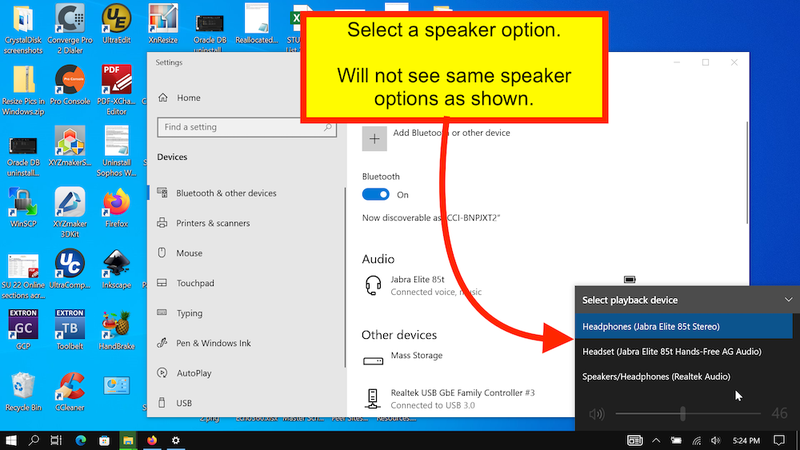
Change Windows 10 Speaker Output or Audio Output
- Click speaker icon.
Then click ^ icon to choose a different speaker.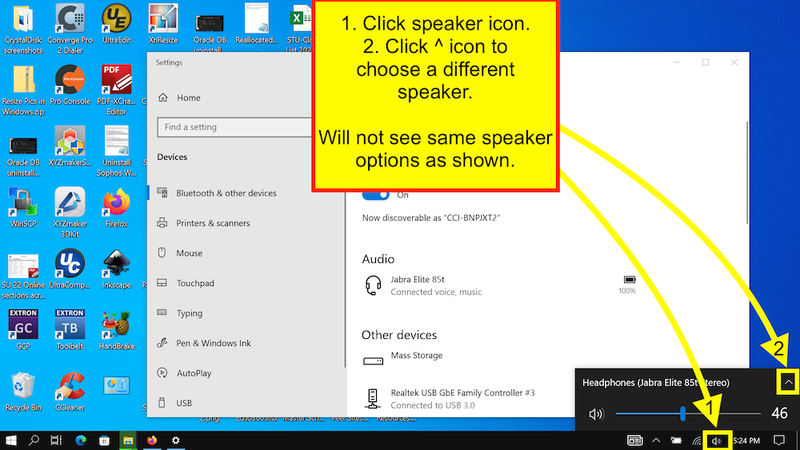
- Select a speaker option.
Change Zoom Audio Settings Outside of a Meeting
- (Windows) Click Start menu & open Zoom app.
(Mac) Press Cmd + spacebar & search for Zoom.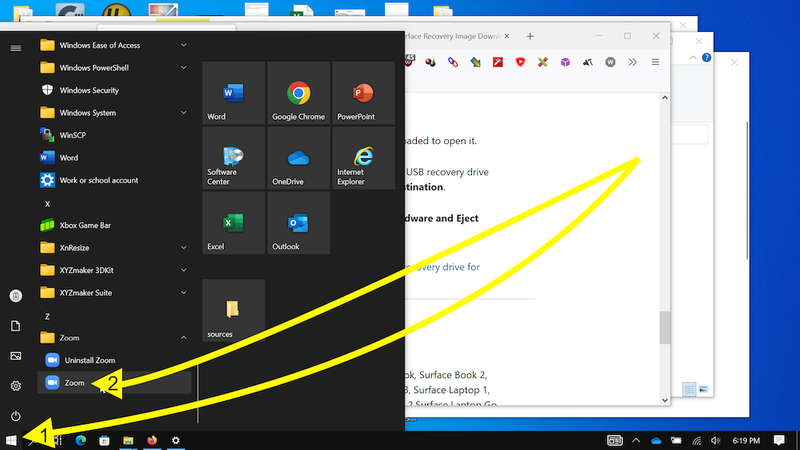
- Click your avatar or initials icon & click Settings.|
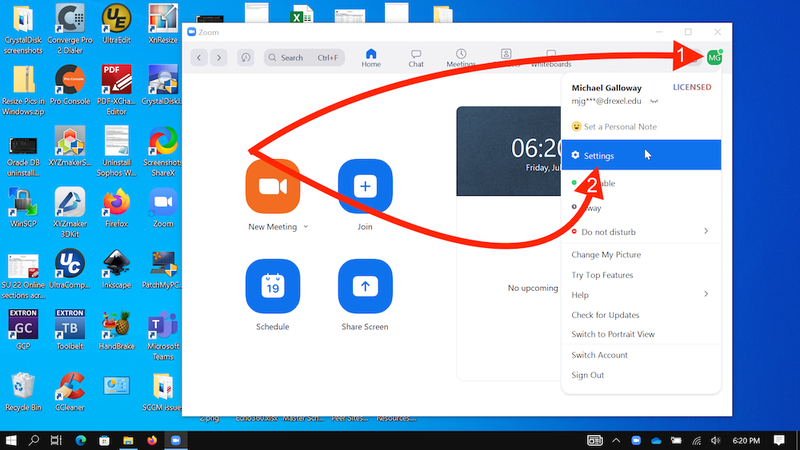
- Click Speaker option, and then Test Speaker.
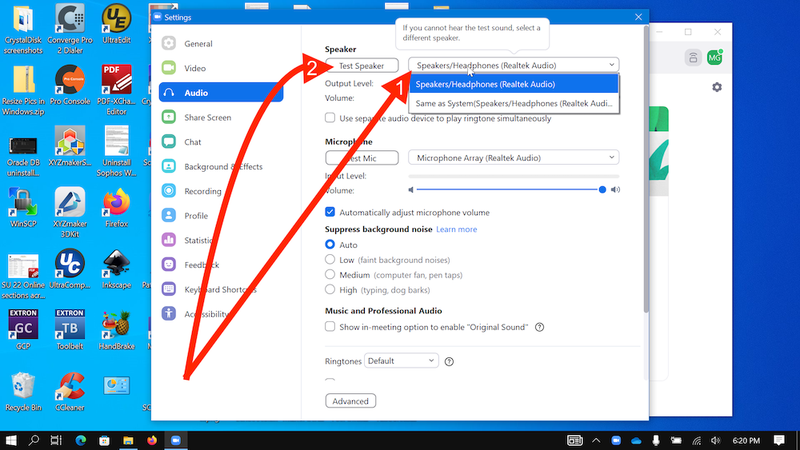
- Click Microphone option, and then Test Microphone.
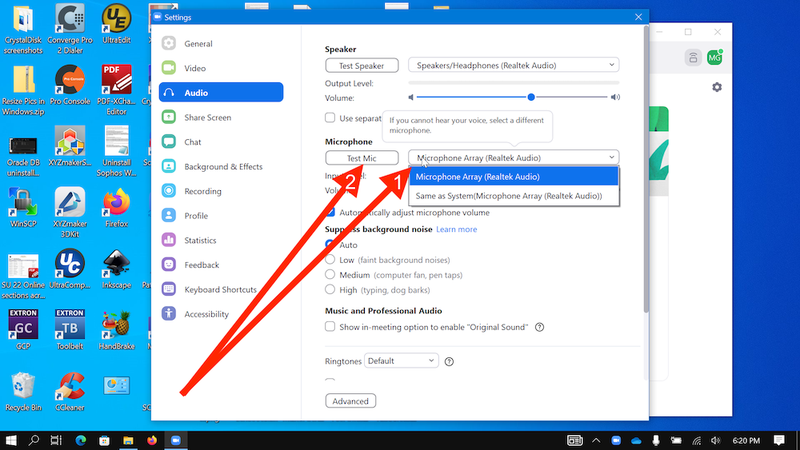
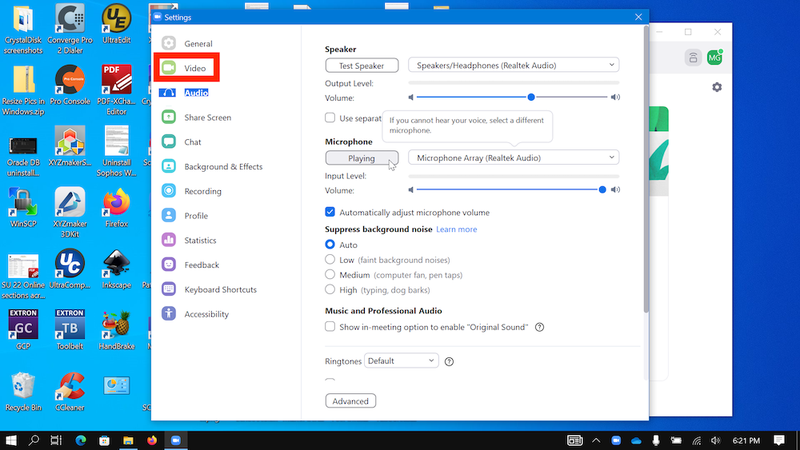
- May want to check video options too.
Quick Fix During a Meeting
No one can hear you? And you are in a Zoom meeting.
Or they can hear you, but you can’t hear them?
Try this.
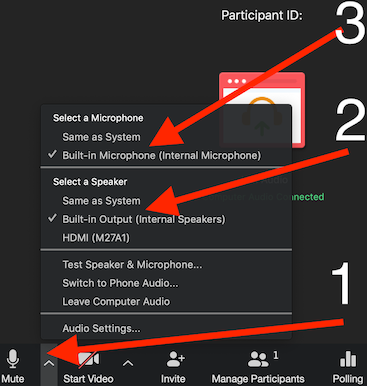
- Make sure you have chosen your headphones, speaker, or microphone.
- Follow the number order in screenshot below.
- For below, speaker = headphones if you are using headphones.
Still Issues?
- Uncheck automatically adjust volume to raise microphone level.
- Click “Audio Settings” & *raise* the speaker/headphone volume or microphone volume.
- Or click “Switch to Phone Audio” in the screenshot above.
Test and Change Computer Audio Settings
Join by Telephone
Telephone-Only Conference Call?
- Schedule a Zoom meeting.
- But only share 1 or 2 of the Zoom meeting phone numbers, plus the Meeting ID.
- See Zoom -- Scheduling
- Phone number & Meeting ID are in the email or calendar invite.
International calls will cost money. International participants should attend by computer only to avoid charges.
Low Volume or Hard-to-Hear Audio?
If you are having trouble hearing a professor due to low audio, or bad audio, one possible work-around solution to try is to download/install the Chrome web browser and install the "Volume Master" extension from the Chrome Web Store at the link below.
We cannot find a similar link for Firefox as of yet. The above link has a good chance of working for other Chrome-based web browsers, such as the new Microsoft Edge and the Brave web browser, as well, which may be less resource intensive on your computer.