Printing at CCI Commons -- Windows
Windows 11 Instructions
- Go to Settings and navigate to Bluetooth & devices then Printers & scanner

- Add the two HP LaserJet M606 printers

- Print a test page once the printers are added

Alternative Instructions using IP Address or Hostname
- Go to Settings and navigate to Bluetooth & Devices then Printers & Scanners
- Click "Add device." Wait for prompt "The printer that I want isn't listed." Click "Add manually

- Click "Add a printer using an IP address or hostname." Click next.
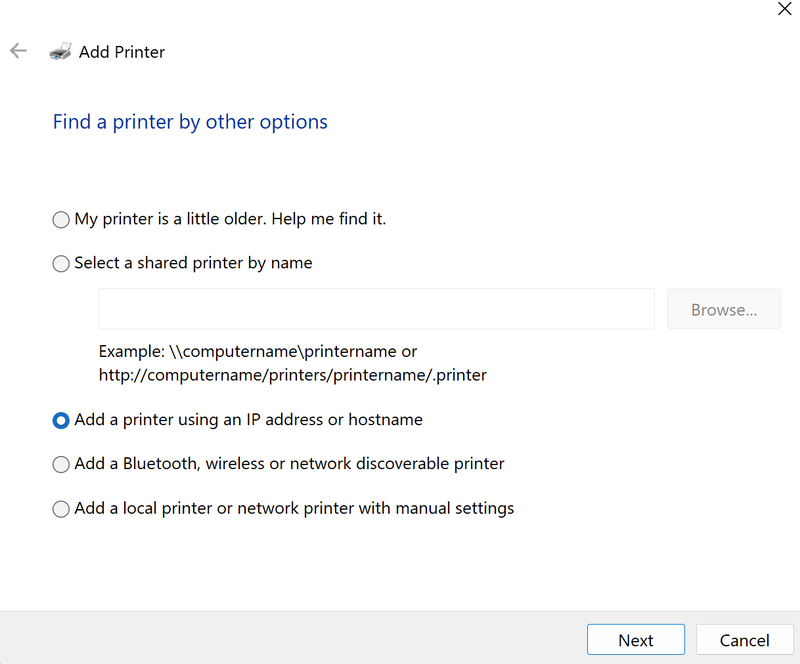
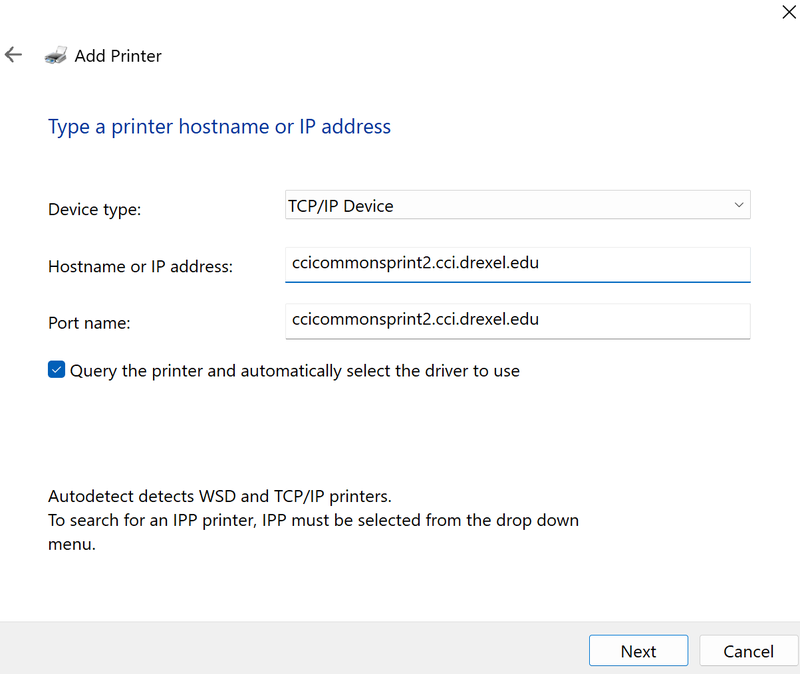
- Device type should be selected as TCP/IP device. Then, type in either hostnames:
- ccicommonsprint.cci.drexel.edu
- ccicommonsprint2.cci.drexel.edu
- The port name should follow the hostname.
- ALTERNATIVELY, instead of TCP/IP you can use IPP. Much faster process:
- Device type should be: IPP Device
- Enter either IP addresses:
- 10.248.127.206
- 10.248.127.167
- Click next. The printer should be added now.
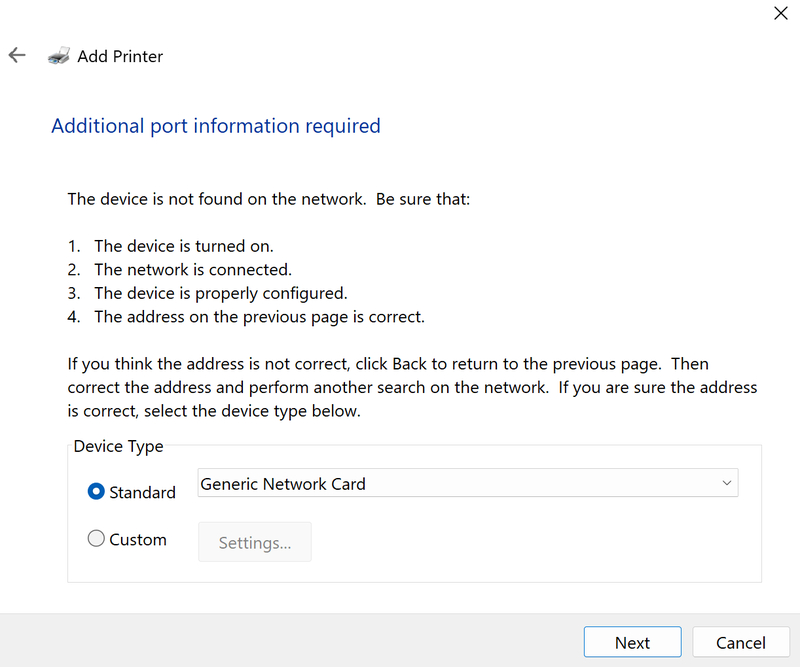
- Click next after adding in the correct hostname and device type. This should prompt a "Detecting the TCP/IP port."
- Additional port information will be required. Make sure Generic Network Card is selected. Click next.
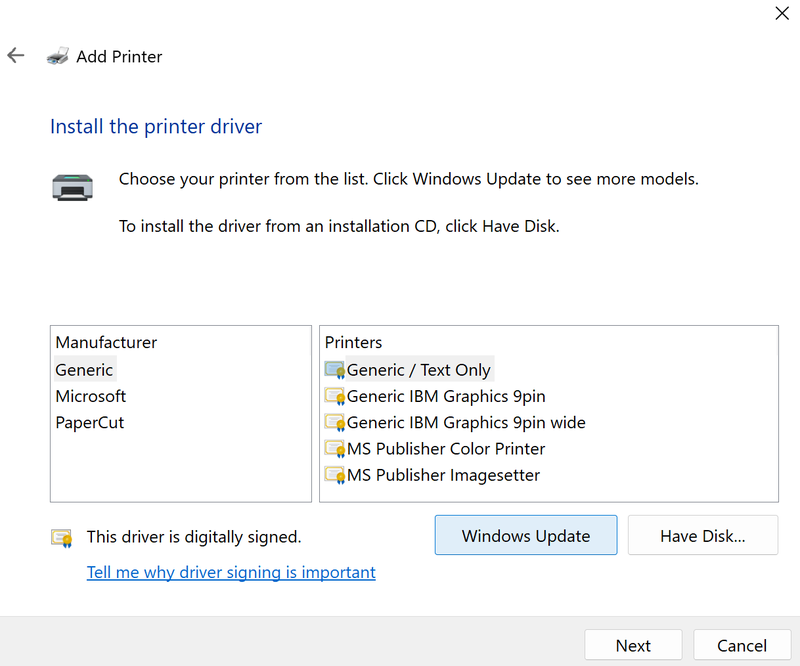
- Select "HP" under Manufacturer (on left side) and "HP LaserJet 600 M601 M602 M603 PCL6" under Printers
- If either are not there, you can do one of two options:
- Do "Windows Update" in the bottom right, which will take a few minutes. OR:
- Download and install the Windows 11 driver from
https://support.hp.com/us-en/drivers/hp-laserjet-enterprise-m606-series/7087300
Click "Have Disk..." and select the driver executable file.
- If either are not there, you can do one of two options:
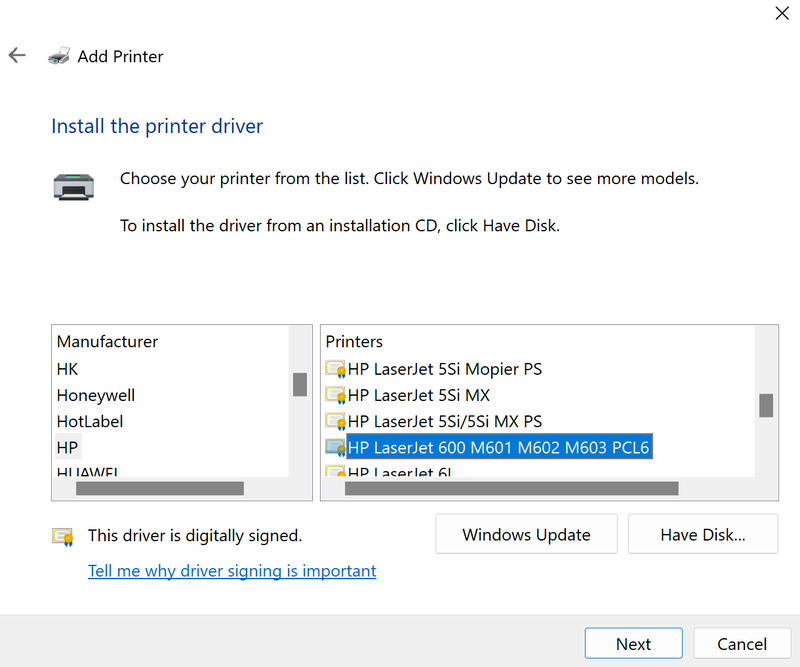
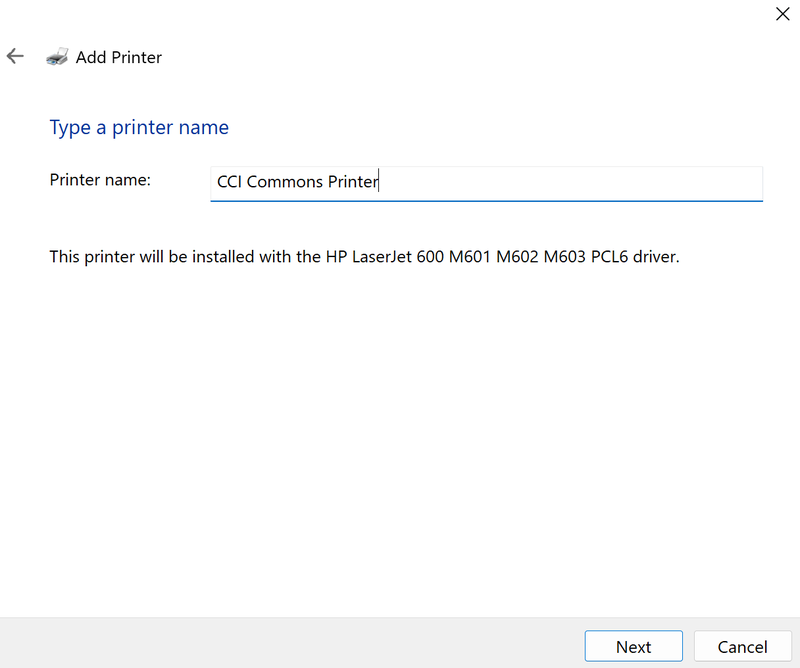
- Name the printer and click next
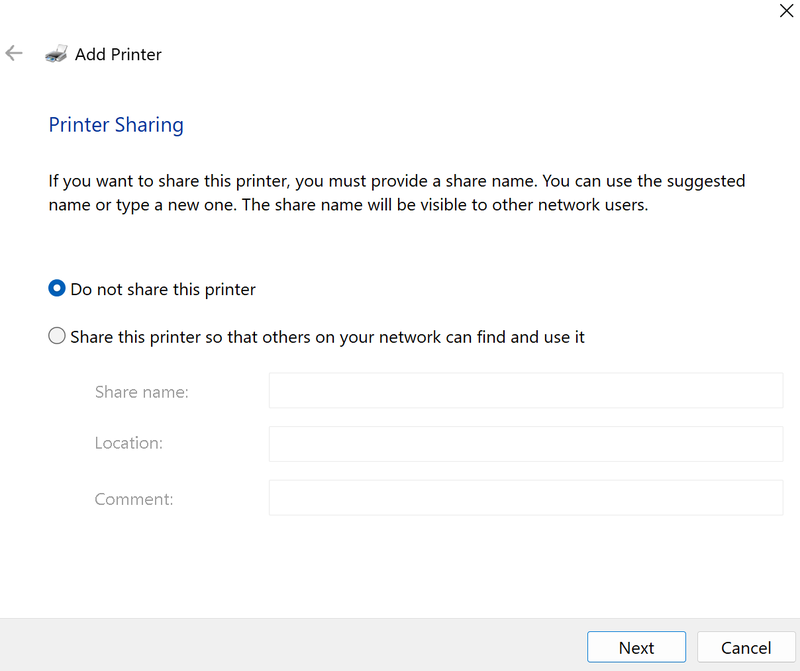
- Make sure that "Do not share this printer" is selected and click next
- It is recommended that you click "Print a test page" to ensure that the printer is connected properly
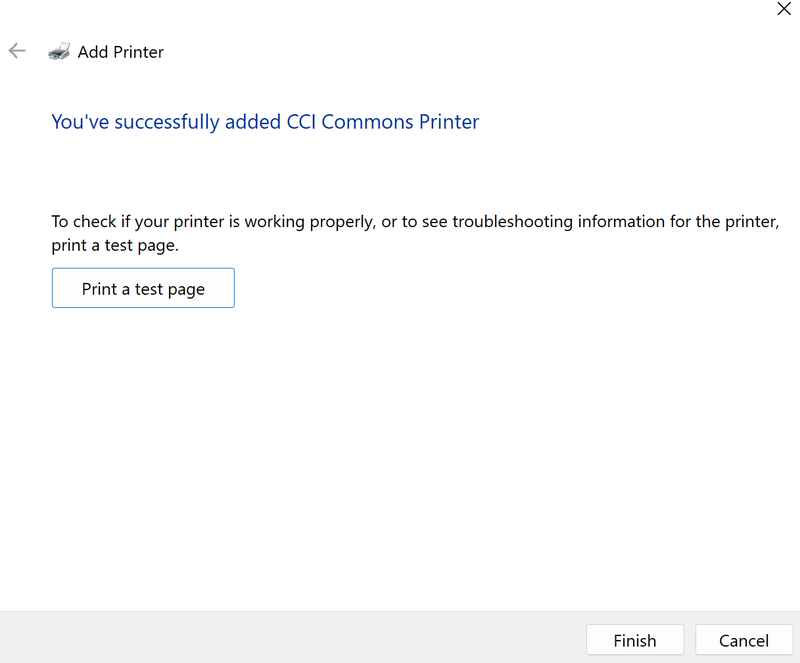
You are all set for Windows printing!
Please note that the CCI Commons Printers only have letter-sized paper. If you are a student and you need to print on paper of a different size, Westphal has paid printing in different paper sizes, although this is only available for people with card-swipe access.
If you do not have access, please email ihelp@drexel.edu or ask a Student Assistant at the CCI Commons Helpdesk for help with printing on different paper sizes.
Troubleshooting
- Try updating Windows 10 drivers more thoroughly at Properly Update Windows 10 & Drivers in Windows 10.
- For single and double-sided instructions look at Printing Single and Double-sided in browser
- If you have any further questions, feel free to ask at the CCI Commons Helpdesk & a Student Assistant will be happy to help you get the printer added to your laptop.
- Also, questions can be emailed to ihelp@drexel.edu, if you are a CCI student, staff, or faculty member.