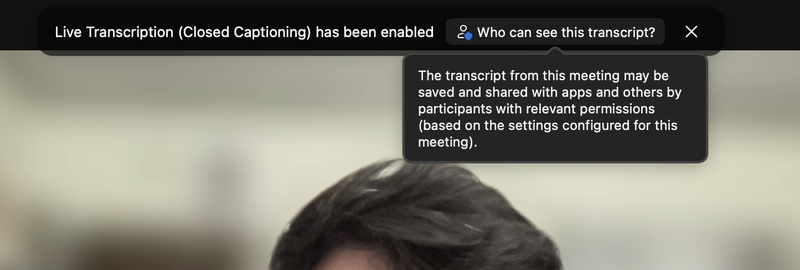
Zoom Live Transcripts and Auto Captioning
Info on Zoom Live Chats
Follow these instructions for Zoom live chat:
1. Open Zoom and the navigate to settings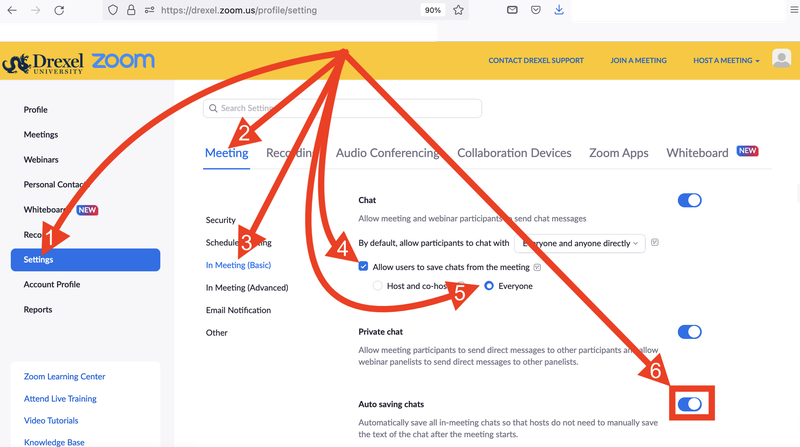
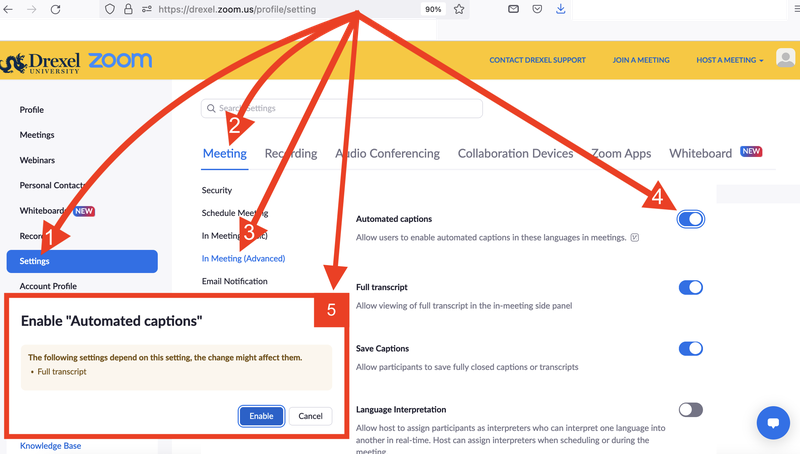
2. In the settings select "Meeting" > select "In Meeting Advanced" the enable "Automated Captions"
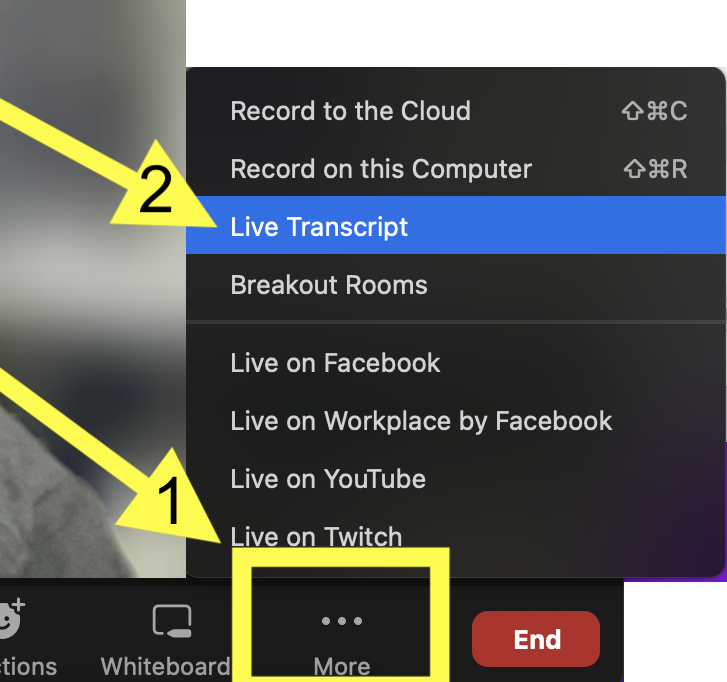
3. When in a Zoom recording click the three dots to show this menu options. Select "Live Transcript"
4. Select "Allow Participants to Request Live Transcription'. This allows people to signify if they need the feature
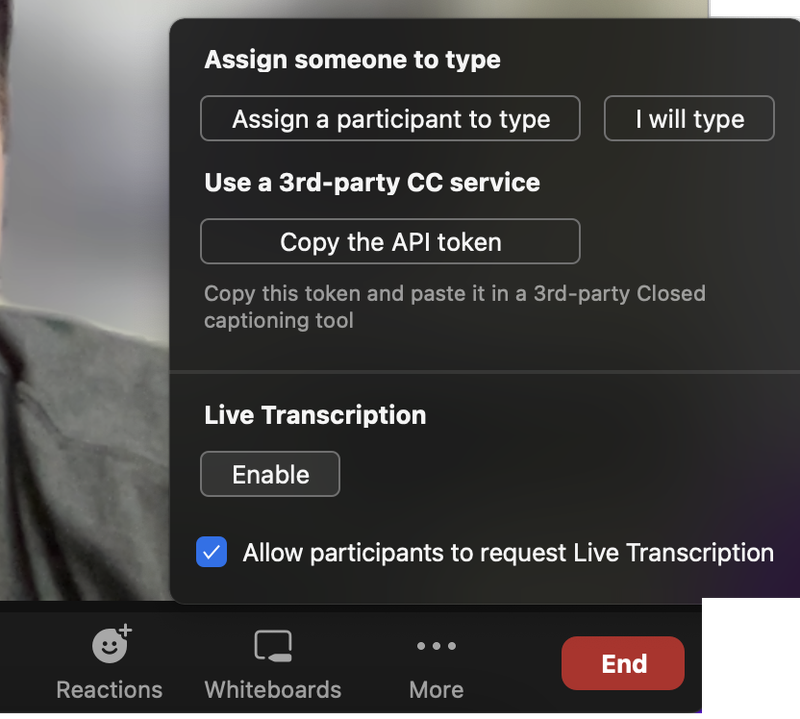
5. This shows that he feature will be accessible to those in the meeting and it will be saved with the video recording