Printing at CCI Commons -- MacOS
MacOS Instructions
NOTE: Ensure you are on Drexel's network dragonfly3
- Go to apple icon > "System Preferences" > "Printers & Scanners."

- Click the "Add Printer, Scanner, or Fax" to start adding the CCI Commons printer(s). Allow permission prompts asked.

- Select the "IP" with the globe icon at the top. This will let us add the printer through hostname/IP address.

- After that, you will need to type in either CCICommonsPrint.cci.drexel.edu ---or--- CCICommonsPrint2.cci.drexel.edu
- ALTERNATIVELY, you can add via the printers' IP addresses. The IP addresses follow as:
- 10.248.127.206 (Printer 1)
- 10.248.127.167 (Printer 2)
- Type in either of those IP addresses in the address section.
- ALTERNATIVELY, you can add via the printers' IP addresses. The IP addresses follow as:

- The settings should be as followed:
- Ensure the protocol is "IPP."
- Type in the same IP address in "Location."
- The printer name should either be CCICommons_LabBW1 or ...LabBW2.
- Finally, make sure "Generic PostScript Printer" is selected.
- Once you are done typing in that address, you can click the "Add" button.
- On the next screen, make sure to check the box for "Duplex Printing Unit."

- After you hit "Ok" you can rename the printer by right clicking on the column. Type in whatever you want to name it, but the recommended name is: CCICommons_LabBW
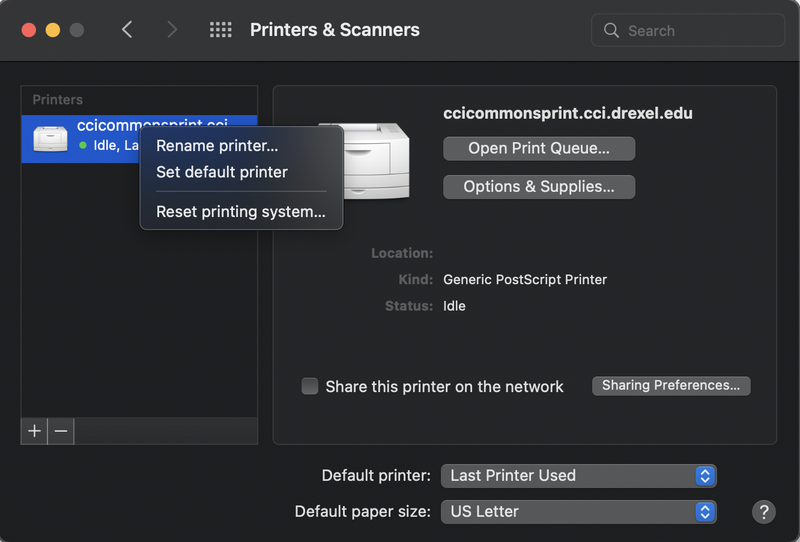
- If you want to add the other secondary printer, the process is the same, but the hostname is CCICommonsPrint2.cci.drexel.edu or IP address is 10.248.127.167
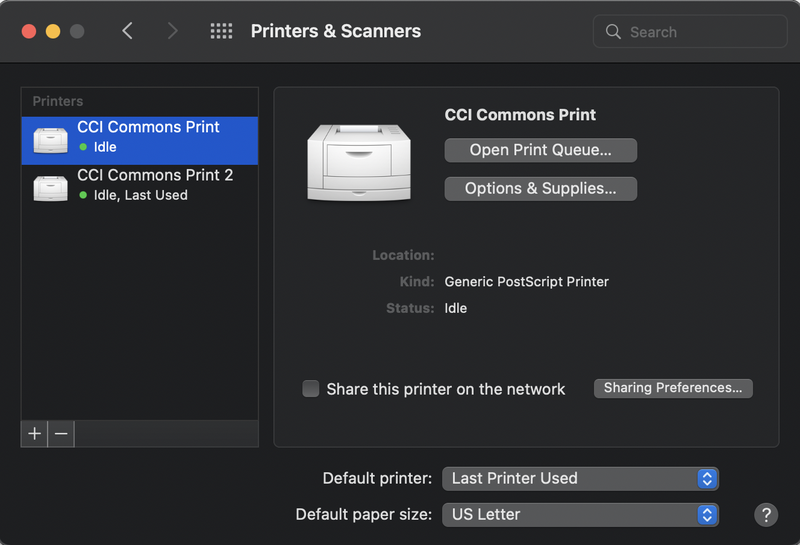
You are all set for Mac printing!
Please note that the CCI Commons Printers only have letter-sized paper. If you are a student and you need to print on paper of a different size, Westphal has paid printing in different paper sizes, although this is only available for people with card-swipe access. If you do not have access, please email ihelp@drexel.edu or ask a Student Assistant at the CCI Commons Helpdesk for help with printing on different paper sizes.
Troubleshooting
- For single and double-sided instructions look at Printing Single and Double-sided in browser
- If you have any further questions, feel free to ask at the CCI Commons Helpdesk & a Student Assistant will be happy to help you get the printer added to your laptop.
- Also, questions can be emailed to ihelp@drexel.edu, if you are a CCI student, staff, or faculty member.