
Microsoft Teams Guest Link
Microsoft Teams Guest Link
Getting a Guest Link for non-scheduled meeting (only works on Web/Desktop)
- Go to Calendar
- Instead of + New meeting, click Meet now
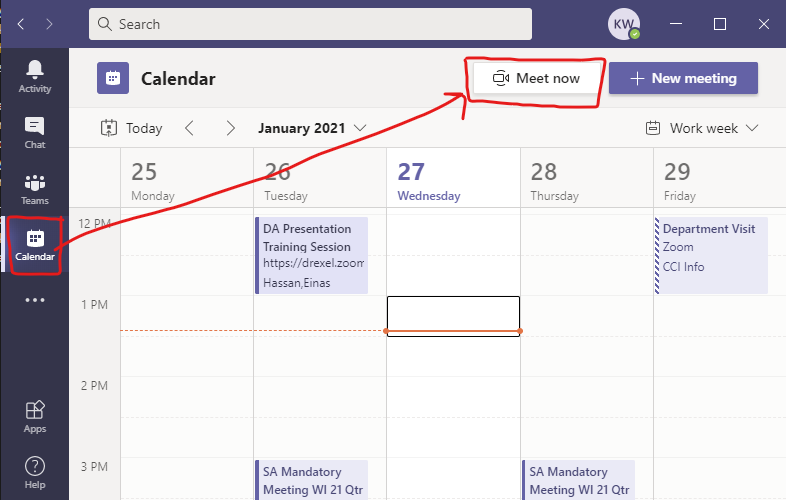
- Do all the jazz to join the meeting, set up your audio/video
- Click Show participants and you should see a copy symbol that resembles 2 links chained to each other. Click this to paste the invitation information to your clipboard
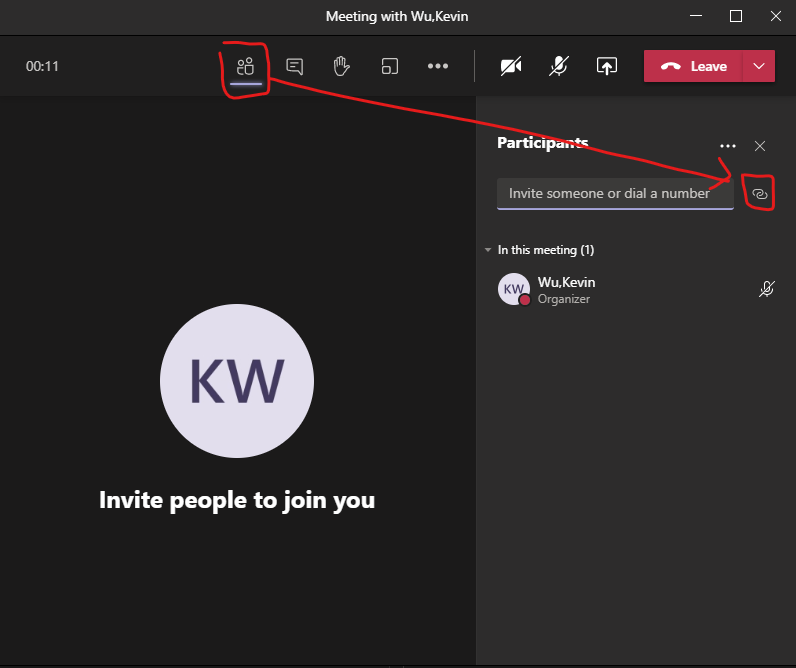
- Paste this text into a word processor like Word or G Docs or Outlook because this is rich text and copying it into Notepad will actually lose the links.
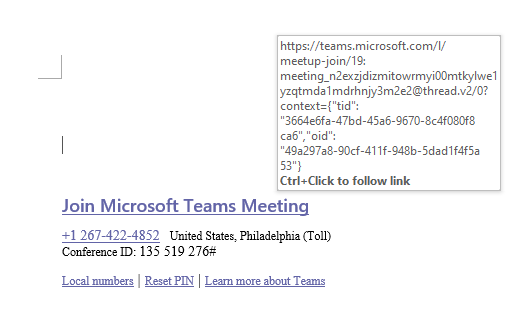
- Hover over the Join Microsoft Teams Meeting and you'll see the link. You can also Ctrl+Click on it to navigate to the link and then copy that from your favorite browser's address bar
Getting a Guest Link by scheduling a meeting
Simply schedule a meeting, fill in the required information, and add participants. You can invite members with their emails, Drexel or non-Drexel affiliated.