Zoom -- Record without Participant or Student Names
How to record on Zoom without participants names
You can disable participants’ names & thumbnail video
if/when they share their screen or talk in Zoom cloud recordings
by doing the following.
Thumbnail video = minimized video showing participant sharing video.
*2* helpful screenshots beneath instructions below.
Here are the Instructions.
- Visit https://drexel.zoom.us , and login.
- Click “Settings” in left navigation.
- Click “Recording” tab.
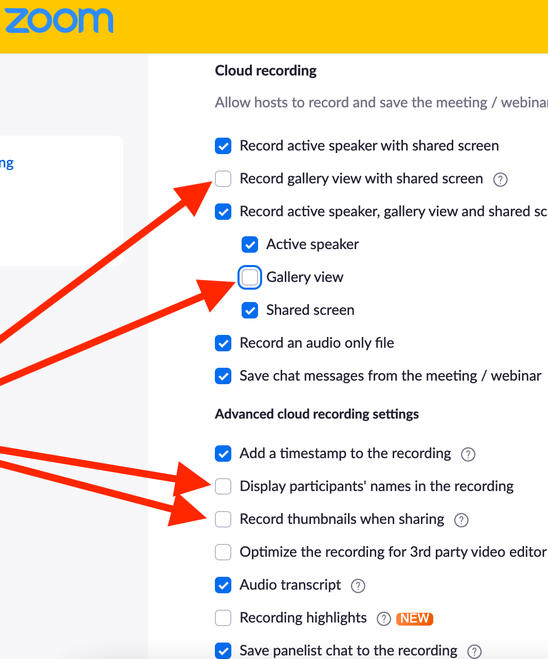
- Under “Cloud Recording” & “Advanced cloud recording settings,”
uncheck “Display participants’ names in the recording.” - And uncheck “Record thumbnails when sharing.”
- We also recommend to…
Uncheck “Record gallery view with shared screen.”
Uncheck “Gallery view”
under the checked “Record active speaker, gallery view, and shard screen separately.” - Scroll down & click “Save.”
Screenshot #1 of 2
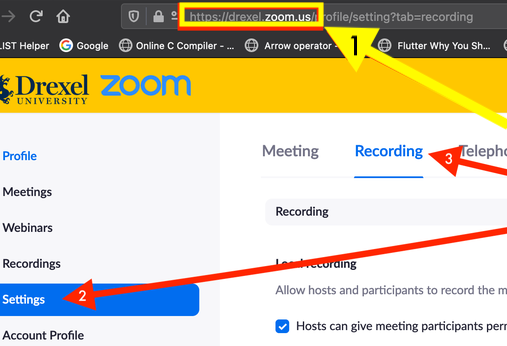
Screenshot #2 of 2