
FileZilla
Transferring files to and from Tux and other Linux servers using FIleZilla
For Tux, make sure to use your Drexel abc123-format username and your Drexel password to connect to Tux.
Make sure to always use SFTP - traditional FTP connections are blocked on Tux, and will transmit login details (including your password) in plain text. You should never use FTP due to this security concern.
Video Instructions
Video Instructions
Written Instructions
Written Instructions
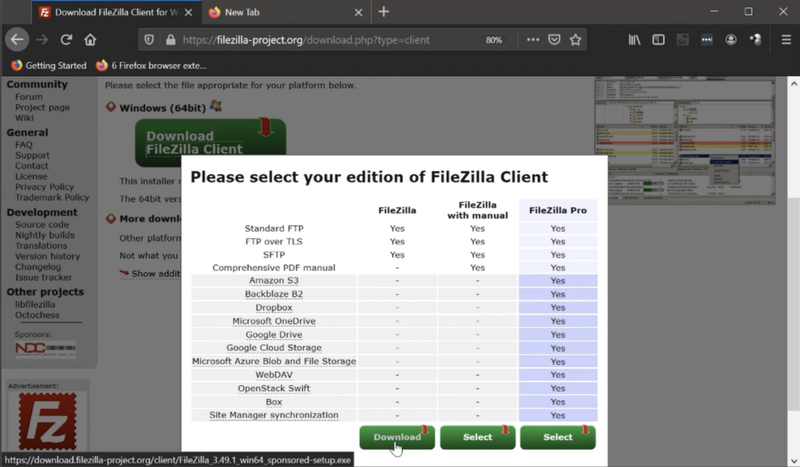
- Go to https://filezilla-project.org and download the FileZilla Client for your operating system.
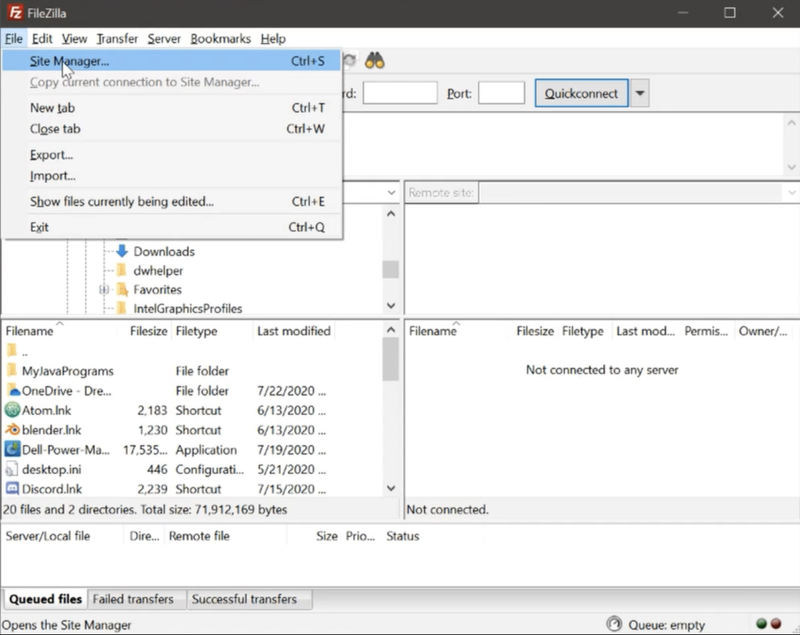
- In the top-left corner, click File > Site Manager...
- On the right-hand side, select STFP as the protocol
Type tux.cs.drexel.edu in the Host field
Enter your Drexel ID (abc123) in the User field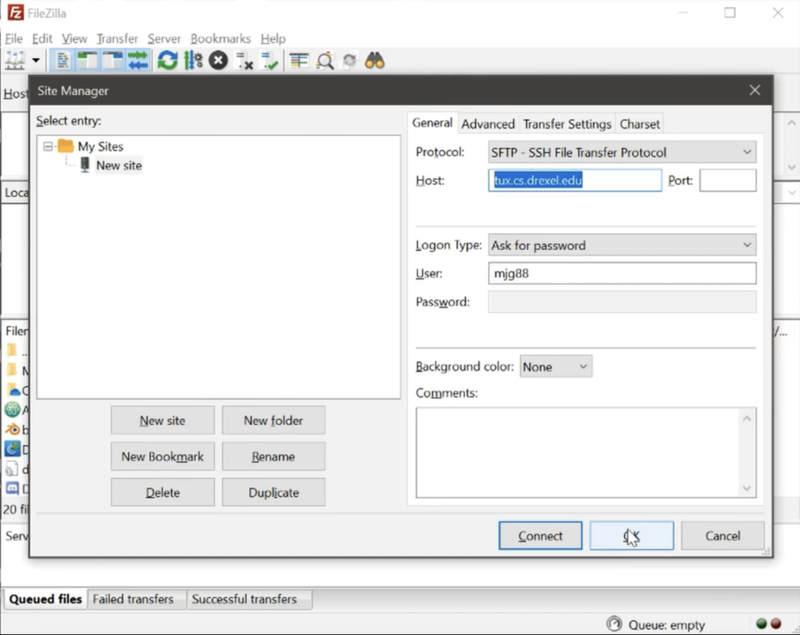
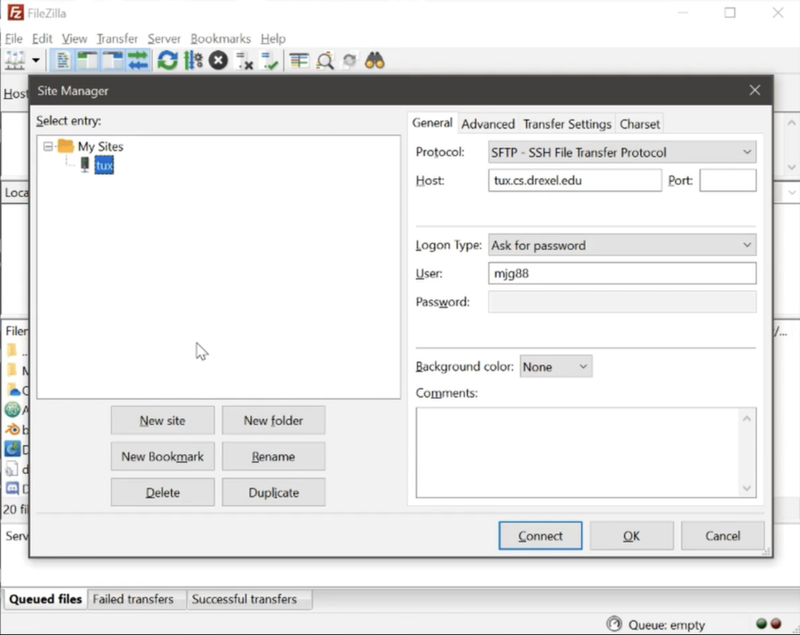
- On the left-hand side, select and rename the site to a preferred name such as "tux". When done, click Connect.
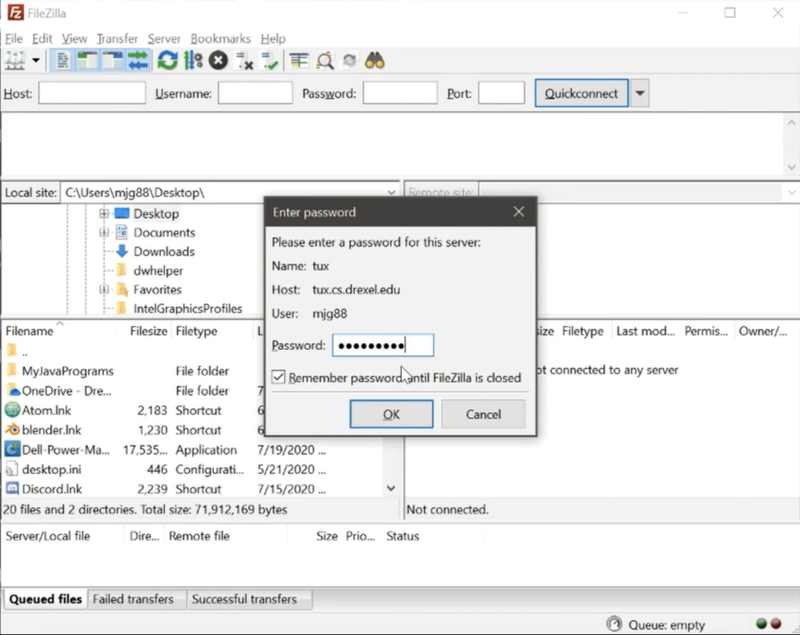
- Enter your Drexel password. Also, check the box to remember the password until FileZilla is closed.
- You now have access to your Tux via FileZilla GUI
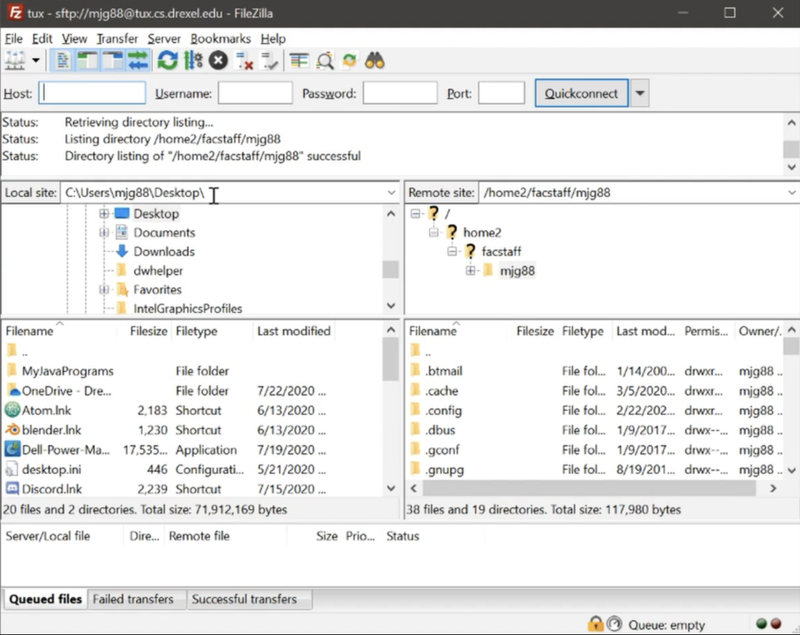
Additional Tips
Additional Tips
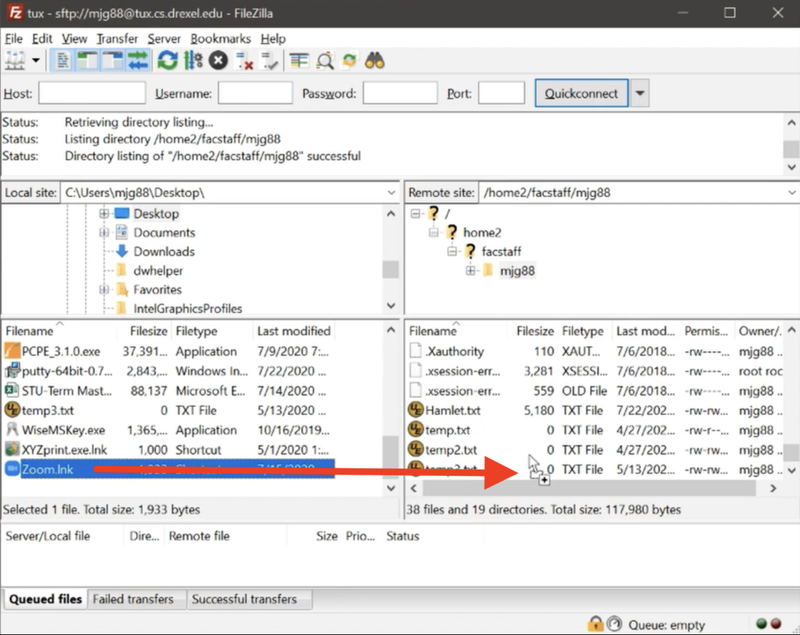
- You can drag-and-drop your files from your local computer to the remote Tux server.
- You can also drag-and-drop from your remote Tux server to your local computer.
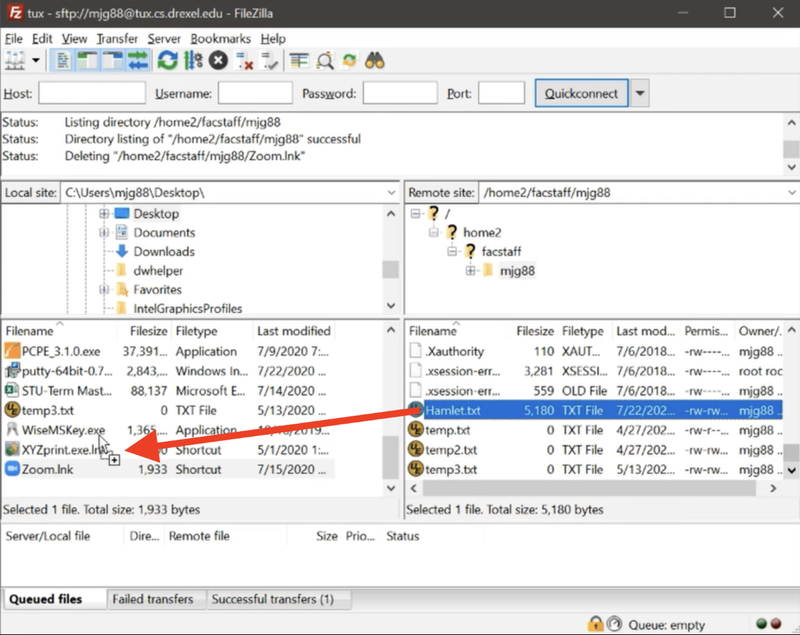
- Be careful transferring files to locations that have a file with the same name. Determine if you want to overwrite this file.
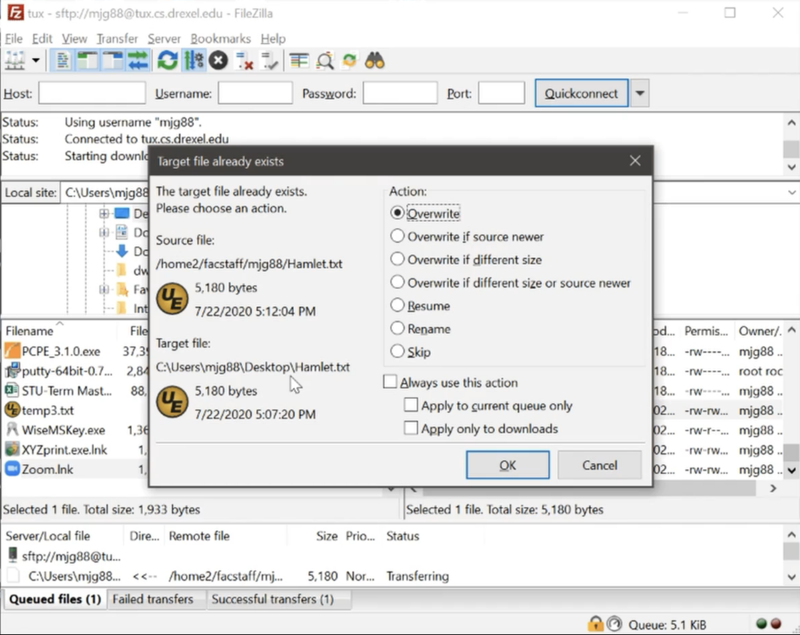
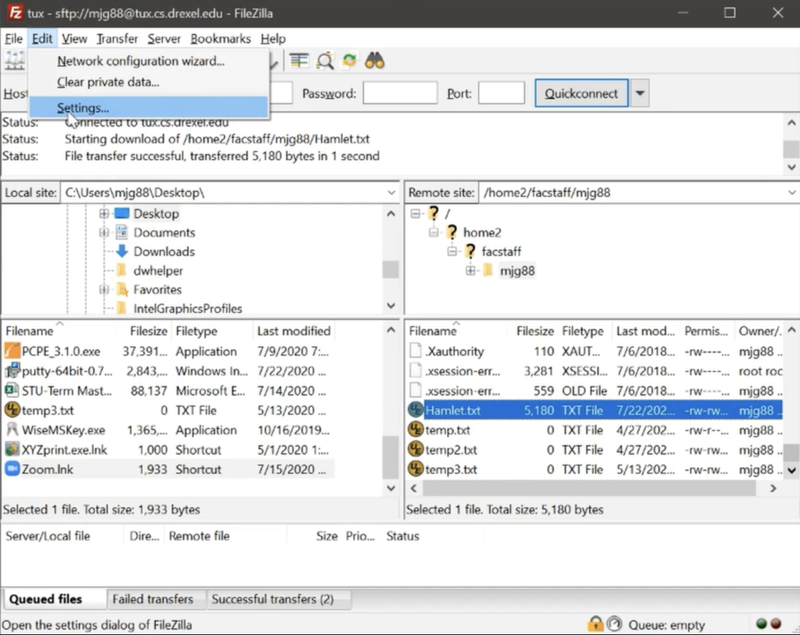
- To set your default text editor, go to Edit > Settings... in the top-left corner.
On the left-hand side, find and click on File editing. Click Use custom editor radio button > Browse...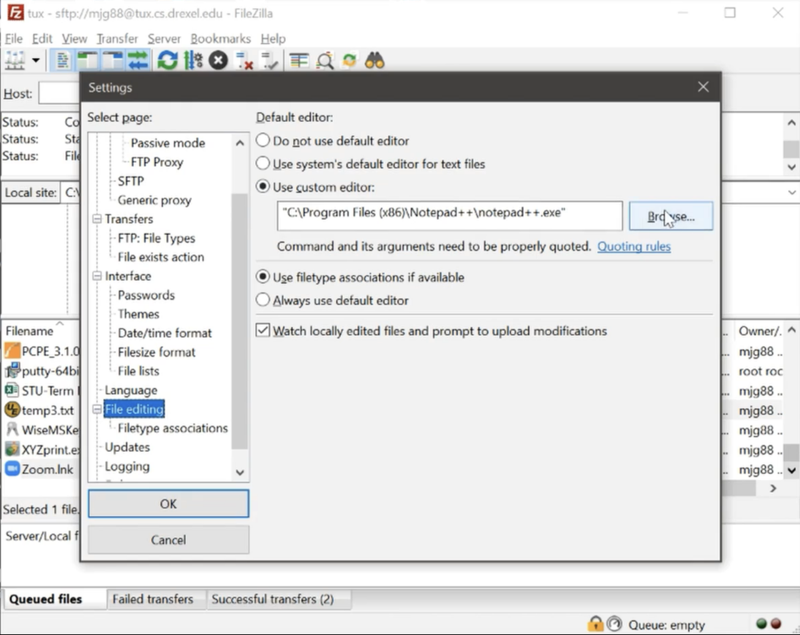
Find your preferred text editor (Notepad++ recommended). Click Open > OK to save your changes.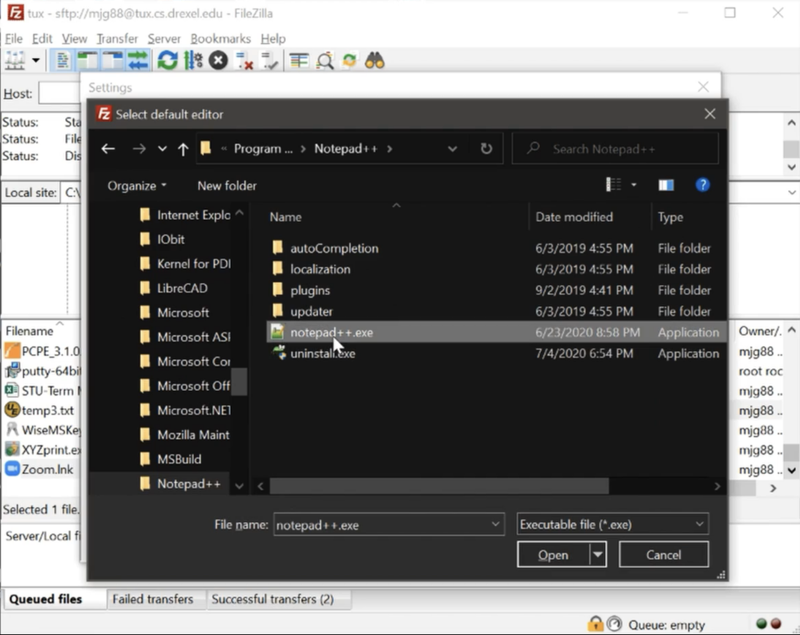
- To edit a file, right-click the file and click on View/Edit.
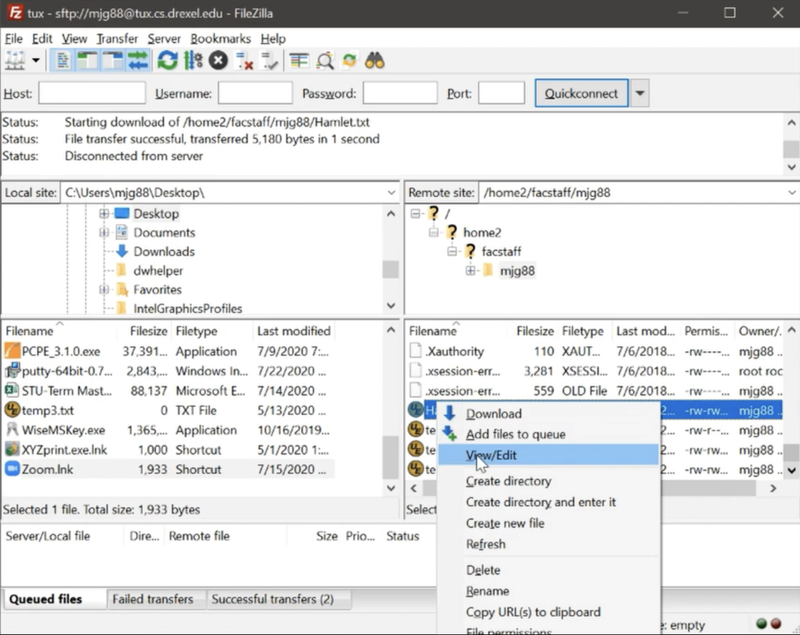
After you have finished editing and saving your file, you will get up a pop-up that the file has changed. Click Yes to update the file on the remote Tux server.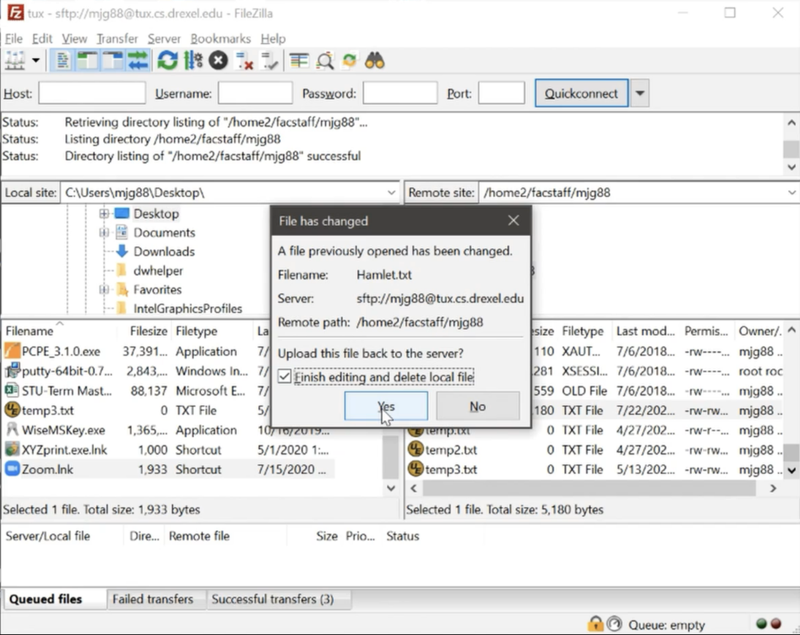
Troubleshooting
Troubleshooting
Mac Users - Annoying Pop-up
If you see an error that says, 'Could not write "/Users/userid/.config/filezilla/filezilla.xml": Failed to write to xml file.':

To get rid of error, open up your Terminal application or program in Mac.
Type in following commands.
Press the Enter/Return key at the end of each line.
sudo mkdir ~/.config/filezilla
# TYPE IN YOUR PASSWORD, if prompted. NO CHARS SHOW AS
YOU TYPE.
# replace <your_userid> with the userid on your Mac that you login with
sudo chown -R ‹your_userid> ~/.config/filezilla