Connecting to Tux from Android
Instructions on connecting to Tux from Android devices using free version of Termux
Introduction
For students and faculty needing to connect to Tux (tux.cs.drexel.edu) from an Android device, the Termux app provides a convenient solution. While there are other terminal apps available, Termux offers a free version that covers most of the essential features. This guide walks you through the setup process, ensuring a smooth connection experience without requiring any additional purchases.
Step 1: Install Termux
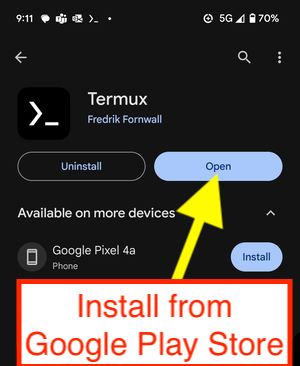
- Download Termux: Visit the [Google Play Store] and download the Termux app.
- Installation: Once the app is installed, open it to begin the setup process.
Step 2: Setup
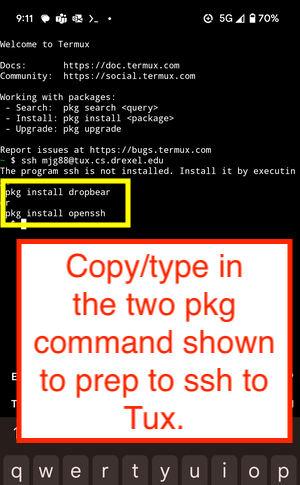
- When you open the app you will face a terminal screen
- Run these two commands: "pkg install dropbear" and "pkg install openssh"
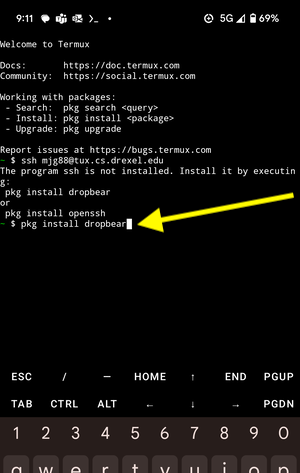
Step 3: Install Dropbear
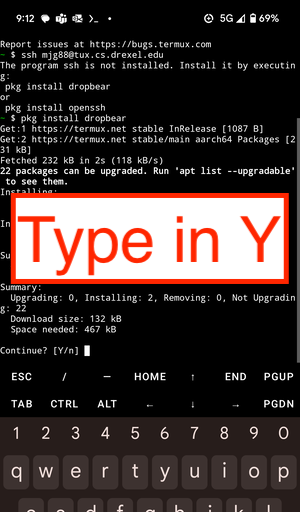
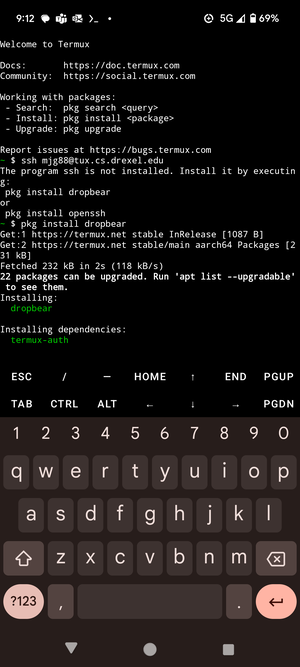
- After running "pkg install dropbear" it will install and ask if you want to continue
- Type in Y to continue
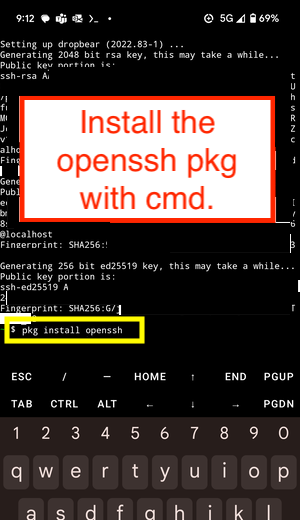
Step 4: Install Openssh pkg
- Then running "pkg install openssh" will install any dependencies needed to run ssh
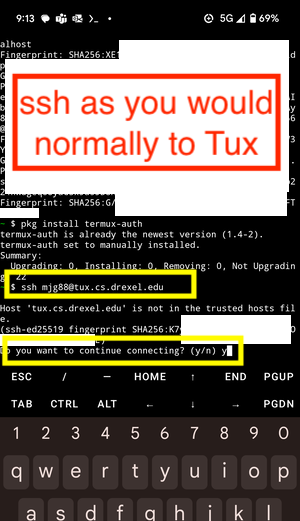
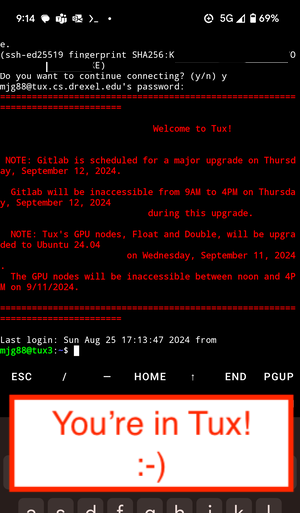
Step 5: Connect to Tux
- After installing, you will ssh into tux as normal using "abc123@tux.cs.drexel.edu"
Step 5: Logging Out
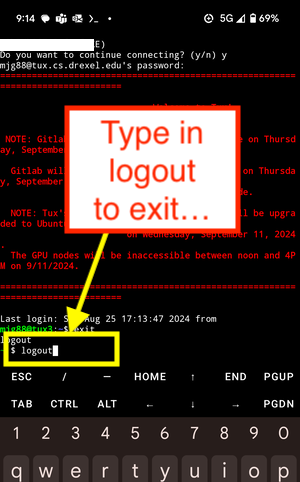
- To exit out of tux type in "logout" into your terminal
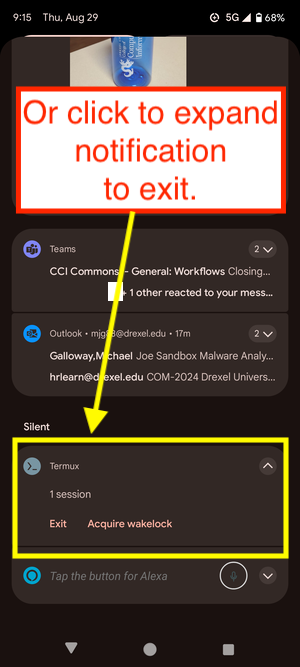
- You can also expand the Termux notification and click "exit"