Single & Double-Sided Printing in Chrome
How to Print double-sided in the Chrome browser
Double-sided printing in Chrome
- In Chrome, right-click, select 'Print' or press 'ctrl'+'P' on your keyboard
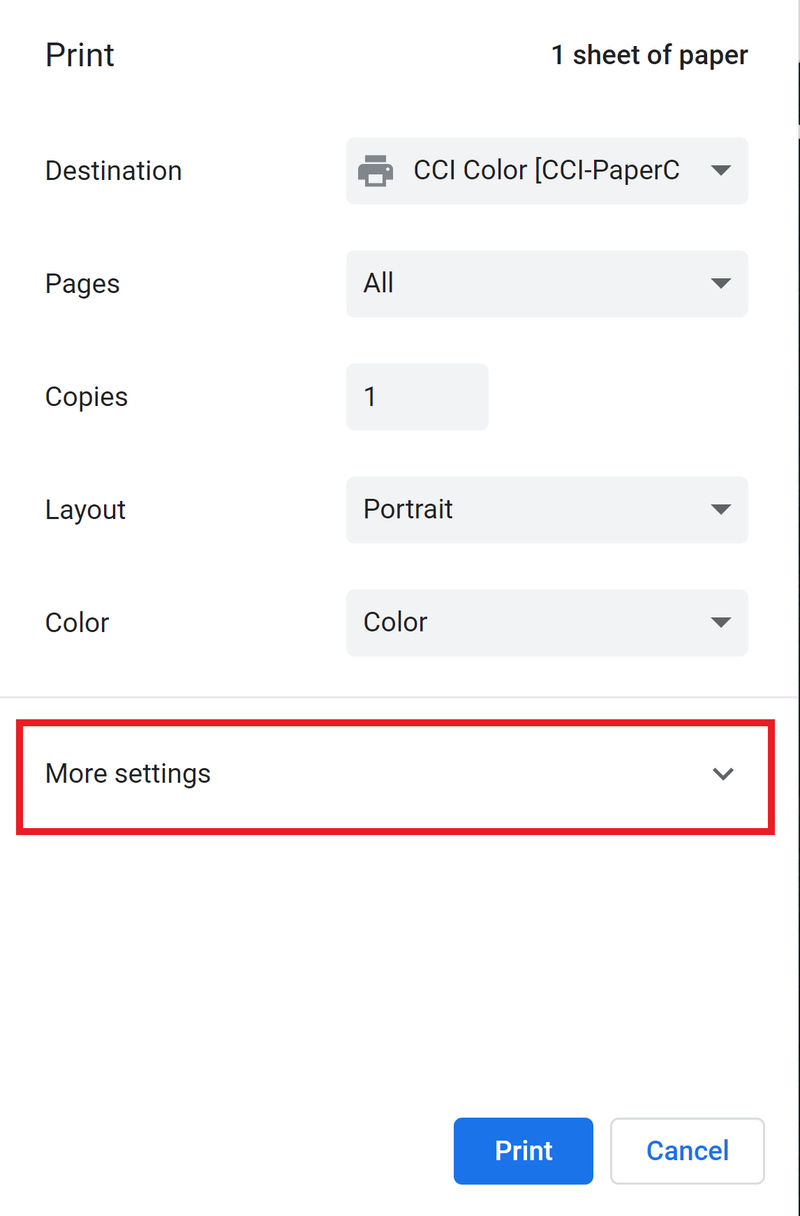
- To print double-sided from either the iCommons' printers ("CCICommonsPrint.cci.drexel.edu" or "CCICommonsPrint2.cci.drexel.edu") or Papercut's printers ("SCIS Color" or "SCIS BW"), click on 'More Settings'
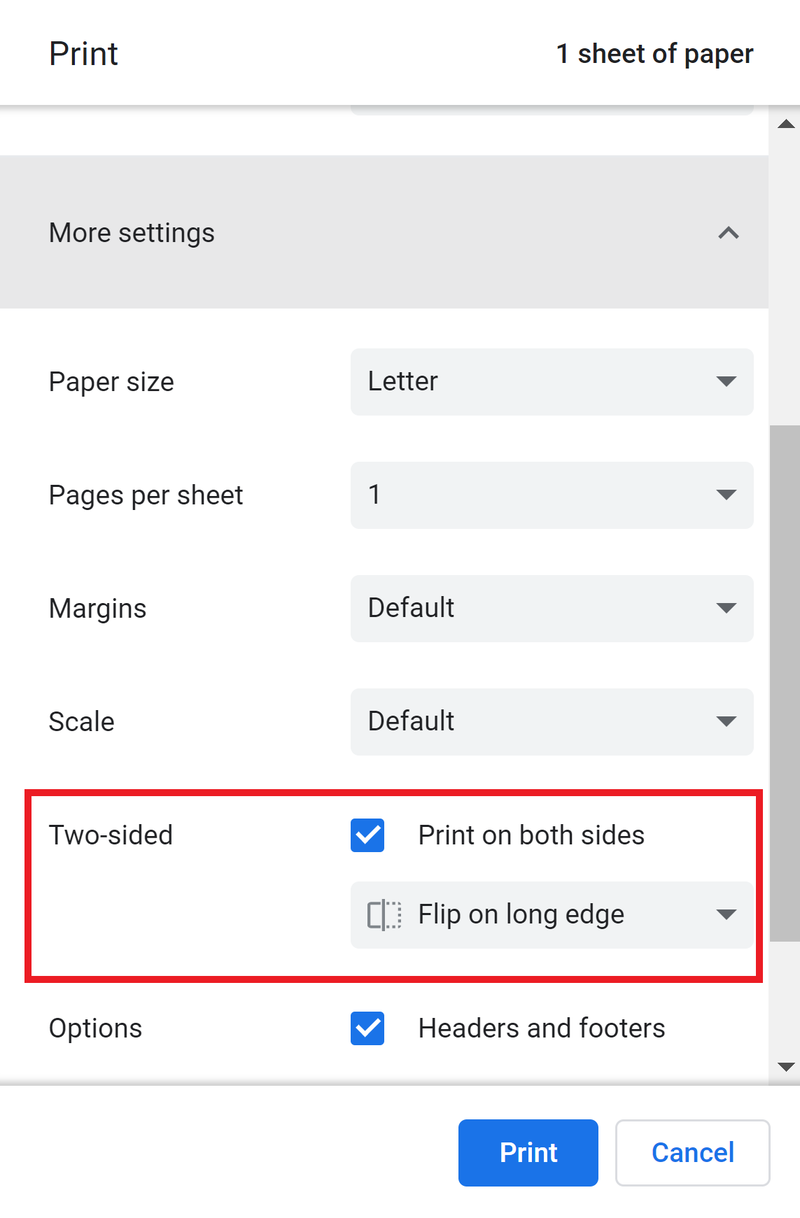
- Check the checkbox for 'Print on both sides' and under select 'Flip on long edge'
One-sided printing
- In Chrome, right-click, select 'Print' or press 'ctrl'+'P' on your keyboard
- To print one-sided from either the iCommons' printers ("CCICommonsPrint.cci.drexel.edu" or "CCICommonsPrint2.cci.drexel.edu") or Papercut's printers ("SCIS Color" or "SCIS BW"), click on 'More Settings'
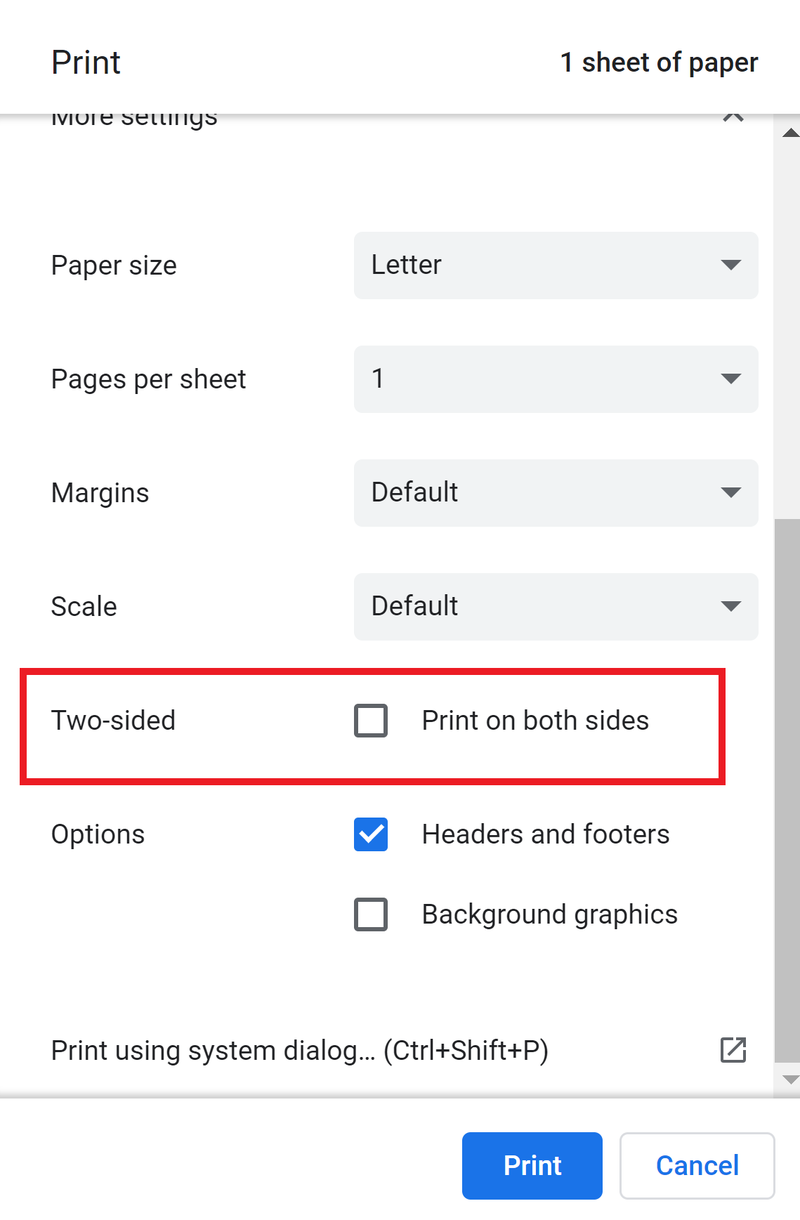
- Uncheck the checkbox for 'Print on both sides'