
Adding PaperCut Printers to a non-Drexel computer
How to use MobilityPrint to add PaperCut printers to non-Drexel systems, such as personal Macs, PCs, ChromeOS, iOS and Android devices
To install PaperCut printers on personal Macs or PCs, or to install PaperCut printers on ChromeOS, Android and iOS devices, you must use the MobilityPrint configuration tool. This will give you basic functionality; if you need to use staplers or finishers on the SCIS Copiers, please use the dedicated instructions for your platform at Printing with PaperCut.
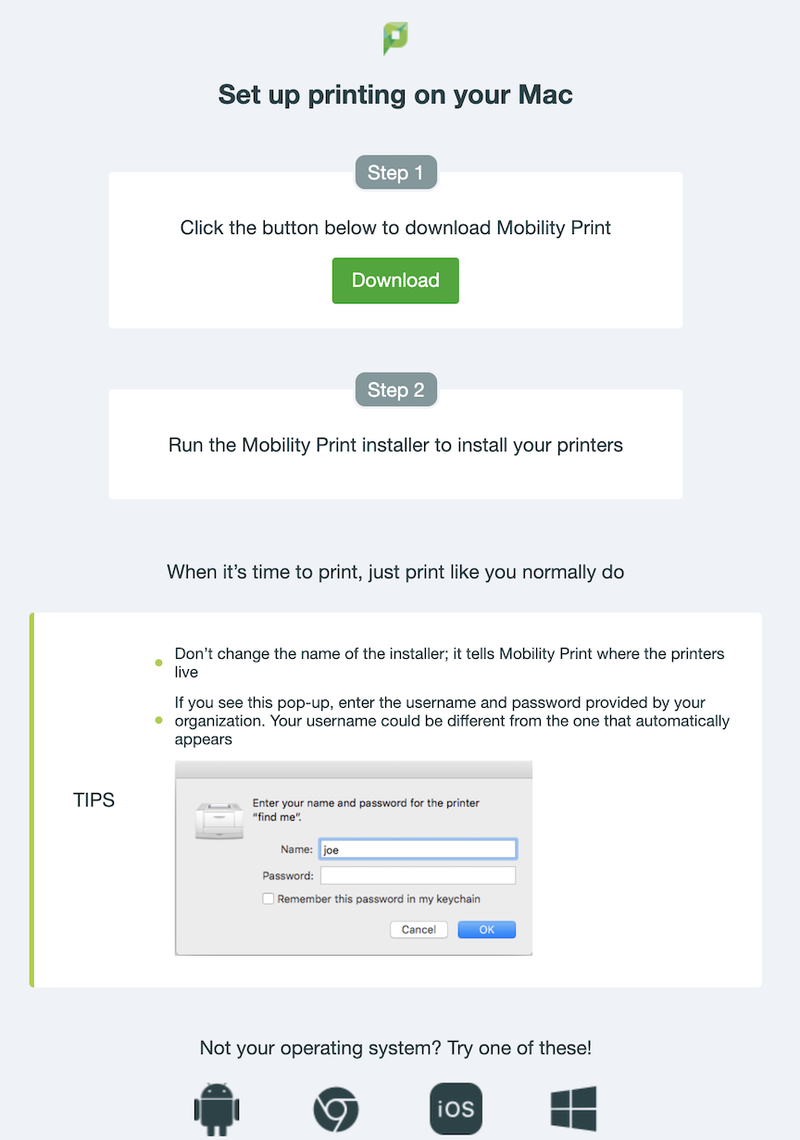
First, visit the MobilityPrint setup page at MobilityPrint Setup. You will automatically be directed to the correct configuration for your computer type, and will be provided instructions on adding the printers specific to your operating system. If the wrong operating system is chosen, you can manually choose another OS at the bottom of the page.
TROUBLESHOOTING
After downloading the installer, you MAY have to rename it so that the installer will work correctly. You have to remove the https-strict_ in the brackets from the filename so that the installer works properly.

After correcting the filename, the installer will work properly and you'll be able to add the SCIS Copiers.
For Windows:
- After you first install it, you might need to login with your Drexel userid@drexel.edu rather than just your userid. Try both logins with and without @drexel.edu if either does not work.
- Soemtimes you might have to search \\papercut.cci.drexel.edu and double-click both CCI_Color and CCI_BW to install the printers after all the steps above. It might fail the first time, try again.
If Papercut is not installing CCI_Color or CCI_BW at all:
- If the steps above did not work, the papercut driver may not have been installed properly. This may be the case if: CCI_Color or CCI_BW is unopenable after searching \\papercut.cci.drexel.edu and either printers are not added after Mobility Print's setup.
- Follow the following steps to attempt reinstalling Papercut driver:
Windows:
- Navigate to Printers & Scanners < Print server properties

- Upon opening printer server properties, click the "Driver" tab. Find the driver with a name similar of "PaperCut Global PostScript." Click this driver so it is selected and press remove on the bottom actions.

- PaperCut driver should now be removed.
- Head to \\papercut.cci.drexel.edu
- Open "PCClient" with your credentials
- Navigate to the folder named your operating system (ex: "win" for Windows laptops)
- Find "client-local-install" application inside this folder.

- Open this application and go through the normal installation with your credentials.
- Afterwards, Papercut Driver should have been properly reinstalled. Test this by going to \\papercut.cci.drexel.edu and opening either "CCI_Color" or "CCI_BW" to install the printers.
If the machine is not accepting jobs are being successfully added:
- Ensure that you are on Drexel VPN or Dragonfly3 network. This is very important for Papercut printer connectivity.
- If you are on Dragonfly3: ensure you have removed configured DNS addresses from IPv4 and/or IPv6 network settings. This is very important for Mobility Print to work. Link below shows instructions for this.
Note: After the steps above, Mobility Print will ask to register account in order to adding papercut printers.
If the pop-up does not show like in the image above, the user may not be in the backend server and will need to be added and confirmed by the System Administrator. The user will not be able to print from the Papercut printer until this step is confirmed to be completed.