
How to manually add BeyondTrust Bomgar client to Security & Privacy
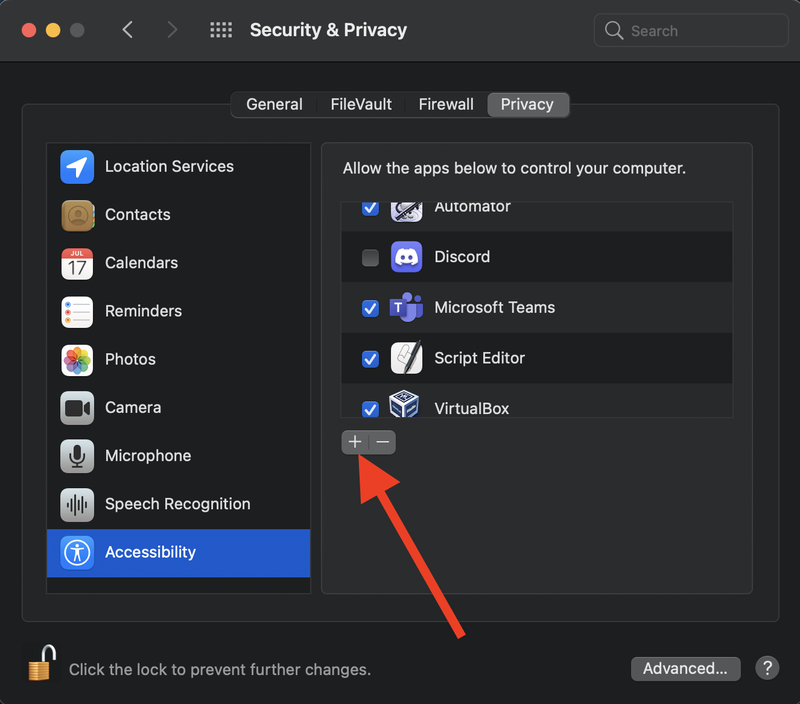
This webpage has instructions on how to manually add Bomgar in Security & Privacy section of Mac to grant various accesses to that application.
- Click on little plus icon.
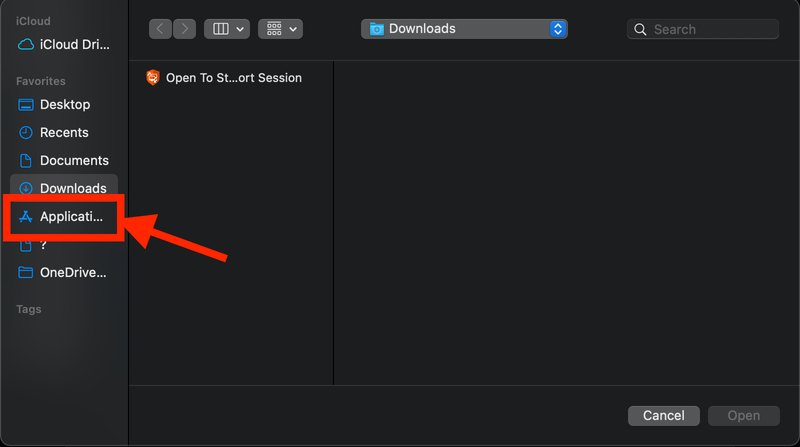
- Go to "Application".
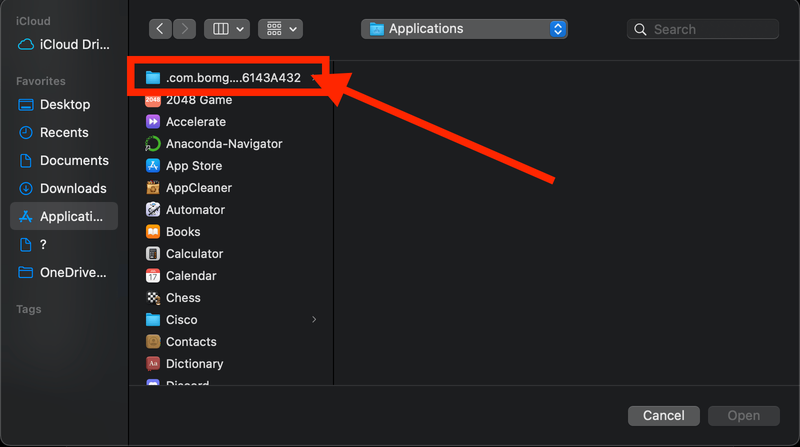
- Type "Command(⌘) + Shift(⇧) + ." to see all the hidden folder. You'll find folder starting with ".com.bomgar". Go inside that folder
- Double click on "Remote Support Customer Client".
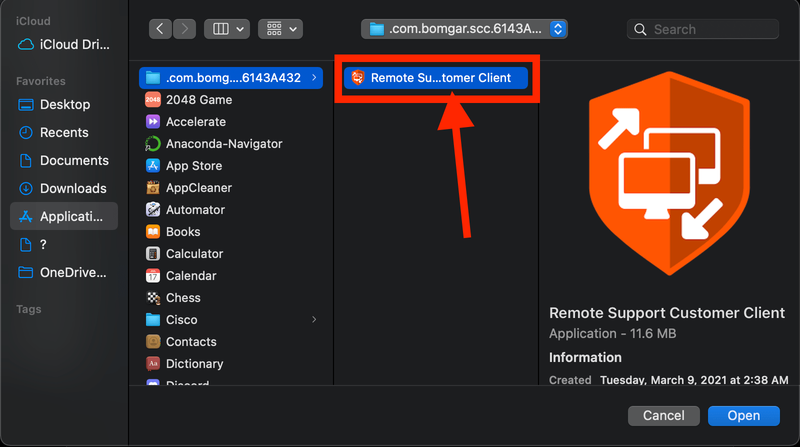
- You'll see "Remote Support Customer Client" application added in Security & Privacy now.
If you are having difficulty or need help performing any of the steps above, please reach out to ihelp@drexel.edu for assistance.