
Putty SCP or PSCP
How to install the PuTTy Secure Copy client and use it to transfer files.
Introduction
PSCP is PuTTY SCP or PuTTY Secure Copy of files to/from a local computer to a remote server or server node, or secure copy of files between servers or server nodes.
Generally, we recommend the following over PSCP:
- FileZilla
- Cyberduck
- WinSCP
- SCP & SSH by Windows 10 PowerShell CLI Command Line Interface
- SCP & SSH by Mac Terminal CLI or Command Line Interface
- Possibly more options at: SSH, SCP, SFTP GUI or CLI -- Working with Files or Folders on Tux or Remote Hosts
If your instructor really wants someone to use PSCP to copy files, or you simply are curious or have a different need that PSCP could assist with, feel free to proceed, but the above options are usually easier.
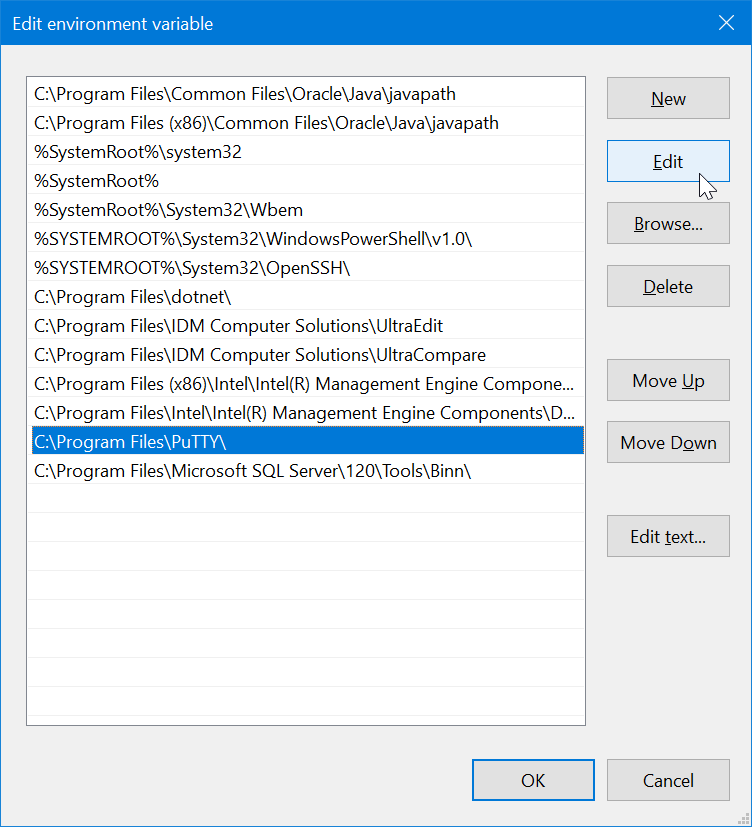
PSCP PuTTY - set env variables
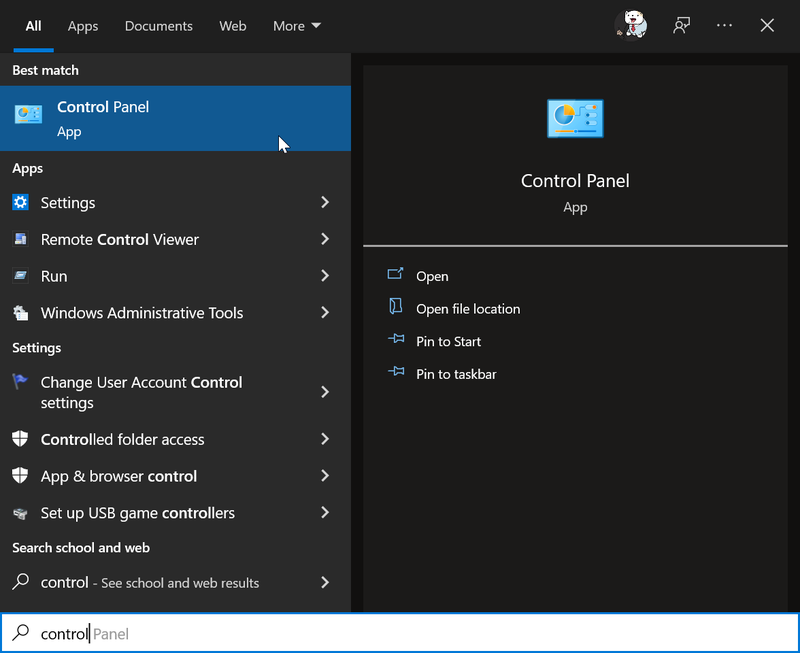
- Search "Control Panel" from the Search bar.
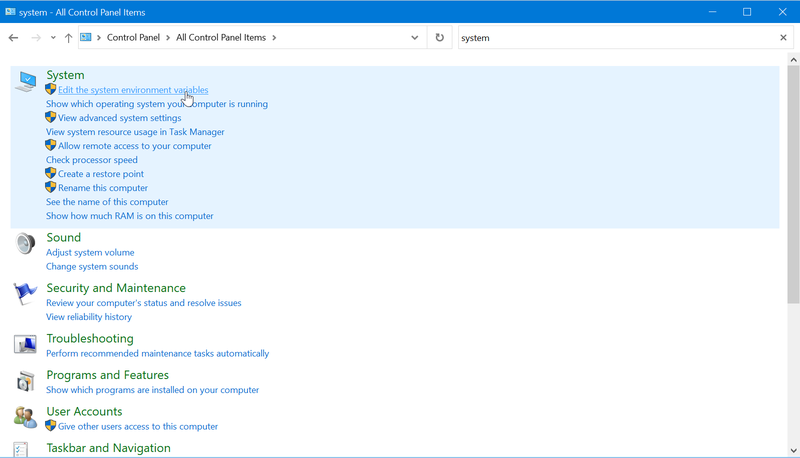
- Clicked "Edit the system environment variables" from the “System” session.
- Choose "Advanced" from the top menu bar.
Then choose "Environment Variables" at the bottom right.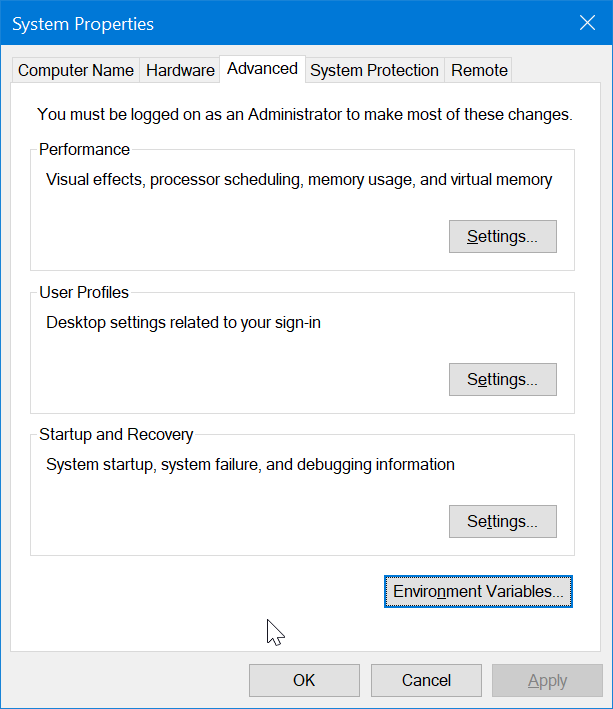
- Check the path address of user variables.
Clicked the "Edit" button under the "System variables" session.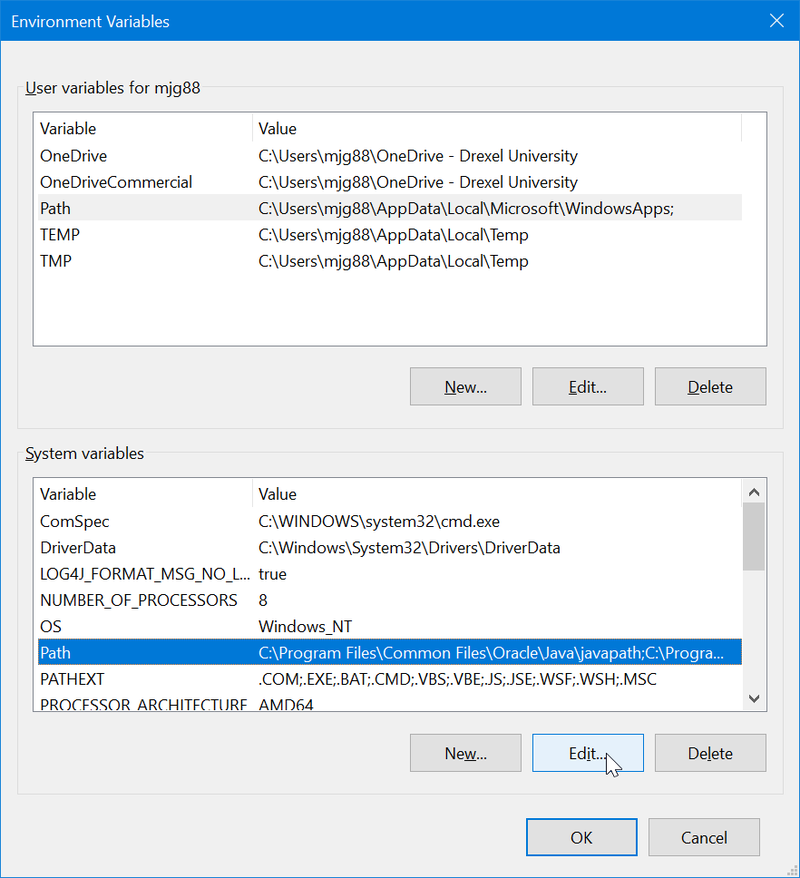
- Choose the path of PuTTY then clicked "Edit".
Video Instructions
- https://1513041.mediaspace.kaltura.com/media/Putty+SCP+or+PSCP+File+Transfer/0_a5c65q37
- For TUX access, current Tux users would probably use their Drexel username@drexel.edu , and not just their Drexel username. For example, if your Drexel userid was mjg88, you would use mjg88@drexel.edu , and not just mjg88. But if you run into issues, then try using only the Drexel username (so only mjg88 in this example).
Written Instructions
The following Cornell University website has excellent written instructions for using PSCP.