Connecting to dragonfly3 WiFi on Linux
How to connect to Dragonfly3 wireless on Linux devices
Connecting to Dragonfly3 Wireless can be confusing on Linux devices, as the Dragonfly3 installer often fails. Follow these instructions to get the correct certificates installed on your Linux device in order to access Dragonfly3.
Download the Certificates
You will need to connect to drexelguest to download the Dragonfly3 certificates before you can access the Dragonfly3 wireless network.
Start by connecting to DrexelGuest using your system's WiFi tool, usually in the top right corner of your screen.
Once connected, you may automatically be redirected to a login screen in your web browser. If not, open your web browser to access the login page. It should load automatically, but if not, go to captive.apple.com to redirect to the setup page.
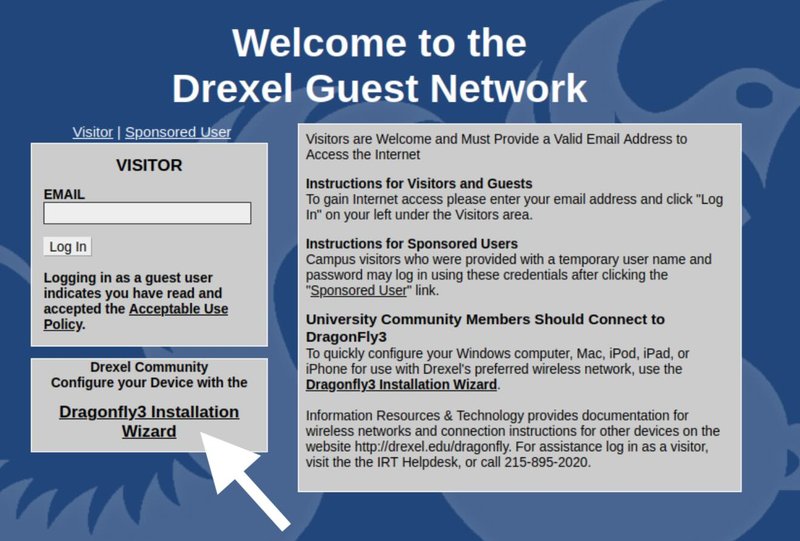
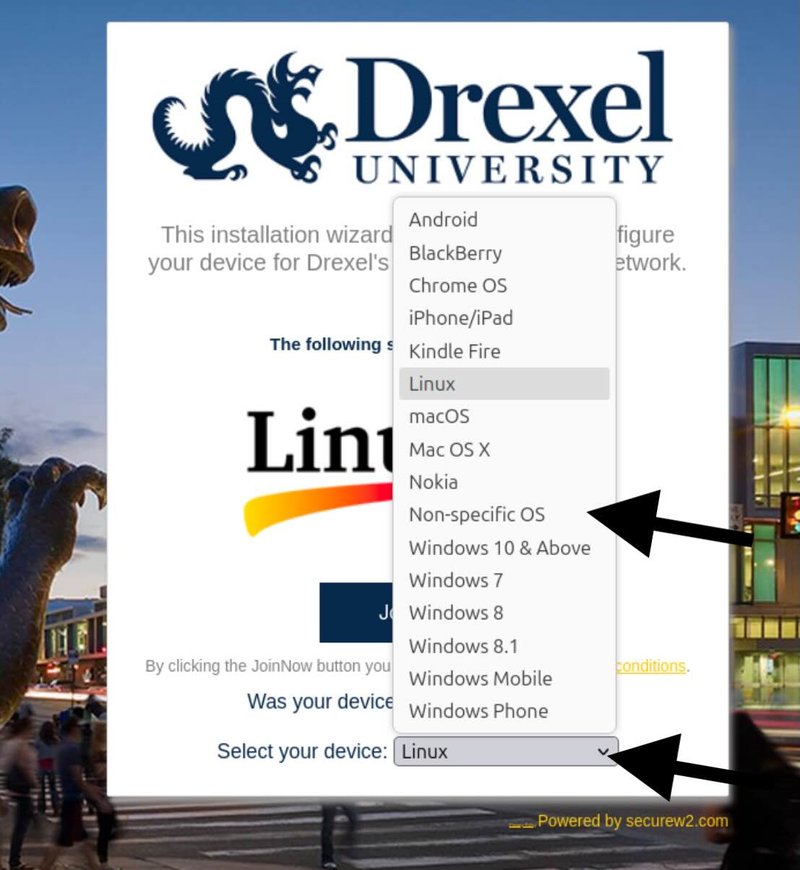
Click on "Dragonfly3 Installation Wizard" but do not install - the installer tends to fail. Instead, select "Non-specific OS" in order to download the certificates and configure the WiFi yourself.
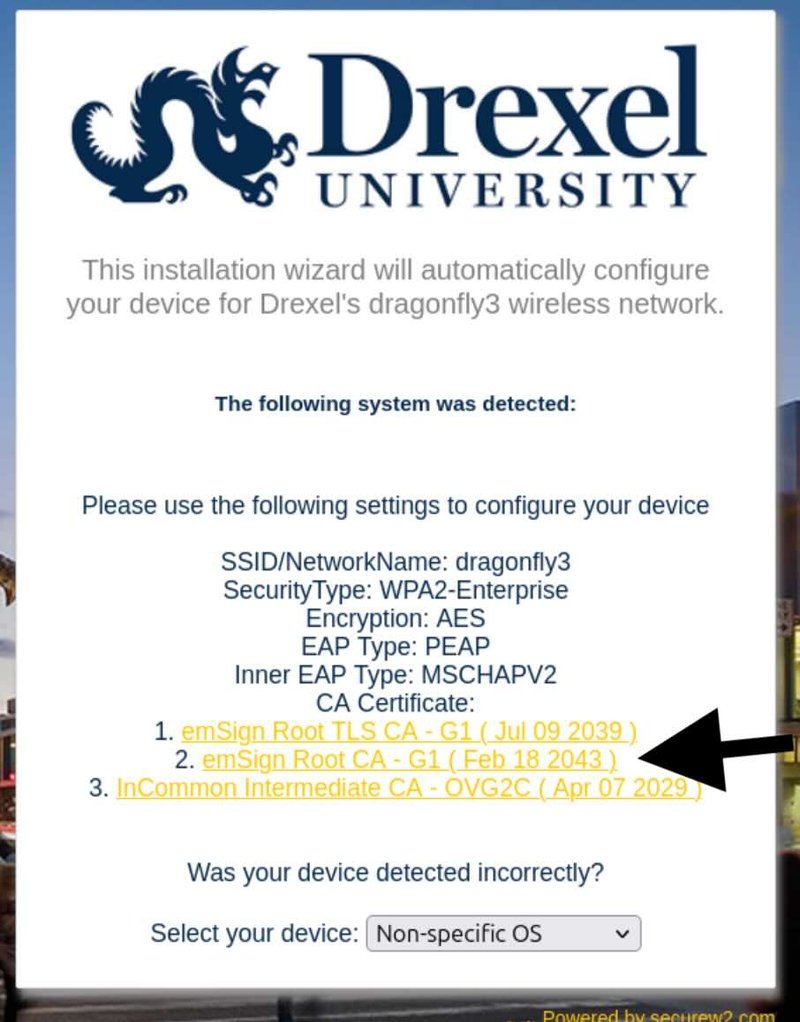
Download the second option, "EmSign Root CA - G1 for WiFI" - this is the certificate needed to access the WiFi network. Save or rename the file to "Dragonfly3.cer" to match the following instructions.
This file should be moved to /etc/ssl/certs/ in order for the system to recognize it. You can do this with the command sudo mv ~/Downloads/Dragonfly3.cer /etc/ssl/certs
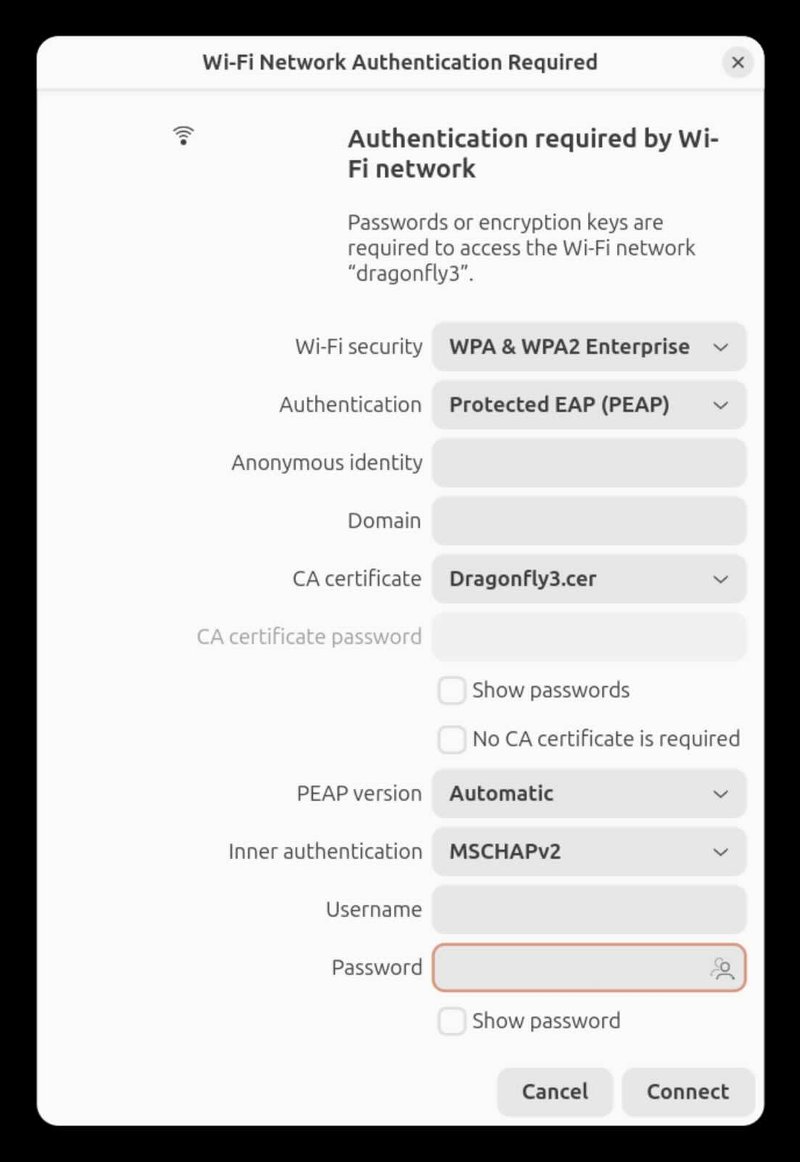
Once the cert is moved, you can configure the network with the following settings:
Wi-Fi security: WPA & WPA2 Enterprise
Authentication: Protected EAP (PEAP)
CA certificate: Dragonfly3.cer (navigate to /etc/ssl/certificates, where we saved the file)
PEAP version: Automatic
Inner authentication: MSCHAPv2
Username: your Drexel username
Password: your Drexel password