Skip to content
Drexel University College of Computing & Informatics Technology Services and Support

Connecting to dragonfly3 on iOS/iPad

Connecting to dragonfly3 on iOS/iPad, apple, iphone, ipad, iOS, mac, iPadOS, i os, i pad, i phone

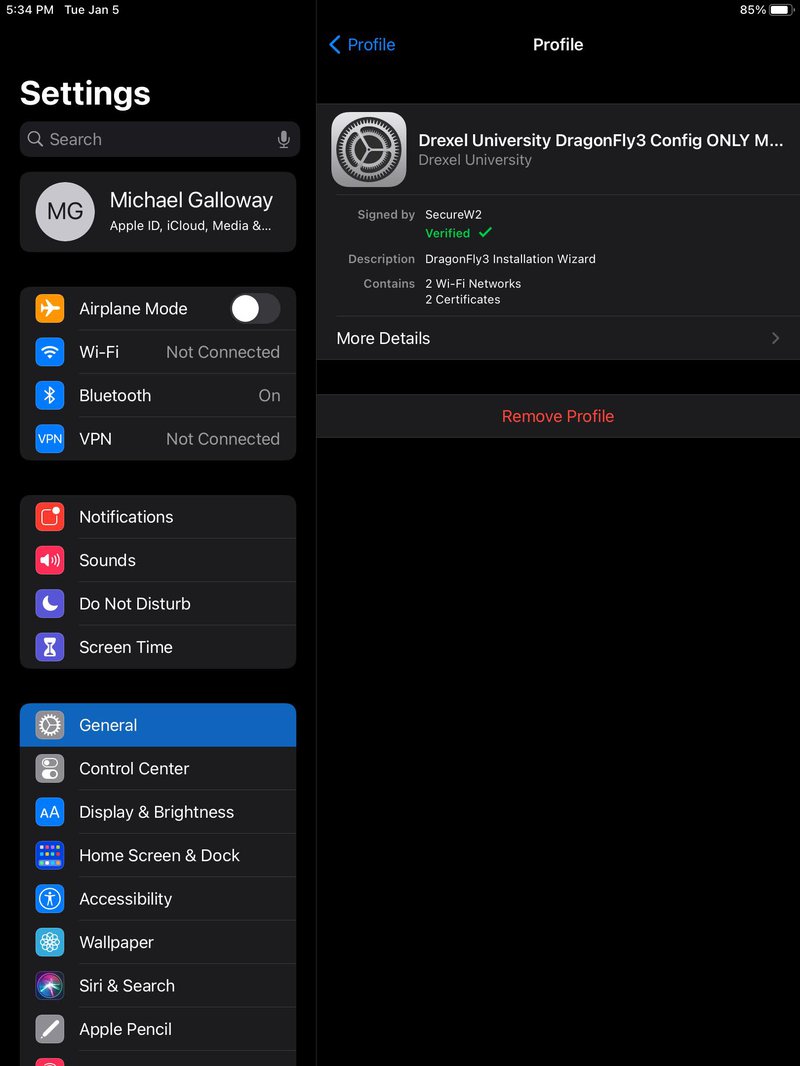
  1. Go to Settings > General > Profile. Click on the Profile labeled "Drexel University DragonFly3 Config ONLY".
    remove and re-add dragonfly3 on iOSiPadOS - 1.jpg
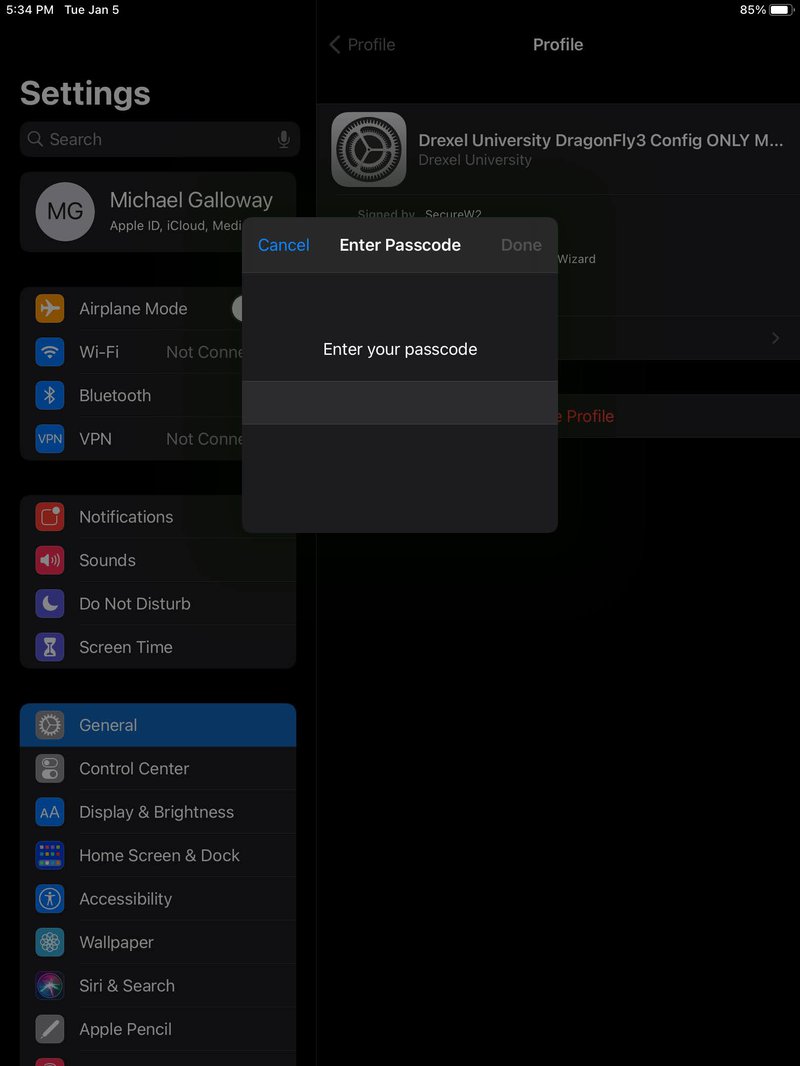
  2. Click on "Remove Profile".
    remove and re-add dragonfly3 on iOSiPadOS - 2.jpg
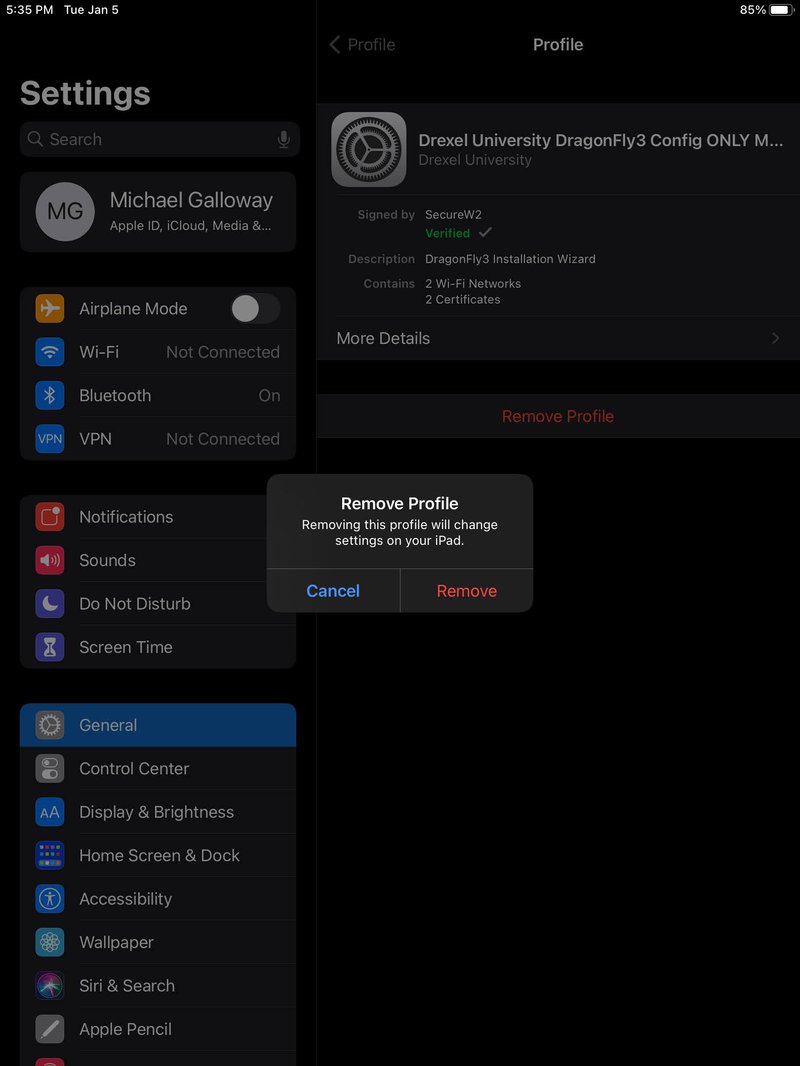
  3. Enter your passcode.
    remove and re-add dragonfly3 on iOSiPadOS - 3.jpg
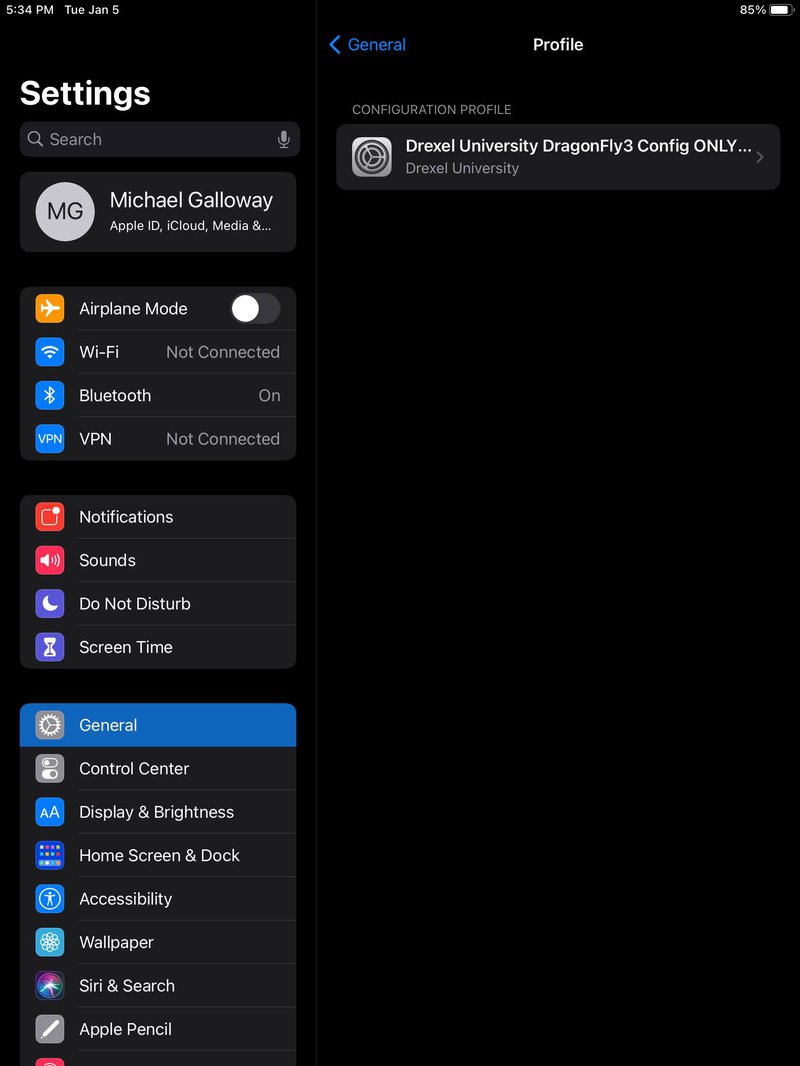
  4. Click on "Remove".
    remove and re-add dragonfly3 on iOSiPadOS - 4.jpg
  5. Go to Wi-Fi and tap on the dragonfly3 network.
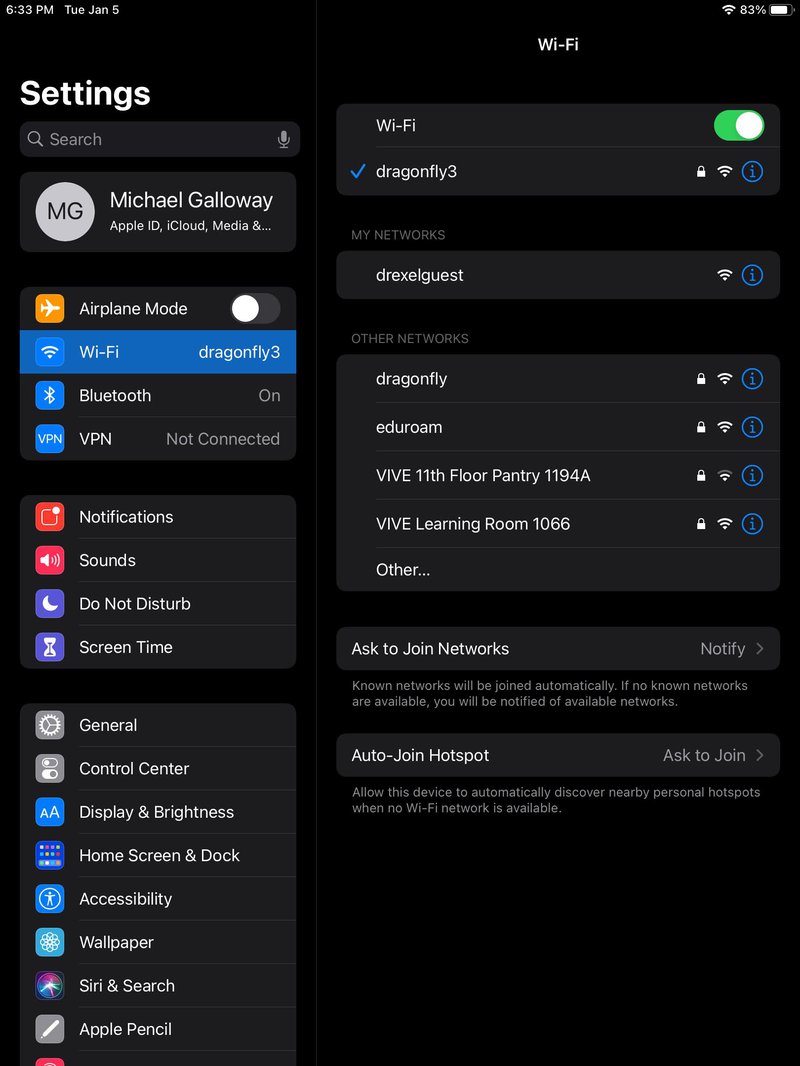
    remove and re-add dragonfly3 on iOSiPadOS - 5 & 7.jpg
  6. Tap "Forget This Network", then "Forget".
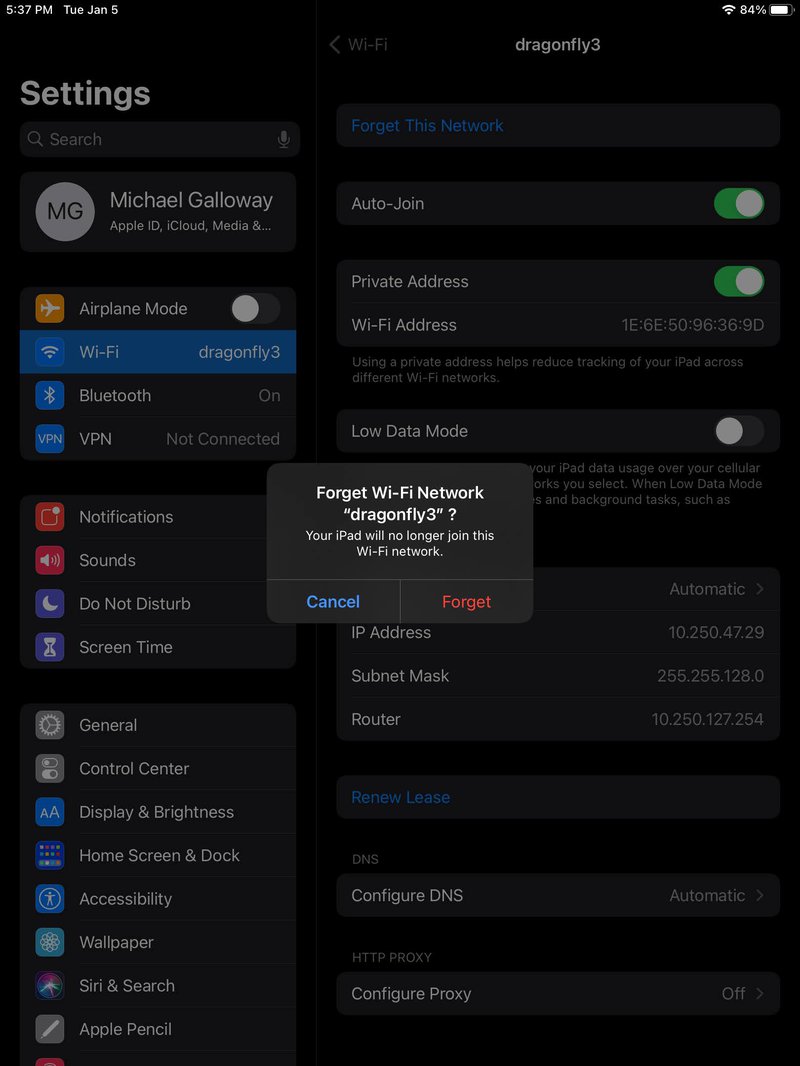
    remove and re-add dragonfly3 on iOSiPadOS - 6 - find and tap dragonfly3 in Settings  WiFi, then tap Forget This Network then Forget.jpg
  7. Connect back to the Wi-Fi network "dragonfly3"
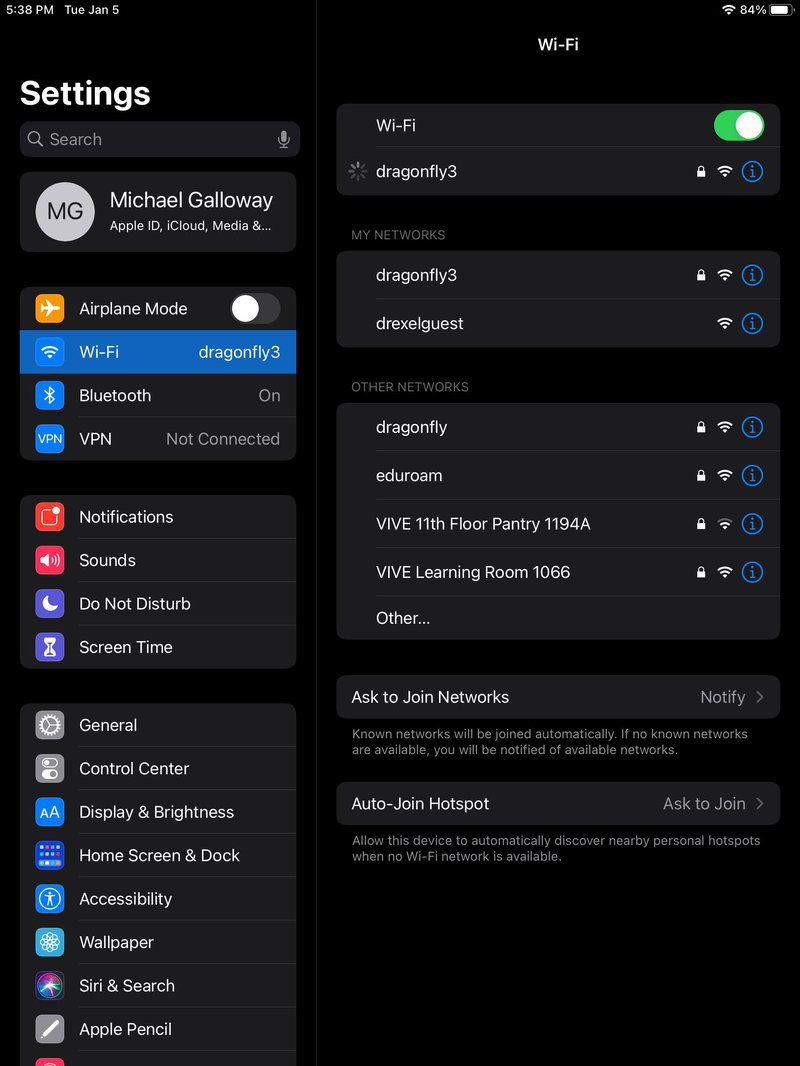
    remove and re-add dragonfly3 on iOSiPadOS - 7.jpg
  8. After entering your user id and password, select "Trust" for the certificate.
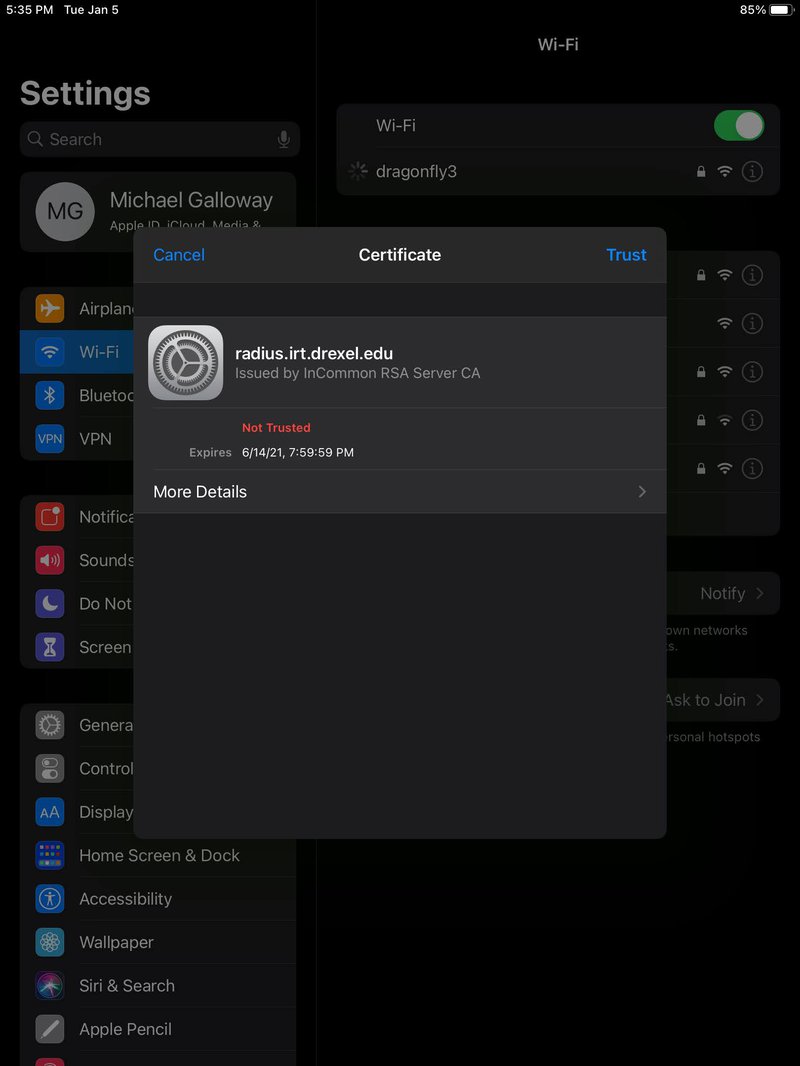
    remove and re-add dragonfly3 on iOSiPadOS - 8.jpg
  9. You are now connected to the dragonfly3 network.
    remove and re-add dragonfly3 on iOSiPadOS - 5 & 9.jpg

Still stuck?

The CCI Commons help desk can walk you through it.

Mon–Fri
8am–9:30pm
Sat
9am–6pm
Sun
12pm–5pm

Need help?

The CCI Commons help desk can walk you through it.

Mon–Fri
8am–9:30pm
Sat
9am–6pm
Sun
12pm–5pm