
Gitlab -- Account Confirmation and Avatar Issue -- Article Listing
This page provides documentation on how to temporarily fix any issues regarding confirming your gitlab account and fixing any Gitlab avatar issue. Keywords: email confirmation, e-mails, emails, e-mail, profile picture, profile pic, profile image, avatars, profile images, profile pics
Gitlab - Account Confirmation & Avatar Issue
1. Go to gitlab.cci.drexel.edu.
Make sure to select LDAP tab and not standard tabv. Put your Drexel User ID (without @drexel.edu) and your tux password. If you forgot your password, you can reset using this link https://support.cci.drexel.edu/act/tux/reset/.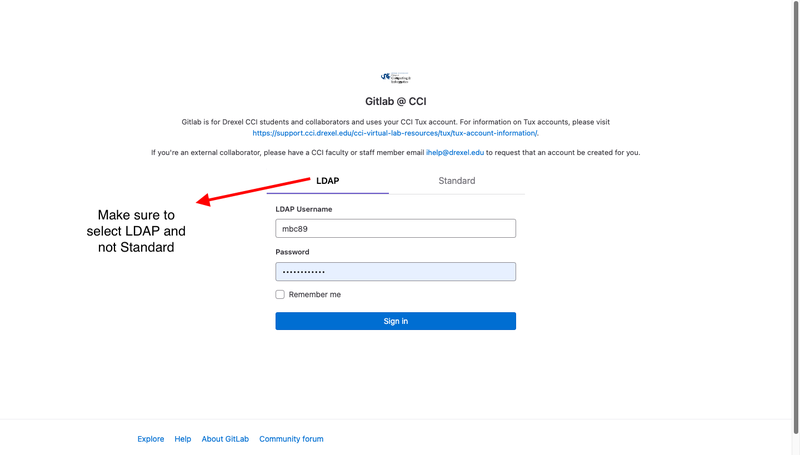
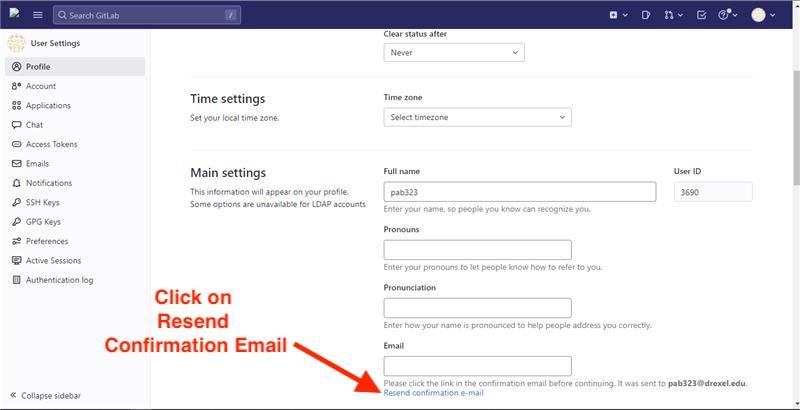
2. Go to your profile on the top right and click on edit profile
Under the email box, click on resend confirmation email.
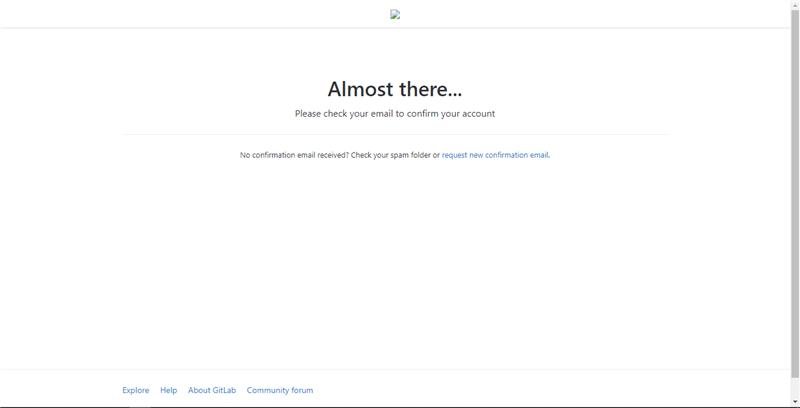
3. It should bring you to this 'Almost there' Page
4. Go to https://outlook.office.com/mail/ and check Junk and Deleted Fol
- Make sure to log in using your drexel credentials
- Check for the confirmation email in your inbox - both focused and other tabs
- If not in your inbox, check in your junk folder
- if neither in inbox, nor junk, check your deleted folder
5. Go to your Deleted Items folder and click on Recover Items deleted from this folder.
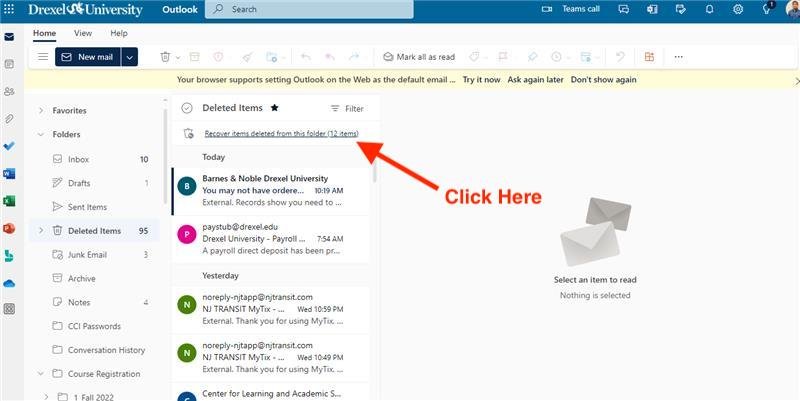
6. You should see the gitlab confirmation email in the recoverable items
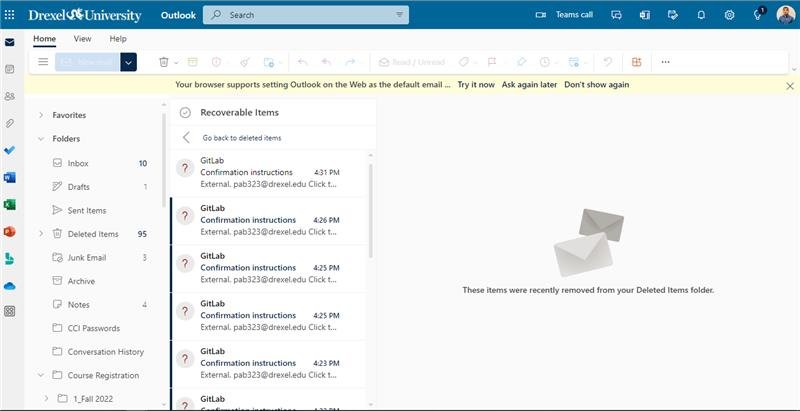
7. Right click on the gitlab confirmation email and click on restore
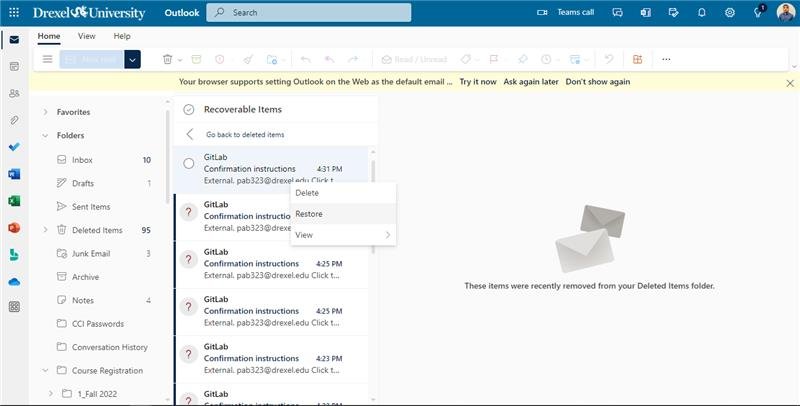
8. The email should now be restored into your junk folder
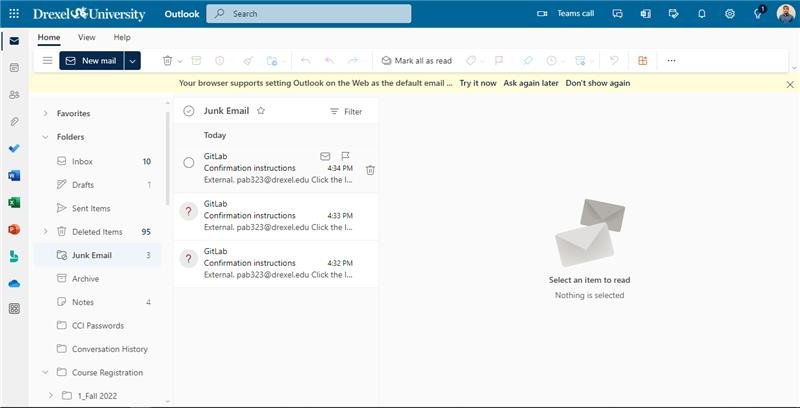
9. Go ahead and click on the confirmation link in the email to confirm your account.
10. Open a new tab in your browser and maker sure you signed out of Gitlab
11. Sign in to gitlab.cci.drexel.edu using your drexel credentials. Make sure to sign in using LDAP and not standard.
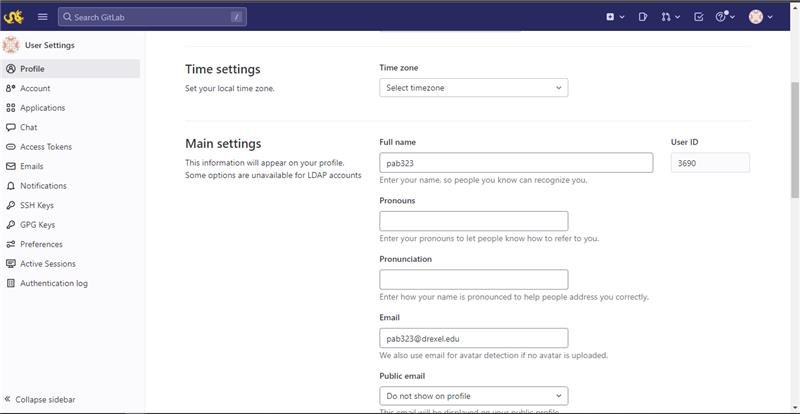
12. Go to your profile settings and your drexel email should appear under the email section.
All other gitlab features should work now. You should also be able to upload your public avatar as well.
There aren't any pages in this section yet.