Kaltura Drexel Streams -- Thumbnail Setting, or Setting Image Shown Before Video Is Played
Instructions on setting thumbnail
You can set the Thumbnail image, or the image someone sees when they see your video but before they actually click the "Play" arrow or triangle.
Here's how.
- Find & click your video under "My Media" in Kaltura Drexel Streams.
For more help on finding your video, see:
Kaltura Drexel Streams -- Finding Your Kaltura Audio or Video After It Is Uploaded - Scroll down to & click "ACTIONS" > "Edit."
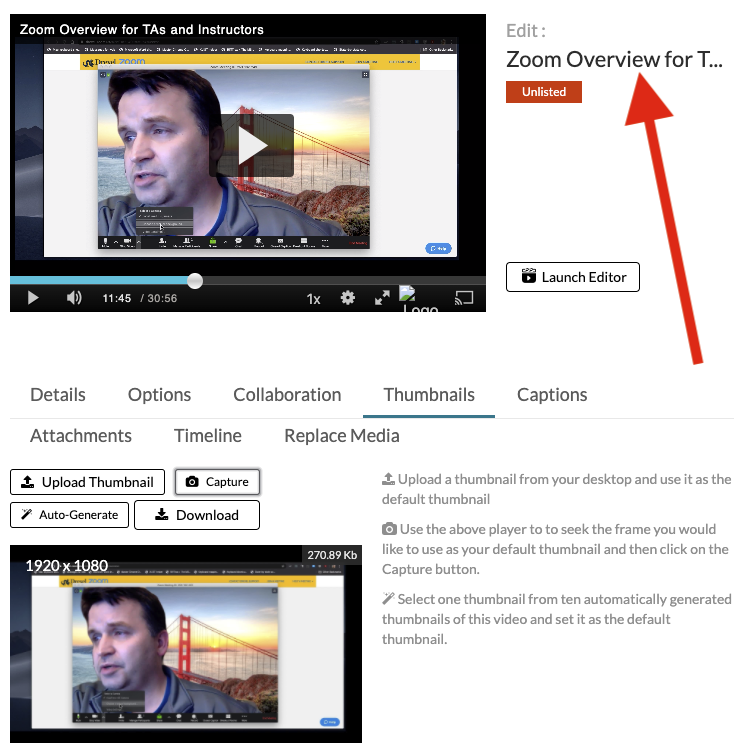
- Click "Thumbnails."
- Get to a point of the video that you think is the best image to represent the video.
(a) Or click "Upload Thumbnail," and upload your own image. Follow on-screen instructions & do not proceed further. - Click "Capture."
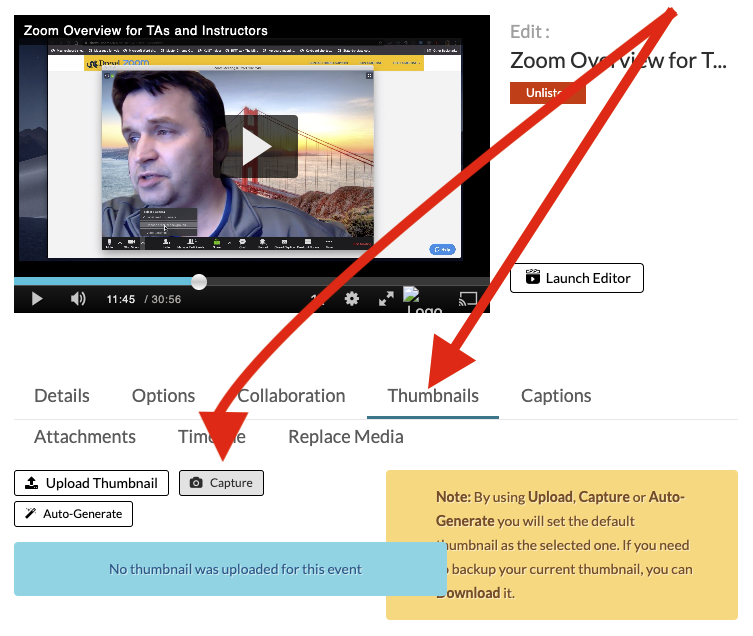
- You have now set the "Thumbnail" image for the video.
Click the name of the video to return to the normal view, if you wish.