Outlook -- Disable Link Preview in Online Outlook
Instructions on disabling link preview
When you use Office 365 Outlook online in an internet browser, you may have noticed that if you enter a URL or web address into the body of an email and press the spacebar or return, a box showing the webpage appears.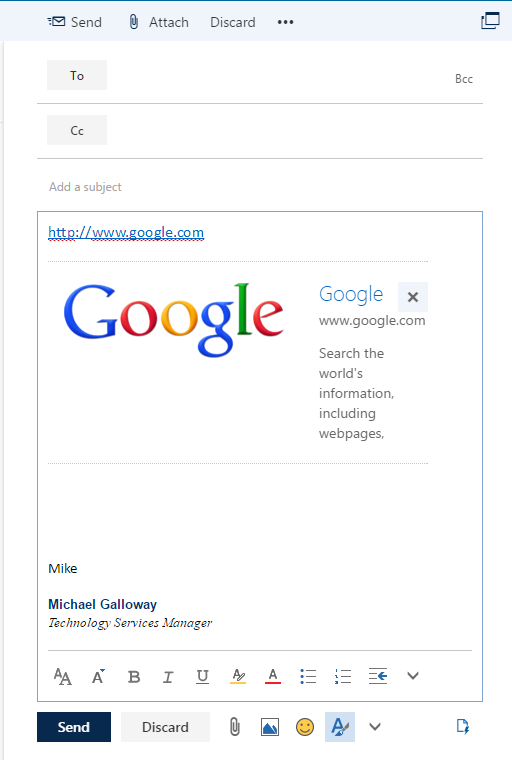
This is the "Link Preview" feature. You can disable it or turn it off if you do not like it.
To turn it off, do the following:
In Outlook in your internet browser, click the gear icon in the upper right. 
Click the "Mail" link in the lower right.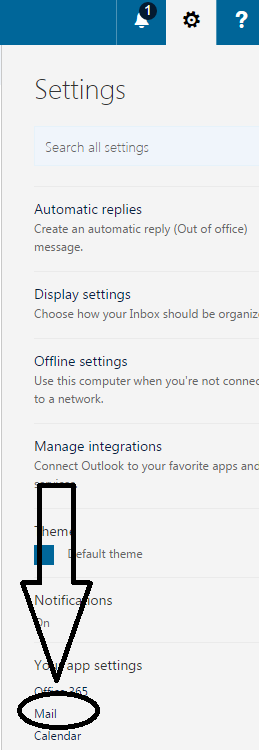
Under "Layout" in the left panel, click "Link Preview."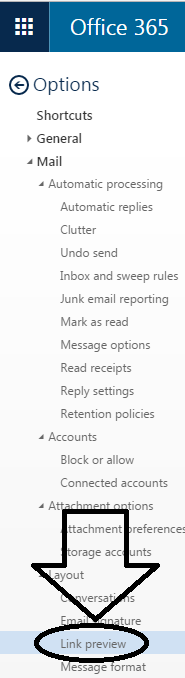
Uncheck "Preview links in email," and click "Save."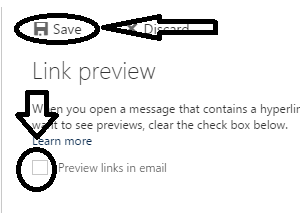
Click left arrow next to "Options" to return to your email in Outlook.