
Office 365 -- PowerPoint -- Auto run and Loop
PowerPoint-Auto run and Loop. Also autorun, auto-run
Introduction
Here is the instructions on how to make the presentation auto-run and loop and set the seconds between when it moves between slides.
Auto-Run Instruction
- Here is the link https://support.microsoft.com/en-us/office/create-a-self-running-presentation-57fc41ae-f36a-4fb5-94a3-52d5bc466037 on how to auto-run the presentation.
Loop-Presentation Instruction
- Open the MS PowerPoint presentation that you want to loop.
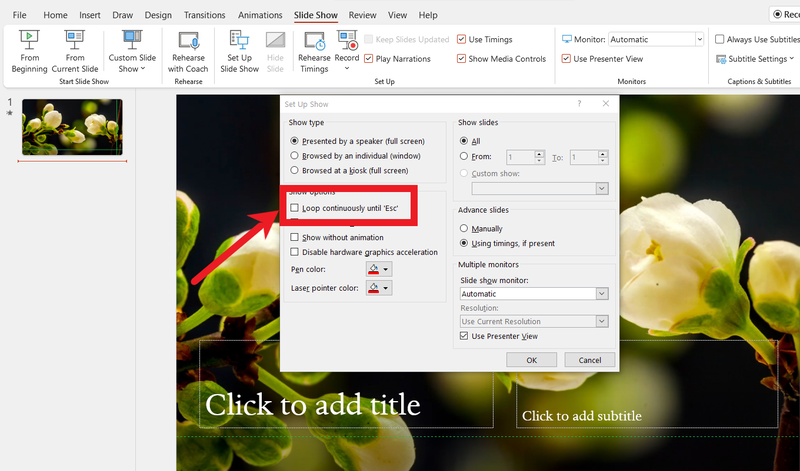
- Now click on the "Slide Show" tab, then click on "Set Up Slide Show."

- In the pop-up window that appears, click on the box next to "Loop continuously until 'Esc'" so that a small checkmark appears inside the box. Feel free to adjust any other settings in this menu as well. Click "OK" when you're finished.
- To test whether your PowerPoint can loop successfully, click on the "From Beginning" or "Play From Start" button in the Slide Show tab. Click through the slideshow until you reach the end. When your PowerPoint reaches its final slide, it should start over from the beginning automatically. When you're confident that looping is enabled, and you're ready to close the slide show, press the Esc key.
Timing-Slides Instructions
- Here is the link https://support.microsoft.com/en-us/office/set-the-timing-and-speed-of-a-transition-c3c3c66f-4cca-4821-b8b9-7de0f3f6ead1 on how to add the timing between the slides.