
OneDrive -- File/Video/Image folder share with no Account Set-Up
How to share files with other people that do not have a Microsoft account to access. non-Drexel, not Drexel, sharing file, sharing folder
Important Note:
This method does, and should not, require someone creating a Microsoft Account. Also, it should not require logging in with one.
Instructions:
- Visit https://onedrive.com .
- Click “Sign in” in upper right.
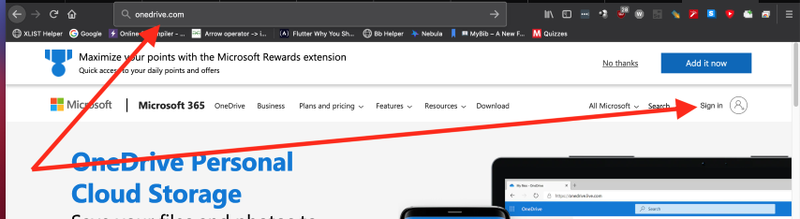
- Enter your Drexel userid@drexel.edu email address (for example: mjg88@drexel.edu , but use your own). Submit it.
- Choose your Drexel userid@drexel.edu email if prompted.
- Choose Work or School account (or Company or School account) if prompted.
- Enter Drexel password.
- Submit. Approve MFA.


- Find & select the file in OneDrive in your web browser.
- (Hover mouse pointer over file name, and check or click circle next to that file.)
- Click “Share” icon at top of page.

- Click “People you specify can edit.”

- Select “Anyone with the link.”
- Uncheck “Allow editing.”
- Click to ON or right the “Block download” switch.
- Enter a “Password.”

- Record what the password is somewhere.
- Click “Apply.”
- (Can’t find “Apply” button? Maximize the size of the web browser window. OR press Cmd and - or Ctrl and - to zoom out in web browser window.)
- Click “Copy link” chain links icon.

- Click “Copy” button.

- Paste the link, and the password, into an email, or however you want to share this.
- You can test if the link works by opening a private or incognito browser window (all major web browsers have this feature), and try out the link there, which will allow you to see what it’s like for someone who is not logged in to a Drexel OneDrive account.
- Note that If you go back and modify the Share options on the file or folder, you will have to run through the entire process again. It will still say you have edit access through the link, even you don't.
