
Canvas - Quizzes/Tests/Exams
Guide to quizzes/tests/exams
Quizzes/Tests/Exams:
- Watch Canvas Video & Read More: https://community.canvaslms.com/t5/Canvas-Basics-Guide/What-are-Quizzes/ta-p/68 You will have the option of using Classic Quizzes or New Quizzes.
- Cheat Sheet on Quizzes (also covers timers) from University of Oregon https://teaching.uoregon.edu/resources/canvas-quizzes
"Classic Quizzes"
- Includes these question types:
- Multiple Choice (MC), T/F, Essay, File Upload, etc.
- How to Canvas Video: https://community.canvaslms.com/t5/Canvas-Video-Shorts/Video-What-are-Quizzes/ta-p/650893
- Canvas Doc: What options can I set in a quiz?:
- Timer, shuffle Q's & A's, etc.
- https://community.canvaslms.com/t5/Instructor-Guide/What-options-can-I-set-in-a-quiz/ta-p/683
Classic Quizzes' RANDOM "Question Pool"
- First, you must have a Question Bank populated with all the questions you want to draw from (e.g., a bank with 50 questions for your midterm).
- Inside your Classic Quiz, you do not add questions directly. Instead, you click the "Questions" tab and select "+ New Question Group".
- You name the group (e.g., "Midterm Pool") and then click "Link to a Question Bank."
- You select your bank and then configure the group to "Pick [10] questions" at "[1] points per question".
- Canvas will now randomly pull 10 questions from that bank for each student, just like a Bb Learn Question Pool
Showing Correct Answers & Post Grade Settings (Classic Quizzes)
- If you set a Canvas quiz to show correct answers, you have to check both of these boxes in the Canvas settings.
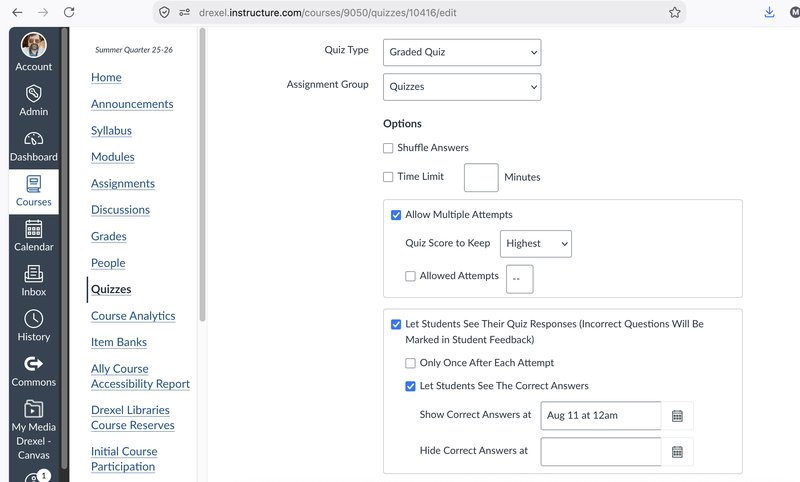
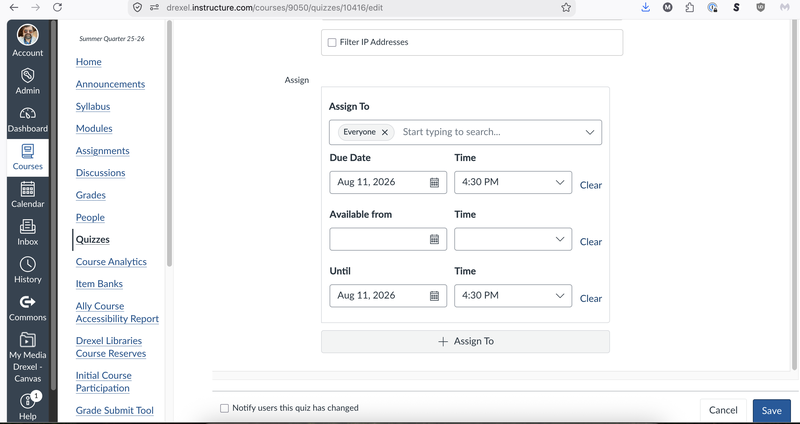
- If you want to make the quiz available at a certain day and time so you can Publish it in Canvas Grades without making the correct answers/grades immediately visible to students:
- Publish the quiz.
- Go to the Quiz column in Grades.
- Change that column's Grade Posting Policy to post the quiz grades for everyone when you are ready, especially if you want students to keep taking a quiz on their own time.
"New Quizzes"? NOT RECOMMENDED without THESE WARNINGS!
- MUST CHECK POINTS POSSIBLE in MODULES *AFTER* CREATION!
- Points on each question do NOT add up by default. 0 or 10 Points is default. Bizarre!
- Item Banks (like “Classic's” Question Banks)
- Tied to Instructor, NOT Sections.
- Must track down adjuncts or old instructors.
- Offers more question types (ordering, categorization, stimulus, hot spot, etc.) than classic.
- Gives little else over “Classic."
- But if you still want to use them…
- New Quizzes How to Video:
- https://community.canvaslms.com/t5/Canvas-Video-Shorts/Video-What-is-New-Quizzes/ta-p/650894
- New Quizzes Item Banks: Watch YouTube Video: Item Banks 101: New Quizzes Just Got WAY Easier! Angie Teaches Canvas
- https://www.youtube.com/watch?v=ne2s4nE9Rh0
Accommodation How to: Classic Quizzes
For Classic Quizzes, this is the way I'd recommend setting upaccommodations.
- Edit/create the Quiz.
- Set a Time Limit. AND set a Due Date, Available From, Until for Everyone
- Make SURE that the Available From & Until dates are in the FUTURE (&what you want).
- Click "+ Assign To."
- Type 1st few letters & select each student's name who needs different dates.
- Select Due Date, Available From/Until Dates for that student.
- Save & Publish the Quiz.
- You HAVE to Publish the Quiz for the NEXT part (to see "Moderate thisQuiz").
- So be SURE to set Available from in the FUTURE.
- Click "Moderate this Quiz."
- Note on the Quizzes page, you click the Quiz itself (its title), & not 3dots, to find "Moderate this Quiz."
- Click the pencil icon next to a student who needs extra time or attempts
- Enter time (and/or # of attempts).
- "Manually unlock the quiz for the next attempt" is basically a "let thisone student try again right away" button.
- Click "Save."
- Repeat steps a-d for other students with accommodations.
More on Canvas Quizzes, Tests & Emails
- Quizzes/Tests/Exams: Watch Canvas Video & Read More: https://community.canvaslms.com/t5/Canvas-Basics-Guide/What-are-Quizzes/ta-p/68
- You will have the option of using Classic Quizzes or (not recommended) New Quizzes.
- Cheat Sheet on Quizzes (also covers timers) from University of Oregon https://teaching.uoregon.edu/resources/canvas-quizzes
EXTRA ATTEMPTS/TIME or OTHER AVAILABILITY DATES on Quizzes? i.e., Accommodations or Exceptions?
- See University of Alabama at Birmingham page below. https://www.uab.edu/elearning/academic-technologies/canvas/quiz-moderation
New Quiz Item Banks:
- Watch YouTube Video: Item Banks 101: New Quizzes Just Got WAY Easier! Angie Teaches Canvas: https://www.youtube.com/watch?v=ne2s4nE9Rh