SoE Speitel Conference Room
The Speitel Conference Room, Lebow Engineering Center room 231, is a medium sized conference room in the School of Engineering.
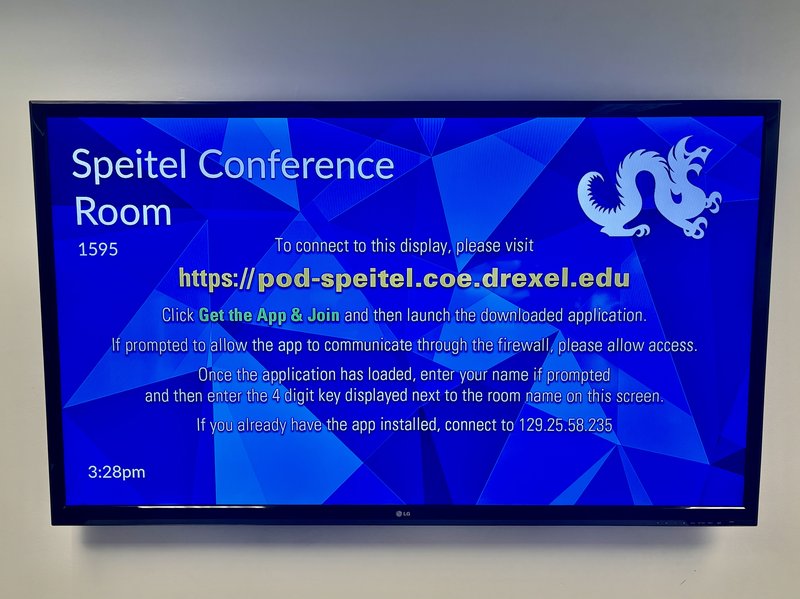
To use the TV, you can power it on using the remote. You should see a screen inviting you to connect to the TV using the Mersive Solstice Pod, which is described below. If not, use the remote to select HDMI 3, which should show the Solstice Pod.
You can then use the HDMI cable on the table, with the USB-C to HDMI adapter if necessary, to connect directly. The system should automatically switch to the HDMI input once detected.
Conference Camera, Microphone, and Speaker - Meeting Owl
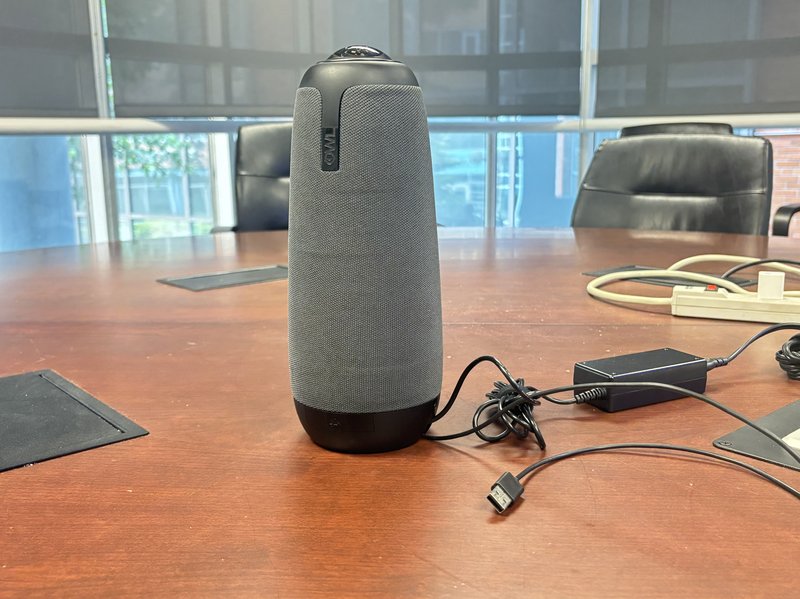
The Meeting Owl is a 360° camera, omnidirectional microphone, and speaker system available in the Speitel conference room.
It does not require special software, but will display an advertisement in the camera feed when plugged in suggesting that you download an iOS or Android app to control it. You can ignore this advertisement.
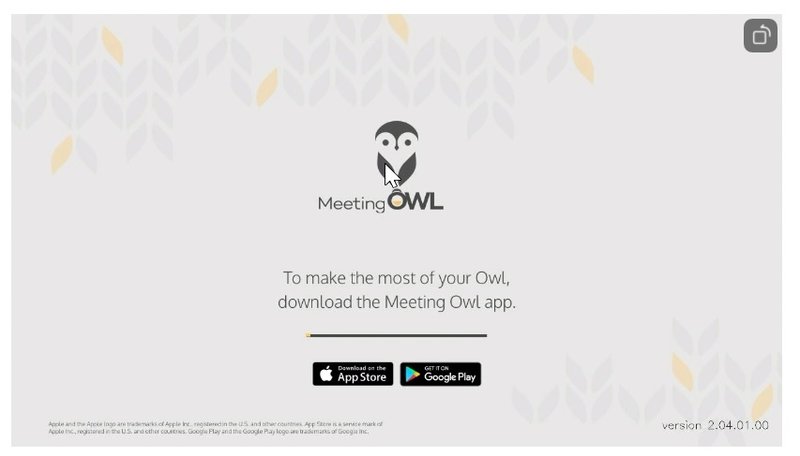
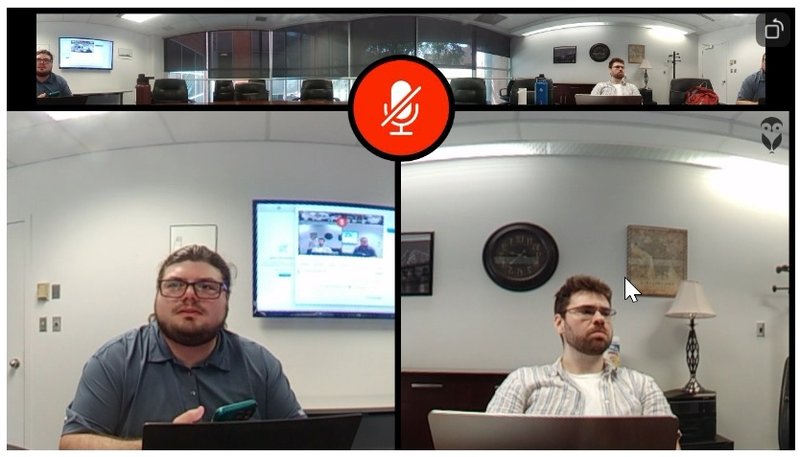
After 20-30 seconds, the screen should disappear and you should have a small strip at the top of the camera feed showing the full 360° view of the room, and speakers will be highlighted below when talking.
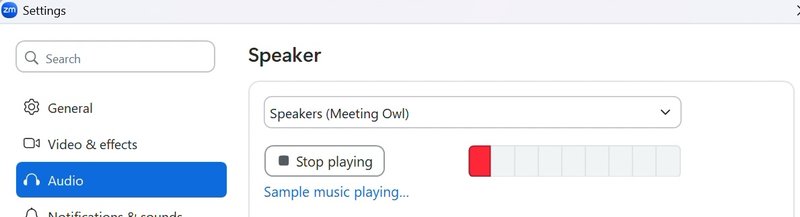
Audio settings
The speaker in Zoom should be set to "Speakers (Meeting Owl)"
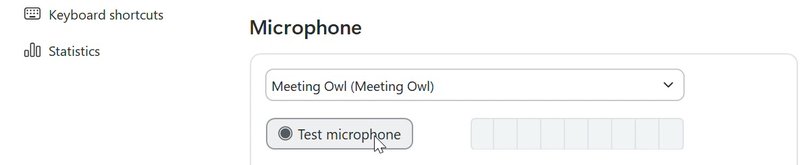
The Microphone in Zoom should be set to "Meeting Owl (Meeting Owl)"
Mute Button
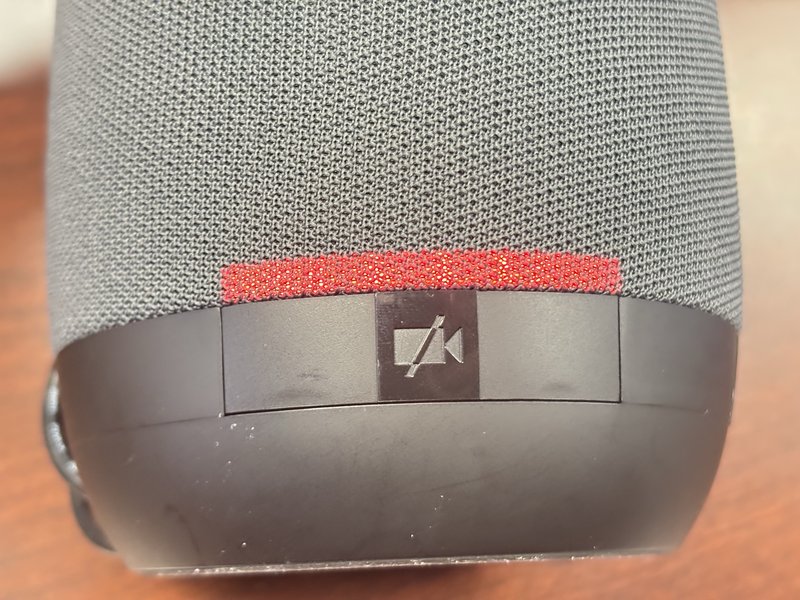
The Meeting Owl has a physical mute button, which will mute all audio being recorded by the device. Please note that the icon shows a camera with a line over it - despite this, the video is not muted when active, only the audio is muted.
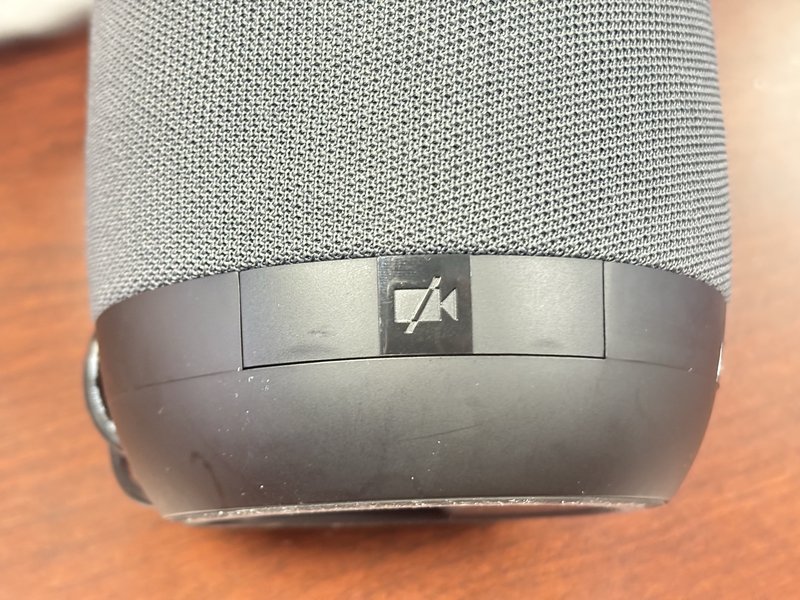
This is the mute button when the mute is off (audio is going through to Zoom or Teams).
This is the mute button when the mute is on (audio is not going through to Zoom or Teams).
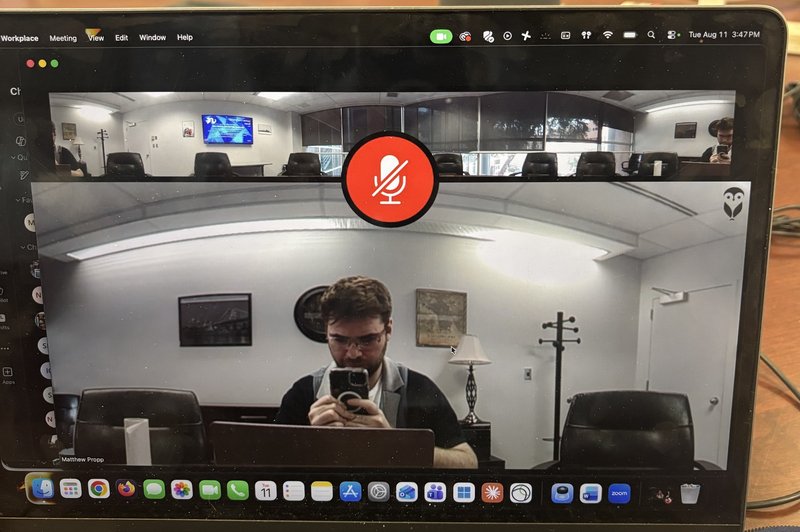
When muted, the device also shows a large red "muted" icon in the video feed to Zoom or Teams.
Wireless Sharing - Mersive Solstice Pod
The Mersive Solstice Pod allows you to share your screen wirelessly in the conference room.
To connect to the Mersive Solstice Pod wirelessly, visit the site https://pod-speitel.coe.drexel.edu. Accept the expired certificate (we are looking into replacing this) and you should be offered the option to download the Solstice software. This is compatible with Mac or Windows.
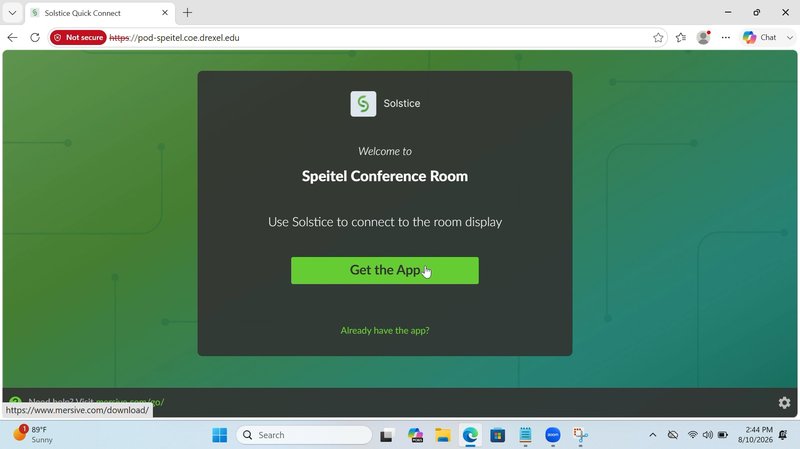
Once you've downloaded this software, you can connect to the device by navigating to https://pod-speitel.coe.drexel.edu and clicking the link "Already have the app?" then accepting that your browser will open the associated app for you.
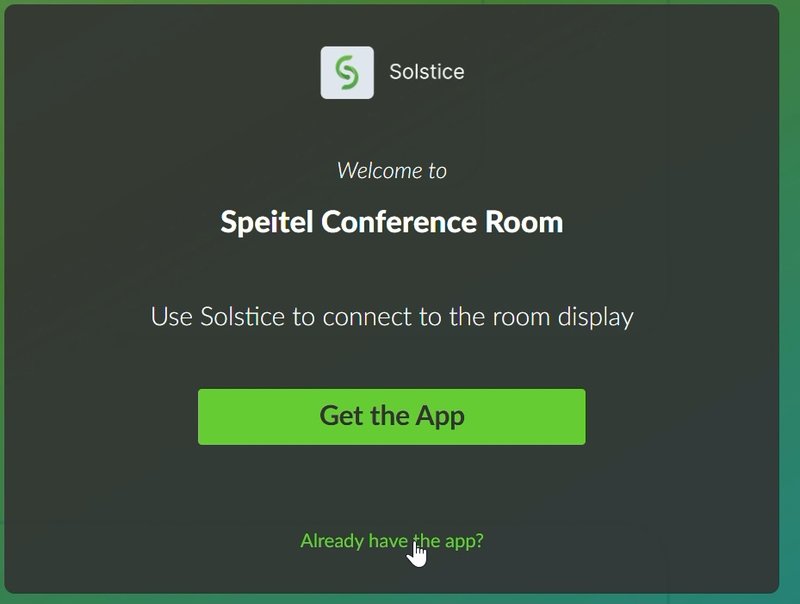
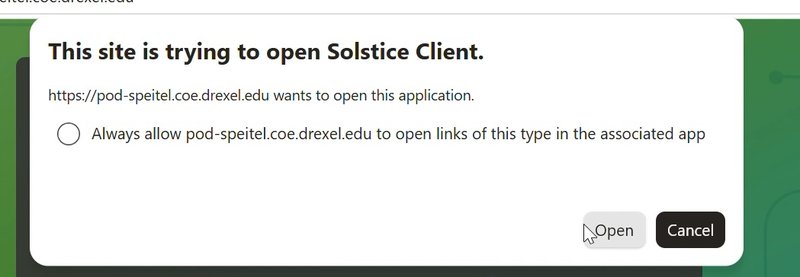
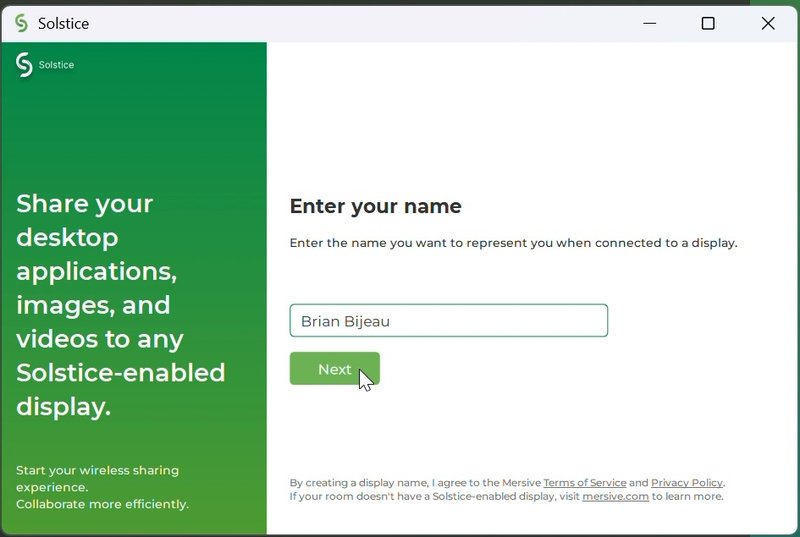
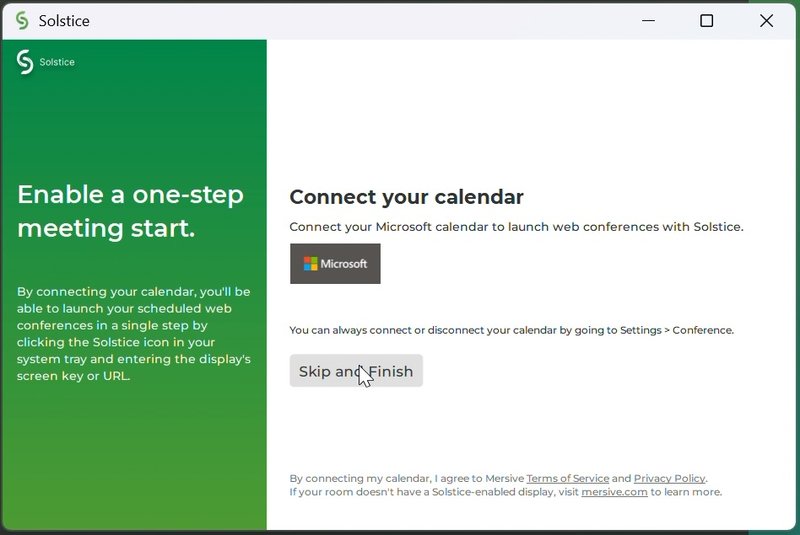
During your first screen share, you may need to give yourself a name - this is shown on the Solstice pod when you connect to it. You are also invited to connect your calendar, which we recommend skipping.
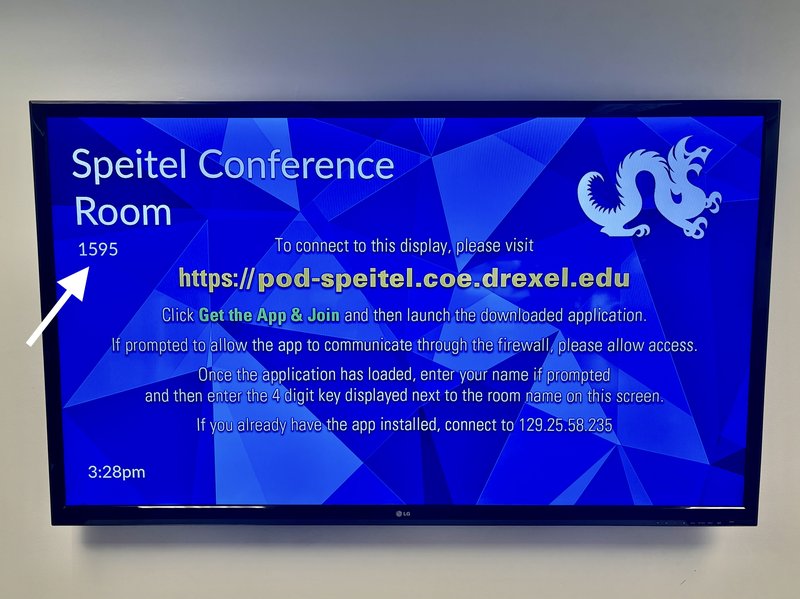
To finish connecting, you can then enter the code displayed on the Solstice pod to authenticate your session.
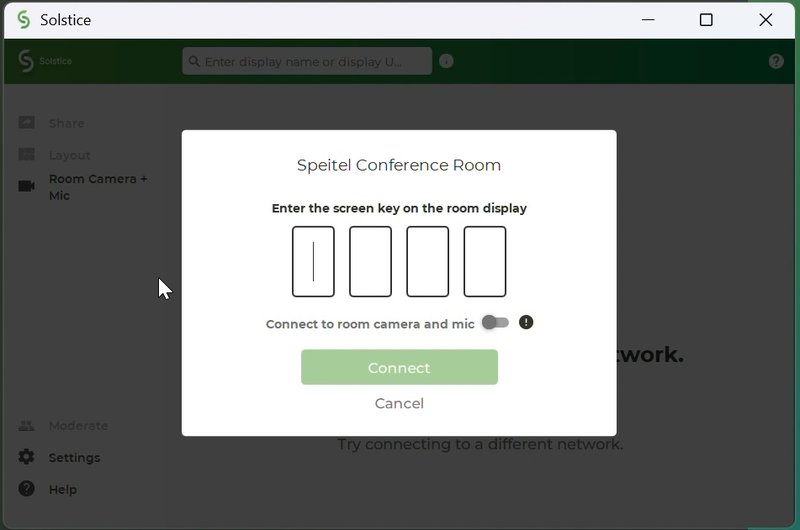
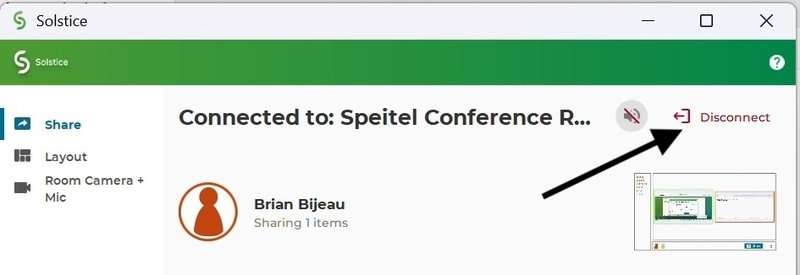
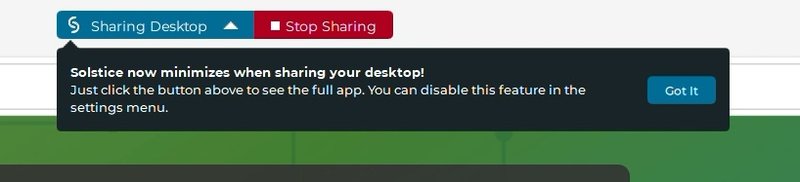
Once connected, you can choose to share your entire desktop, a specific window, or a media file. If you share your whole desktop, an icon will appear at the top edge of your screen allowing you to end your screen sharing session. To stop sharing a window or a file, return to the Solstice software to stop sharing.
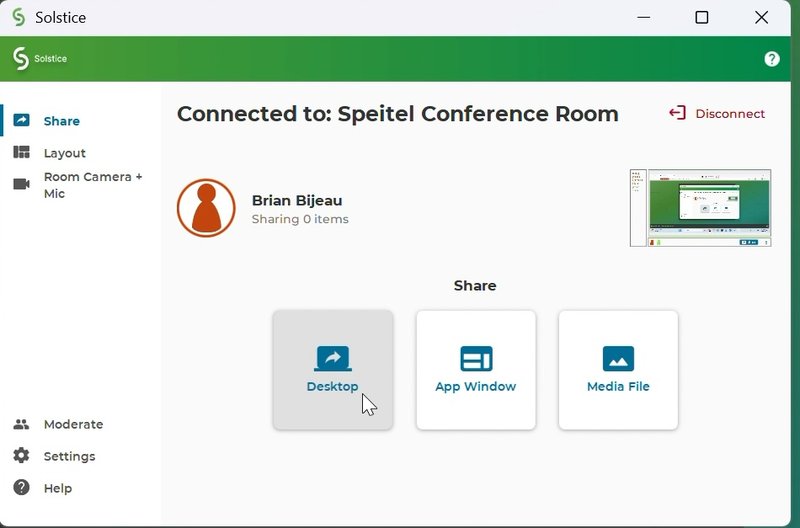
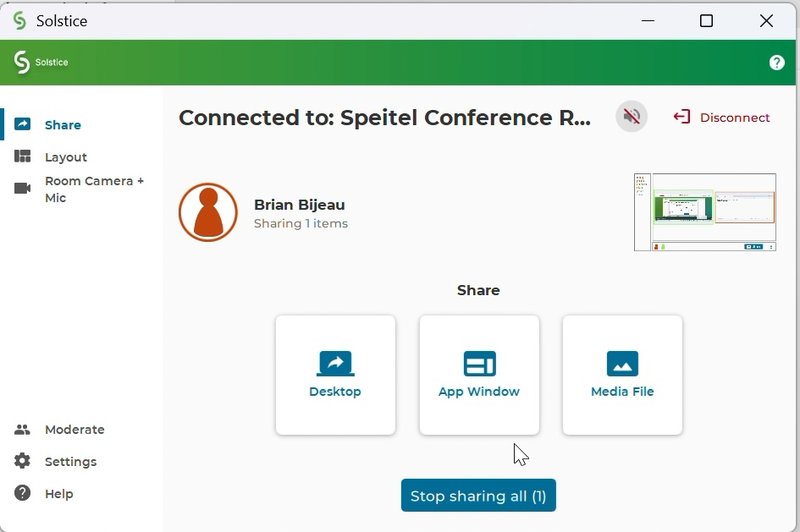
When you're done your session, make sure to click "Disconnect" at the top right corner of the Solstice app to end your session.