
Tux Home Directory Storage Usage
Checking how much storage has been used up in your Tux home directory.
Tux users are allowed to store 4 GB of files inside their home directory.
This is more than sufficient for most use cases, but if you are having issues with any functionality, you may want to check if you've exceeded this storage limit.
If you have exceeded this storage limit, it's usually for reasons A or B below.
(A) you have connected something like vscode to Tux, and vscode libraries and configs and other related files, particularly for projects, can very quickly take up the entire 4 GBs of allotted space.
or
(B) You have uploaded that many files somehow to Tux.
Also, if you are using vs code, please use the following settings to avoid other technical issues. VERY important!
Sometimes, there are other reasons, but the best thing to do at this point is to see if (a) or (b) apply.
Below is how to check how much of your allotted space you have used, and further below is how to move files out of Tux if you are out.
1. Connect to Tux over SSH like normal:
2. Run
du -sh ~/
This will tell you the real size of your home directory

3. From there, you can run the command
du -sh .[^.]* *This will get the size of all files and folders (including hidden ones) to help track down what's taking up space.
Often, things like VS Code may take up significantly more space than they are expected to.
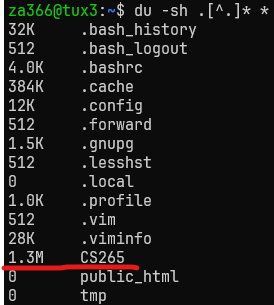
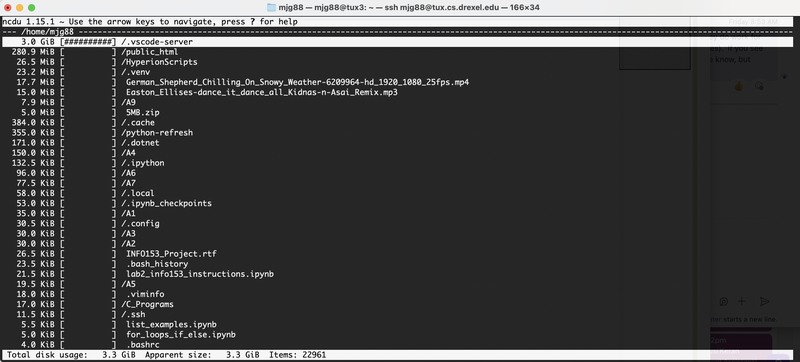
4. If you are using vscode, the folder ".vscode-server" can easily use 1 or more GBs, and ".cache" can easily use 2-3 GBs of your 4G B quota. SEE SCREENSHOT BELOW.
Use the ls -a command and then cd into these folders, if you wish, but there's really no need.
You can *SAFELY* use the 2 rm -rf commands below to delete .cache and .vscode-server folders/directories. They will be recreated on next connect and take up less space when they do.
IMPORTANT: Also, if you are using vs code, please use the following settings to avoid other technical issues.
Again, these 2 commands below will safely delete the .cache and .vscode-server folders/directories.
rm -rf .cache
rm -rf .vscode-server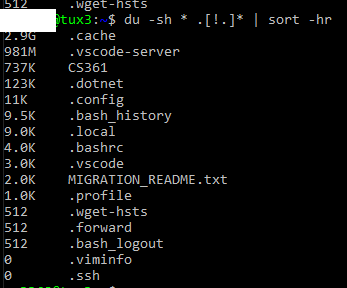
Other Troubleshooting Tips
Visual Storage Analysis with 'ncdu'
Instead of running individual 'du' commands, you can use 'ncdu' (NCurses Disk Usage) for an interactive, visual breakdown of your Tux home directory.
1. Launch 'ncdu'
Connect to Tux over SSH and run the 'ncdu' command:
ncdu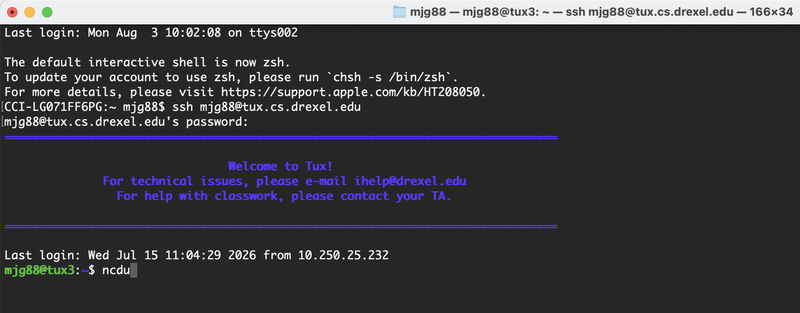
2. Scanning Process
ncdu will scan your home directory and count file sizes in real-time.
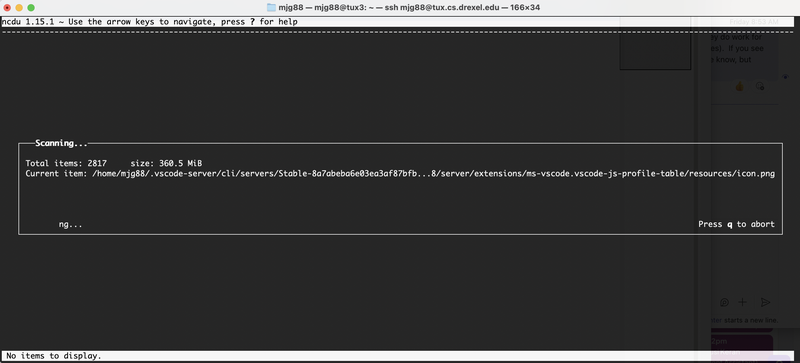
3. Identifying High-Storage Directories
Once scanned, ncdu displays a sorted list of folders by size. As shown below, hidden folders like .vscode-server often consume most of your 4 GB quota (taking up 3.0 GiB in this example):
4. Navigate & Inspect Subfolders
- Use the Up/Down arrow keys to highlight folders or files.
- Press Enter to open and inspect subdirectories (such as public_html).
- Press d to delete a selected file or folder directly (use with caution!).
- Press q to quit ncdu.
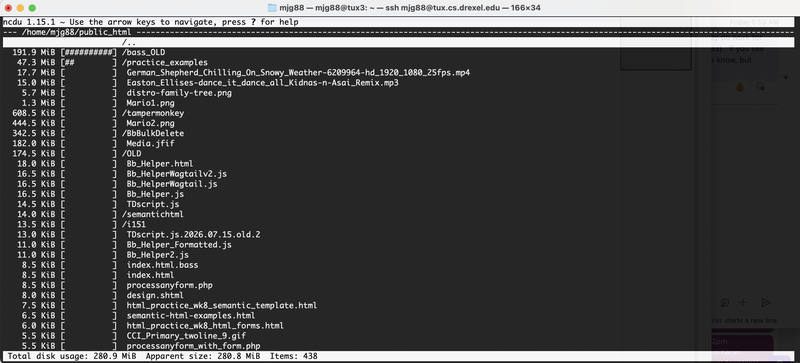
du -ah | sort -hYou're going to see a lot of lines, but the biggest files and where they are will appear RIGHT above your command prompt after its run.
Other ideas...
Run these 2 commands (or run again), though I don't see .vscode-server and I'm guessing .cache is ok, but it will NOT hurt to delete either (again).
rm -rf .cache
rm -rf .vscode-server
It won't hurt to see how big your home dir/folder is either. To do so, run these commands. Anything after the # won't be counted as part of the command, as it is a code comment.
du -sh ~/
# or
du -sh # won't name your home dir/folder though
If you are now well under 4 GB, then close your Terminal/console, and open a new one.
If you are still at 3.8 GB or so...
...try something like these commands to get more info about the sizes of the contents of the multiple named folder/directories.
.cache and cs472 and cs360 are all folder/directory names in this example.
du -sh .cache cs472 cs360
# or
du -sh cs472 cs360
One of these folders/directories above might be the issue (too much in it).
Use cd to navigate into a folder that has a lot of big files in it, and try the ls commands or the commands below to figure out where these big files/directories are.
Here are the other du commands to try.
Again, you can leave out the comments after the # in each line.
du -sh some-folder/         # human-readable total for one folder
du -sh */                   # totals for all folders in current dir
du -sh                     # totals for all folders in current dir, just shorter to type
du -ah --max-depth=1        # all files/folders, one level deep
du -sh -- */ .[^.]*/ 2>/dev/null | sort -h     # all reg & hidden files/folder, sorts by size
The "du" commands are just helping you see the size of the contents in the directories or folders in the current dir/folder you are in (except last command, which goes 1 level down form current dir/folder).
So again cd/nav around with the above info, and figure out what is taking up the space.
You can use something like Cyberduck or scp to move your files off if you don't want to delete them. More on that in next section.
Moving Files/Folders off Tux and onto your Computer.
If you are unsure how to get these files or folders off of Tux to your local computer, see the scp options/commands page below.
- FileZilla probably can be set to use vscode or another text editor or IDE of your choosing to save files to Tux without adding a huge library and cache of files with it. Use of FileZilla and how to set your own text editor or IDE is at the page below as well.
- SSH, SCP, SFTP GUI or CLI -- Working with Files or Folders on Tux or Remote Hosts
Remember too that everyone at Drexel gets online cloud storage through Microsoft OneDrive at https://onedrive.com . More information at link below.
If you've gone through your home directory and cannot reasonably clear up space (for example, due to a class using operating system images or a project involving a language model), contact ihelp@drexel.edu and request a storage extension.
In your request, mention that you've reviewed the files in your home directory and explain why you need more than the standard storage allocation.
The sysadmin may offer solutions outside of expanding your quota, depending on the type of work being done and if there is a more appropriate or performant option for storing the type of data you're working with.
Swap or .swp or Lock File Writing Error - Disk Quota Exceeded
If you get the error above, or the error shown in the screenshots below, again, follow what we say to do above. You have exceeded your allotted disk file space.
[ Error writing lock file ./.CG-hw9.py.swp: Disk quota exceeded ]
[ Error writing lock CG-hw9.py: Disk quota exceeded ]
Again, go to the top of this document and follow the instructions if you see errors like the ones above.