Bb Learn Content Areas -- Adding and Editing Items or Folders
Select option below. Click to expand to see more info below.
Items and Folders are two of the most basic types of content that you can add to a Bb Learn content area.
A content area in a Bb Learn course section is a webpage that has the "Build Content," "Assessments," "Tools," and "Partner Content" drop-down menus at the top.
The name of your content area will likely be different than "Course Materials."
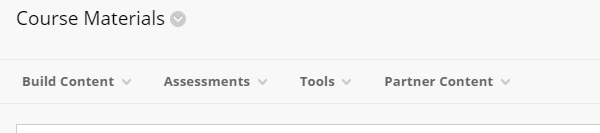
The link in the left-hand navigation panel leading to a Content Area can also be called a Content Area.
Again, your content area will likely have a different name than "Course Materials."
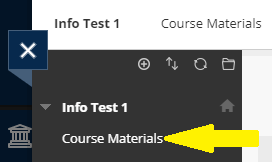
In a Content Area, you add, well, content. Like Items or Content Folders (from under "Build Content") to add text, web links, images, files, and folders. Assignment and test submission links appear in Content Areas as well.
If you need to create a content area, see:
An Item is a section of a content area with a name, text, attached/embedded images, files, and web links.
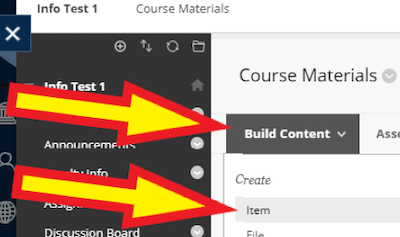
- Click the "Build Content" drop-down menu in a content area.
- Click "Item.
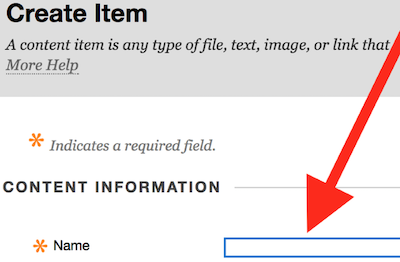
- Enter a "Name" for the Item.
For how to...
Add hyperlinks in the description or "Text" box,
or attach files if you want them ,
or add images,
or *link to readings/files/whatever*...
See: Bb Learn Basic - Content Area - Text Editor Box for Items, Folders, and MoreAnother way to attach a file?
This is the way to go to make files appear at the top of the Item you are creating/editing.
A. Click "Browse My Computer."
B. The file link will appear under the Item title when finished.
C. Follow the onscreen instructions.
D. Repeat this step to add multiple files here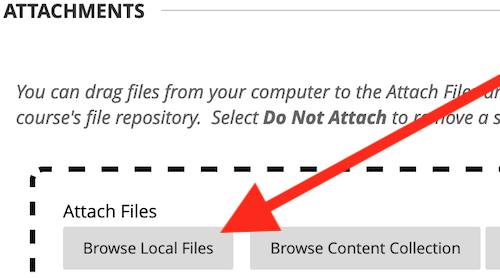
- Select "Yes" for "Permit Users to View This Content" to allow students to see this Item.
A. Select "No" to hide the Item from students.
B. Select "Yes,"
even if you want the Item to become available after or until a certain date and time.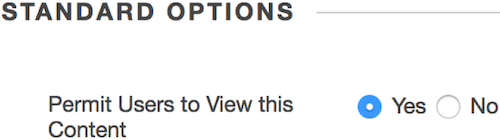
- Skip the "Track Number of Views" option.
It doesn't work for Items. - Set date and time restrictions in the "Select Date and Time Restrictions" area.
Select "Yes" for "Permit Users to View This Content"
if you set the Item to become available after or until a certain date and time.

- Click "Submit" to save your changes.
- Your Item has been created.
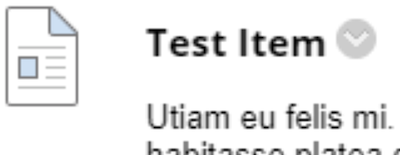
- If you don't see the icon shown above,
see the following webpage on hiding and showing the icons:
Bb Learn Content Areas -- Hiding and Showing Iconshttp://support.cci.drexel.edu/bb-learn/bb-learn-basics/content-areas/hiding-and-showing-icons/
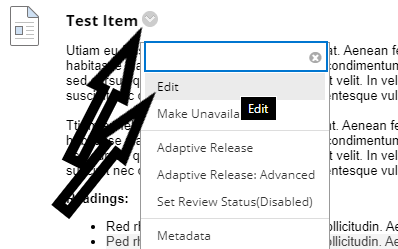
- Find the Item to edit in a content area.
See Optional Introduction section above if you are not sure what a content area is. - Hover over the Item's name with your mouse cursor,
and click the circled down arrow that appears. - Click "Edit."
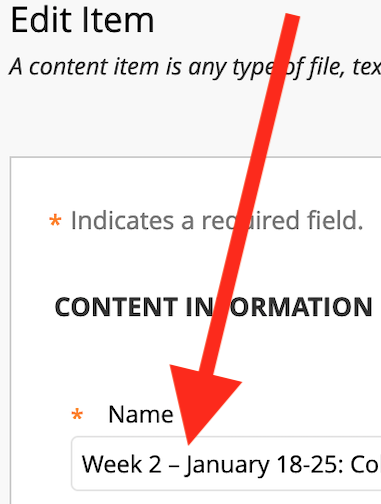
- Edit the "Name" for the Item.
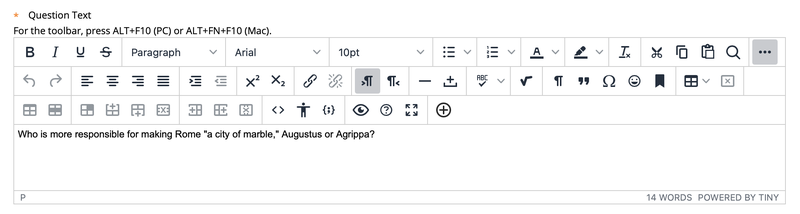
Enter or edit text/links/images in the description, if you wish, in the "Text" box.
For how to...
Add hyperlinks in the description or "Text" box,
or attach files if you want them ,
or add images,
or *link to readings/files/whatever*...
See: Bb Learn Basic - Content Area - Text Editor Box for Items, Folders, and More- Select "Yes" or "No" next to "Permit Users to View This Content"
to select whether students can see this Item.
Leave this option set to "Yes" if you set the Item to appear after or until a certain date and time. - Skip the "Track Number of Views" option. It doesn't work for Items.
- Set date and time restrictions in the "Select Date and Time Restrictions" area.
Select "Yes" for "Permit Users to View This Content" if you set the Item to become available after or until a certain date and time. - Click "Submit" to save your changes.
- Your Item has been edited.
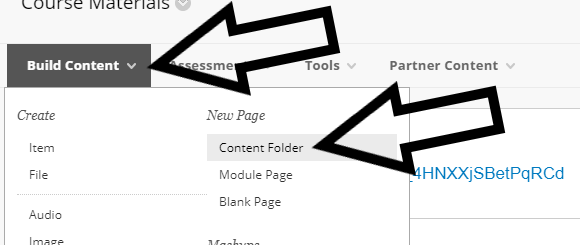
- Click the "Build Content" drop-down menu in a content area.
Click "Content Folder."
Enter a "Name" or title for the Folder.
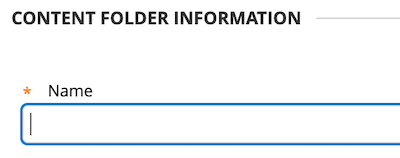
Enter or edit text/links/images in the description, if you wish, in the "Text" box.
Select "Yes" or "No" next to "Track Number of Views,"
if you want to track when people click the Folder title
If you want to see reports for Folder clicks, see:
Bb Learn Course Reports -- General Information- Set date and time restrictions in the "Select Date and Time Restrictions" area.
Select "Yes" for "Permit Users to View This Content,"
if you set the Item to become available after or until a certain date and time.
Click "Submit" to save your changes.
Your Folder has been created.
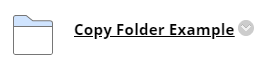
- If you don't see the icon shown above,
see the following webpage to show and then hide the icon again:
Bb Learn Content Areas -- Hiding and Showing Icons
When you click on a Folder name, you are taken to a sub-content area, where you can store more content. If you hide a Folder, all the content in that Folder is hidden.
- Find the Folder you want to edit in a Bb Learn content area.
- Hover over the title of the Folder with your mouse,
and click the circled down arrow that appears next to that title. - Click "Edit."
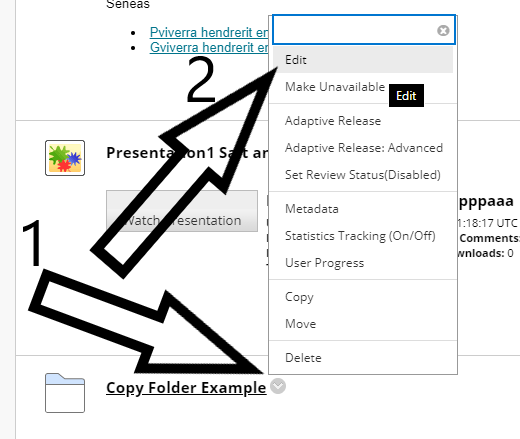
- Enter a "Name" or title for the Folder.
- Enter a description if you wish in the "Text" box.
- Select "Icon and Text" for "Content View."
A. Uncheck "Change Default Content View..."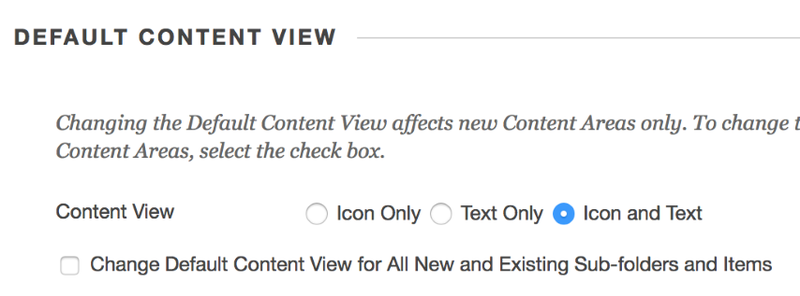
B. You can also set the default content view for this folder and other folders to only show icons, or only show text - Select "Yes" or "No" next to "Track Number of Views,"
if you want to track when people click the Folder title.
If you want to see reports for Folder clicks,
see: Bb Learn Course Reports -- General Information - Set date and time restrictions in the "Select Date and Time Restrictions" area.
Select "Yes" for "Permit Users to View This Content,"
if you set the Item to become available after or until a certain date and time. - Click "Submit" to save your changes.
- Your Folder has been created.
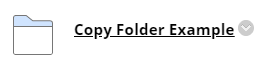
If you don't see the icon shown above,
see the following webpage to show and then hide the icon again:
Bb Learn Content Areas -- Hiding and Showing Icons
The webpage below will tell you how to move an item or folder up or down the content area webpage.
PowerPoint 2016 for Mac
- Open up PowerPoint on your computer.
- Open up your PowerPoint presentation.
- Go to the 1st slide.
- Click the "File" menu at the top left.
- Click "Export."
- In the "File Format" drop-down, choose "PNG."
- Select "Save Current Slide Only."
- Click "Export."
- Save the small first slide image to your computer.
- The edit text/links/image
s in an Item instructions below will tell you how to add an image, hyperlink an image, and/or attach the PowerPoint file.
PowerPoint 2016 for Windows
- Open up PowerPoint on your computer.
- Open up your PowerPoint presentation.
- Go to the 1st slide.
- Click the "File" tab at the top left.
- Click "Save As" from left red panel.
- Click "more options" under the two long white boxes.
- From the "Save as type" drop-down menu, choose "PNG Portable Network Graphics Format."
- Enter a name for the file, and choose where to save it.
- Choose "Just This One" from the pop-up window.
- The edit text/links/images in an Item instructions below will tell you how to add an image, hyperlink an image, and/or attach the PowerPoint file.
If you need something more than date/time options or a manual option for when material appears to students.