
Kaltura Drexel Streams -- Adding Audio or Video to a Content Area -- Instructors Only
how to add media on Kaltura Drexel Streams for instructors
- You need to record a video first.
If you need options for how do to that, see the link below.
Adding Media to Bb Learn via Kaltura or Drexel Streams - For Kaltura Drexel Streams, in a content area (the areas in your course section/shell with the “Build Content” and “Assessments” and “Tools” and “Partner Content” drop-down menus at the top)…
A content area in a Bb Learn course section is a webpage that has the "Build Content," "Assessments," "Tools," and "Partner Content" drop-down menus at the top.
The name of your content area will likely be different than "Course Materials."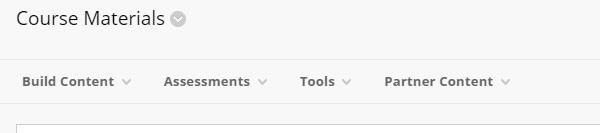
- Click Build Content > Kaltura Media > +Add New to add a new video
Or Select instead of +Add New in order to choose from an already uploaded video. - Follow onscreen instructions.
It takes time for videos to be playable after upload. Give it a few hours, though it may upload much sooner.
There are 3 ways to see your upload Kaltura Drexel Streams videos.
- Visit https://drexel.edu/it/streams , and login.
Click "My Media". Search for videos. - Visit Bb Learn at https://learn.dcollege.net
And click Sign In Standard > Tools (in left navigation panel) > Kaltura My Media.
Search for videos. - Visit DrexelOne at https://one.drexel.edu .
Login, click "CAMPUS+COMMUNITY".
Scroll down to & click "Drexel Streams."
Click "My Media". Search for videos.
Want to allow students to download the video?
- There's a work-around solution for this. See link below.
- Kaltura Drexel Streams -- Allow Downloads